How to Author with Apple DVD Studio Pro 1.x
DVD Studio Pro (DVDSP) is the Apple update to what was previous SpruceUp professional authoring software. While it is very advanced authoring software, it comes with a very engineering-like interface common to professional authoring applications (and it should be noted that this author despises needlessly complex software interfaces!). There is very little that this software cannot accomplish.
This guide is not a 100% complete DVDSP experience, but it should get you started with what is an otherwise daunting piece of software. In fact, this guide may be a bit rough at times, so be prepared to experiment a bit on your own. This guide was created on a Mac G4 system on OS9 (9.2.2) using DVD Studio Pro 1.1.
DVD Studio Pro 1.1
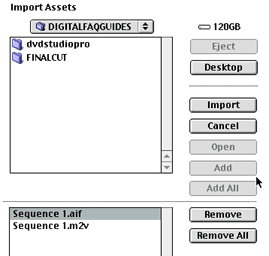
Import video/audio files. Goto FILE -> IMPORT to import the DVD-ready MPEG video files, and audio files (AC3, DTS, PCM/WAV/AIFF, MP2/MPA), as well as any required image files for the menu (BMP, PSD, etc). The imported assets will appear in the assets window. Select (ADD, ADD ALL) the assets and then press IMPORT to complete the operation.
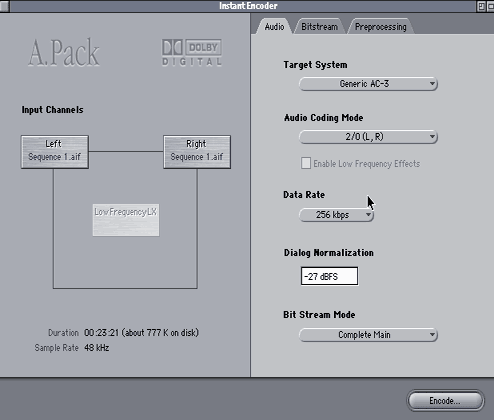
Optional A.Pack AC3 encoder, included with DVDSP.
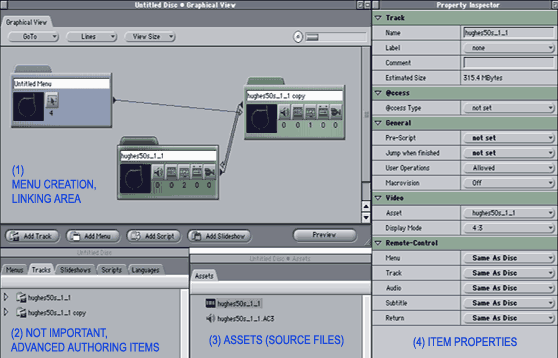
Software layout. DVDSP has a basic setup using four windows: (1) one for the linking and graphical menu item access, (2) an information (attention not really needed for this guide) and advanced area, (3) the assets window, and (4) the properties menu that houses the options and commands for menu creation.
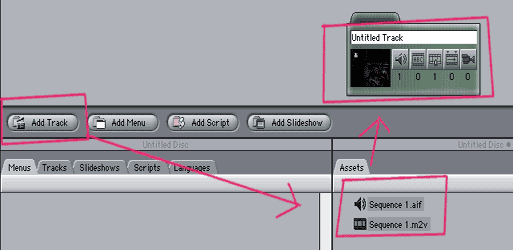
Add menus, tracks. Link project. Menus are created and linked by dragging the menus/tracks to the creation area. Click ADD MENU to make a new menu. Drag necessary background image/video assets to the MENU “folder”. Come back to the MENU design later, continue to import and link assets for now. To add video clips/movies, either click ADD TRACK or drag a video to the creation/linking area. The little icons on the folder will show video, audio tracks (and number of tracks), and subtitles, etc. Tracks and menus will link to other objects by default, but this can be changed later on.
Disc, Track Properties managers. There are three major types of properties (at least for the purpose of this guide), including MENU, TRACK and DISC. This should be fairly self-explanatory. Clicking on a MENU, for example, will bring up the MENU properties. Same for tracks. Click anywhere on the blank area of the creation area to bring up the DISC properties.
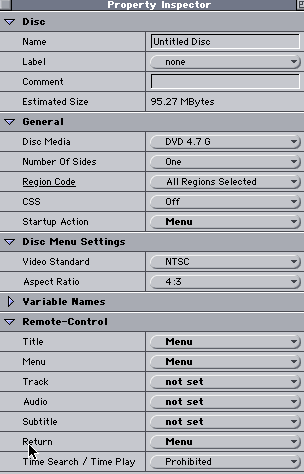
On the DISC properties, you can name the disc, specify the blank media properties, and set some menu/remote control properties. Much of this is already set as default. The STARTUP ACTION is where you can insert a DVD FIRSTPLAY if desired, or have it go directly to the main menu.
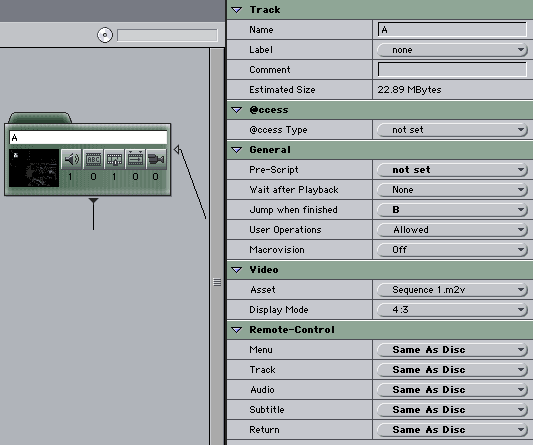
The track properties includes the track name (useless outside the authoring program, but useful when you have many objects to work with), and the kinking commands. As explained earlier, links can be changed from the defaults that were created when the tracks were added. The “Jump When Finished” command, as shown in the example below, moves from clip A to clip B. Again, much of this is default settings.
Menu Properties, menu creation. DVDSP is not simple point-and-click like many modern authoring programs (especially consumer-level software). Creating the menus takes a bit of patience and attention to detail. To launch the menu, double click on the image/video shown on the small menu “folder” in the linking/creation area. It will both launch the menu in a new window, and bring up the MENU PROPERTIES on the properties menu. Continued below image…
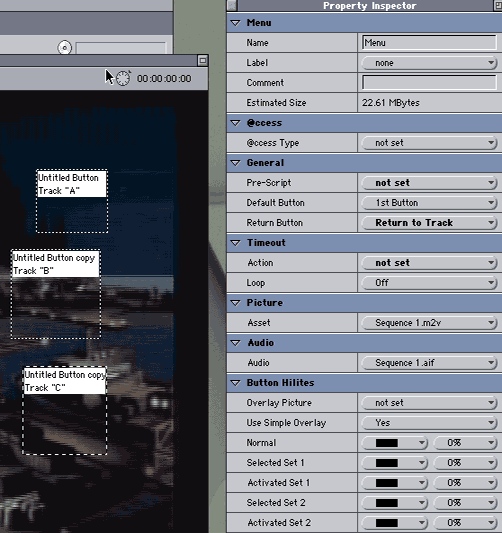
In this example, there is a motion (or still) menu background, and text that has an additional highlight image. A single Photoshop PSD is used as a SIMPLE OVERLAY, and the OVERLAY PICTURE is set to this PSD file. In order to active the highlights, click and drag boxes on top of the menu, over the area where the menu item is supposed to be. This is also how videos/clips/movies are linked to the menu. Clicking on a button will bring up the BUTTON sub-properties menu, where the overlay size can be numerically adjusted as needed, as well as some other options.
Sadly, some of this must be done by trial and error. The overlay PSD is NOT visible (at least not in THIS VERSION of DVDSP), so hit the PREVIEW button, found in the creation/linking window (one of the four main windows of DVDSP, discussed at beginning of guide).
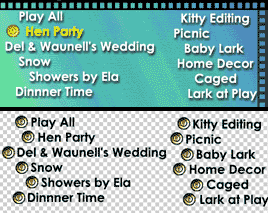
In the above example, the final menu is on top, and the Photoshop PSD layer is on bottom. All of the overlays are in the SAME LAYER. This is what makes the overlay simple. It is not suggested to allow highlight boxes to overlap (and in fact, many programs reject it, and may not supported by the official DVD spec). For DVDSP, the menu images/videos and overlay PSD should all be a 720×480 canvas (overall image/resolution size). The darker the color (or more technically, the closer it is to an alpha color), the more the of a highlight is will produce. For example, a gradient image would result in a gradient highlight, which can make some nice effects.
Burn final DVD. DVDSP comes with it’s own burning engine, or it can author a folder set (which can then be burned with your preferred DVD burning software). Goto FILE -> BUILD (or FILE-> BUILD & FORMAT DISC to burn directly to a DVD). Follow the onscreen instructions. Very easy.
IMPORTANT NOTES!
(1) Always remember to link the path of buttons/menus. Always specify the end action, so that the disc does not go into limbo and crash in the player. This is sometimes called “orphaned assets”.
(2) Save often. Save often. Save often.
(3) Pay close attention to the chapter marks/jumps.
(4) If you do not loop the main menu, it will play once and then end.
(5) Remember to link the last track back to the main menu as the end action.
(6) Take advantage of the preview function. WYSIWYG (what you see is what you get).
(7) Do not try to add CSS or Macrovision, as it will NOT work without the proper keys and hardware, and if you do not understand what this means, this message is specifically made for you.
Copyright Notice: All guides, articles and editorials found on digitalFAQ.com are copyright by The Digital FAQ and/or the respective authors. Articles may not be copied, borrowed, full-quoted or reproduced in any manner, online or in print, which includes blogs and forums, without the written email consent of Site Staff (which may or may not be given, for free or fee). Know that digitalFAQ.com staff does routinely monitor online plagiarism, and we do send takedown notices to site admins and/or web hosts (DMCA et al legal actions) as is necessary. If you would like for others to read articles found on The Digital FAQ, simply link to our content. (Note: Printouts for personal use is specifically allowed.)
