Video Capturing: Sound Card Suggestions and Audio Settings
When capturing video, it is important to remember the audio portion of the capture. Is the hardware installed correctly? Is the software setup properly? Is the operating system setup properly? Are the volumes a proper volume? Not having these things setup can have many side effects, including low audio, distorted audio … or no audio at all!
Windows Audio Properties
All versions of Windows have some sort of SOUND/VOLUME icon located on the system tray. In most earlier versions of Windows, this appeared as a yellow speaker, newer versions have a smaller gray speaker. Double-click this icon to reach the WINDOWS AUDIO PROPERTIES.


Play Control. After double-clicking on the SOUND ICON, the following two screens should appear (mine is split in half, the full size is 11 objects). It shows all the available (and selected to be shown) playback volumes. Anything NOT in use should be muted. Muting unused audio will prevent bleed-through from other sources.
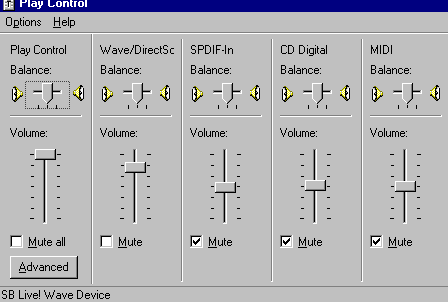
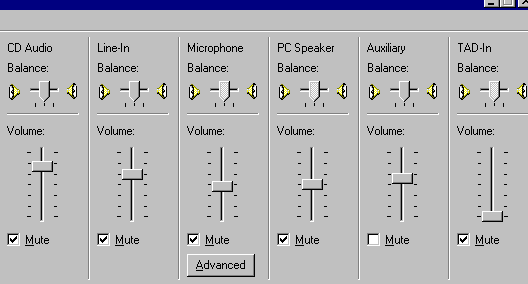
More sources. If you only see a few audio sources, it means some of them are not selected. By default, Windows hides more than half of your available audio sources, including the commonly-used AUX channels. To view ALL of you available audio sources, goto OPTIONS -> PROPERTIES
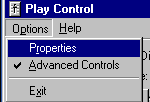
Properties. In the PROPERTIES area, you can access both the PLAYBACK volume and the RECORDING volume. Check all of them. Even if they are not going to be used for PLAYBACK, they need to at least be muted.
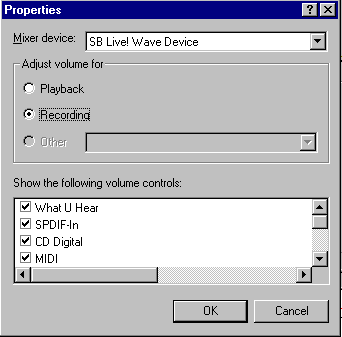
Recording adjustment. Under the RECORDING properties, select the audio source you will be using. In this example, my system uses the AUX channel and is internally wired from the SoundBlaster AUX port to the AUX IN on the ATI All In Wonder card. Then set the volume to about 75% peak volume, as shown in the following image.
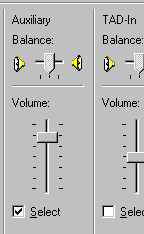
Setting the volume. Refer back to the images ABOVE as needed…
PLAYBACK CONTROL, WAVE and then the INPUT source (whatever you choose, be it LINE IN, AUX or another one) should be the only non-muted audio sources. These should be set somewhere between 50% and 85% of maximum volume. You do NOT want to raise the volume to maximum levels, as it can distort and corrupt the audio. Plus capturing at maximum level tends to enhance hiss and make audio restoration more dificult.
Test. Finally, do a test capture and make sure the volume is acceptable. When viewed in an audio editor like SoundForge, the peak values should never be clipped. If clipping occurs, lower the Windows audio RECORDING volume, and then check your capturing software and drivers. Most good capturing software integrates the program volume with the Windows volume (as does ATI MMC for ATI cards).
Sound Settings for ATI All-In-Wonder (ATI MMC)
The follow information is for ATI All In Wonder cards using ATI MMC as the capture software. The goal of setting the audio is to not be too high or too low. Setting it too high will result in crackling audio, setting it too low will result in ambient noise (like hiss) being amplified.
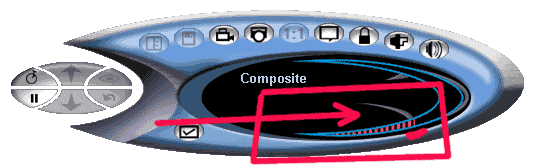
General settings. On the ATI MMC control menu, the audio is represented by a red-bar image. Moving your mouse, click the left button and holding, and then dragging back and forth, will change the audio. This is SUPPOSED TO match up with the main Windows audio settings, but some systems do not do it correctly. The ATI MMC (and/or Windows) volume level needs to be between 50-85% (about 70% on average) for the best results.
The quick trick is to line up the red bars with the gray design that appears against the black field background of the control panel. See image:
Registry hacks. Sometimes ATI MMC audio is not affected properly by the ATI MMC or Windows audio settings. it is NOT COMMON and often NOT NEEDED. Few people should ever need this hack.
Find this key in the WINDOWS REGISTRY:
HKEY_CURRENT_USER\Software\ATI Technologies\Multimedio\Features\TV\Sound
And find these values:
Value Sound: Defaulted at 244 (leave it as is, or change it to this setting)
Value Record Volume Defaulted at 440 (change it to about 175)
In this example, the record volume was more than 200% too high. Your default numbers may vary, and the amount to drop it may also vary. Experiment with test captures to find the appropriate values.
Copyright Notice: All guides, articles and editorials found on digitalFAQ.com are copyright by The Digital FAQ and/or the respective authors. Articles may not be copied, borrowed, full-quoted or reproduced in any manner, online or in print, which includes blogs and forums, without the written email consent of Site Staff (which may or may not be given, for free or fee). Know that digitalFAQ.com staff does routinely monitor online plagiarism, and we do send takedown notices to site admins and/or web hosts (DMCA et al legal actions) as is necessary. If you would like for others to read articles found on The Digital FAQ, simply link to our content. (Note: Printouts for personal use is specifically allowed.)