How to Edit Video from Pre-Recorded DVD on a Computer
At some point in time, many find it necessary to edit or correct problems on an already-existing DVD. There are many reasons a person would want to extract content from a disc:
- Maybe the bit-rates are too high, and the multi-disc collection could be merged onto less discs?
- Maybe the audio was encoded as non-compliant MP2 and you need it as PCM or AC3?
- Maybe the audio and/or video needs restoration work?
- Maybe the edits are bad, and you can fix it?
- Maybe the disc had assets authored out of order, and you want to fix it?
- Or maybe you simply wanted to grab some footage for another project?
This guide requires DVD Decryptor and VOB Edit, both free tools. It will show you how to extract the video and audio files from the DVD, and then re-author it to a new disc with new menus, maybe even shrink it after combining several discs.
Because the sources and authoring methods of the DVD are largely unknown, this guide takes a thorough and safe approach to the extraction. While some people may choose to copy VOBs or simply use an “IFO rip” to extract the PGCs, those are sloppy methods that often result in problems during editing and/or authoring.
Decompile the disc
Be it a homemade or professionally produced disc, load it in DVD Decrypter. Go into IFO MODE.
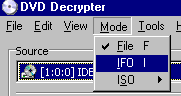
Notice the PGC list. These are your video files. You’ve got to figure out on your own which PGC goes with which item. In this example, PGC 1 is the movie (note the 1:39 time stamp) and the others are extras.
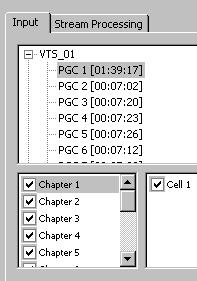
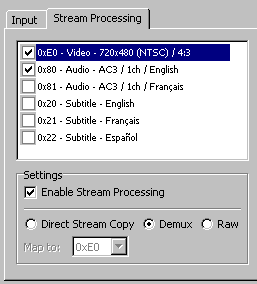
Go to Stream Processing. Enable the processing and select the DEMUX option. Also you can choose what you want. In this example, I chose to dump the non-English language tracks and subtitles.
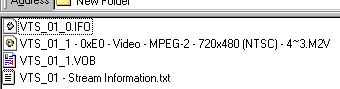
Files. After decrypting the PGC (PGC 2 was used in this example), you’ll find the files on your hard drive. You can delete the IFO and TXT files, as they are not needed. What you have left is the M2V video files and the VOB containing the audio.
Extracting the audio. Close DVD Decryptor and open VOB Edit. At the bottom right press the OPEN button and go open the VOB file. A list of information will appear on the left-half window. Next click the DEMUX button on the bottom near the OPEN button.
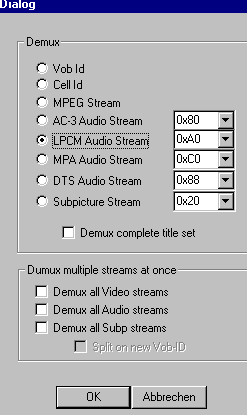
In the window above that opens from pressing DEMUX, select the audio type that you are extracting. This must be figured out on your own, thought the left-half window information normally says PCM Audio Pack or AC-3 Audio Pack in the audio information. If there are multiple audio streams, then be sure to tick the “demux all audio streams” option.
This program can also be used to extract video and audio from VOB files already on your hard drive, though I prefer the DVD Decrypter method as it is more accurate and can detect seperate PGC within the same VOB automatically.
You now have your AUDIO and VIDEO files successfully extracted on your hard drive and ready for further use.
Re-Encode / Re-Author / Re-Burn / Merge
This is where this guide ends. Now that you have successfully extracted the video and audio files, you can re-encode as wanted, or even just re-author and then re-burn.
For editing, Womble MPEG Video Wizard is suggested. A very thorough video-based guide is available for Premium Members to watch in the digitalFAQ Support Forum.
For authoring, TMPGEnc DVD Author or TMPGEn Authoring Works are excellent easy-to-use choices. For slightly more advanced authoring, consider Ulead DVD Workshop 2 (no longer sold by Ulead directly, but still available online).
For burning, use ImgBurn, after you have authored. This freeware DVD-compliant tool is easily the best burning software available, beating out most commercial options.
Merging discs: the ‘Shrink’ trick. This method is also useful for compressing several discs onto one disc.
Example: There were three old discs that had PCM audio, were only 3GB in size, and the video files were cartoons with 9.8 CBR MPEG-2 bit-rates. It was complete overkill and a waste of space. I took the audio and re-encoded to AC3 with Besweet. I then made new menus (which actually looked better than the ones on the source discs) and authored a project to the hard drive that was about 7GB in size. I then used DVD Shrink 3 Beta 5 in Deep Analysis mode and shrunk the 7GB folder to a 4.38GB suitable for burning. The final product looked as perfect as the original, but at 1/3rd the original size in terms of discs. Excessively long re-encodes were not needed. This is not always going to lead to high quality, but in this example, it did.
Copyright Notice: All guides, articles and editorials found on digitalFAQ.com are copyright by The Digital FAQ and/or the respective authors. Articles may not be copied, borrowed, full-quoted or reproduced in any manner, online or in print, which includes blogs and forums, without the written email consent of Site Staff (which may or may not be given, for free or fee). Know that digitalFAQ.com staff does routinely monitor online plagiarism, and we do send takedown notices to site admins and/or web hosts (DMCA et al legal actions) as is necessary. If you would like for others to read articles found on The Digital FAQ, simply link to our content. (Note: Printouts for personal use is specifically allowed.)