Quantcast How to edit IFO/ISO/VOB files? - digitalFAQ.com Support Forum
Go Back   digitalFAQ.com Support Forum > Digital Video > DVD Project Help > Encode, Convert

Reply
LinkBack Thread Tools
  #1  
02-11-2005, 08:20 AM
mlaviolette mlaviolette is offline
Premium Member
 
Join Date: Aug 2004
Posts: 46
Thanks: 0
Thanked 0 Times in 0 Posts
I have a DVD that has a single 6GB title. I used DVDDecrypter to copy it to my hard drive and want to create 2 single layer DVDs. There are logical points within the 6GB where I could chop it up and create 2 single layer DVDs (about halfway through to give 2 3GB pieces). I don't want to compress it or re-encode it. Is there an easy to use tool which can edit the IFO/ISO/VOB file(s) to accomplish this? I tried VideoRedo but it grabs the wrong audio stream (the special features stream) and it does not do a good job with VOBs (they plan to support this in the future). And title set blanker is of no use since there is only 1 title.
Reply With Quote


  #2  
02-11-2005, 08:52 AM
admin's Avatar
admin admin is offline
Site Staff / Media Project and Technical Adviser
 
Join Date: Oct 2003
Posts: 3,890
Thanks: 109
Thanked 405 Times in 353 Posts
How to split a DVD9 to TWO DVD-Rs using DVD Shrink

Note: This guide uses the old version of DVD Shrink.
New versions should be the same, or very similar.


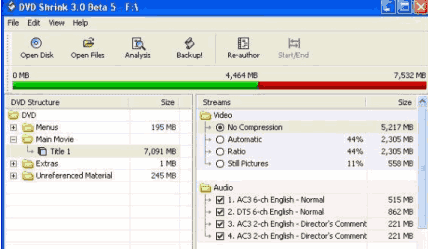
STEP 1: Start DVD Shrink, load the disc (or files from hard drive) and select the main movie.
[img]uploads/admin/shrinksplit01.gif[/img]


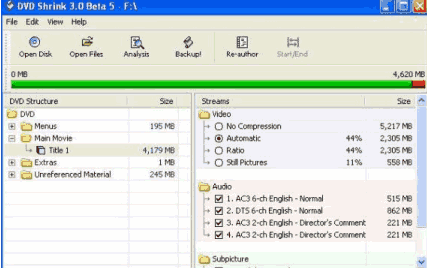
STEP 2: Select No Compression.

[img]uploads/admin/shrinksplit02.gif[/img]


STEP 3: Select Re-Author. A new window opens.
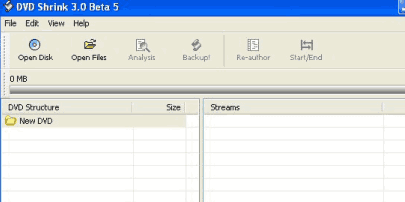
[img]uploads/admin/shrinksplit03.gif[/img]


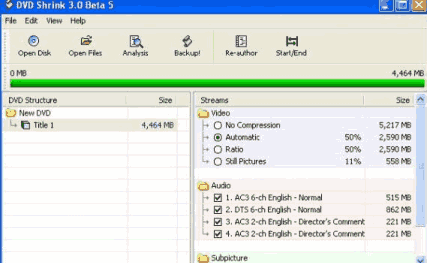
STEP 4: Drag main movie titleset from the first window to this new one.
[img]uploads/admin/shrinksplit04.gif[/img]


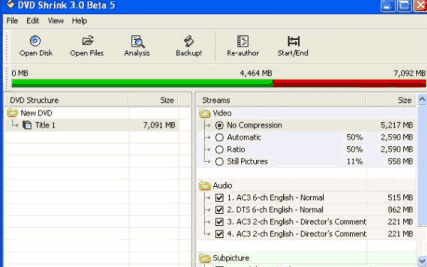
STEP 5: Select No Compression and then click Start / End.
[img]uploads/admin/shrinksplit05.gif[/img]


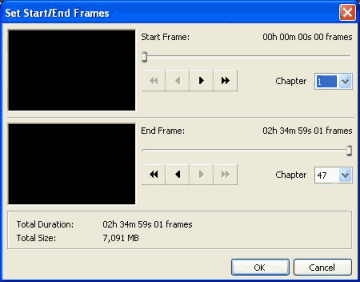
STEP 6: In End Frame you are going to select where you want it to split.
[img]uploads/admin/shrinksplit06.gif[/img]


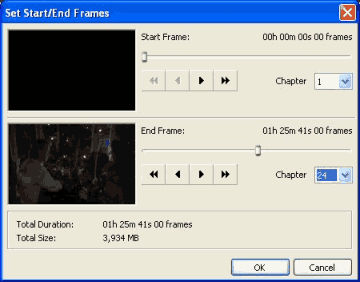
STEP 7: Here I selected Chapter End at 24 instead of original 47. Then select OK to get the first disc.
[img]uploads/admin/shrinksplit07.gif[/img]


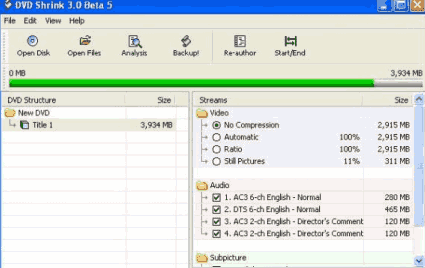
STEP 8: It should look like this. Select Backup! to save the first disc.
[img]uploads/admin/shrinksplit08.gif[/img]


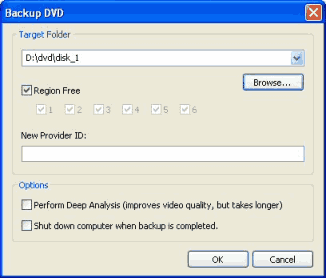
STEP 9: Under Target Folder select where you want to save first disc.
[img]uploads/admin/shrinksplit09.gif[/img]


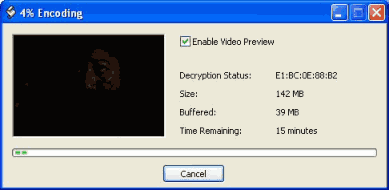
STEP 10: Wait for the encoding to finish. Then you have the first disc of the 2 disc set. NOTE! This is not really "encoding" as in "encoding video" but merely a poor way of saying "making the new files". No "encoding" is happening here.
[img]uploads/admin/shrinksplit10.gif[/img]


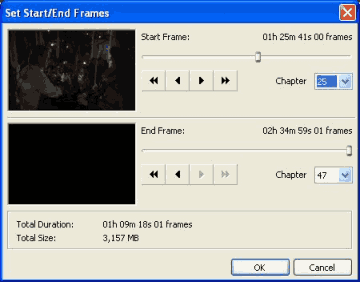
STEP 11: Repeat process. Start frame will be the next chapter after the one you ended with in step 6. Proceed same as before.
[img]uploads/admin/shrinksplit11.gif[/img]


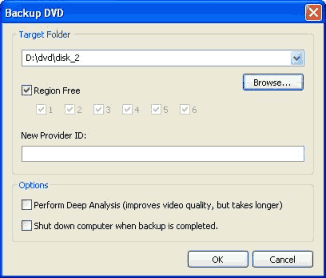
STEP 12: Select another folder for disc 2. The "encoding" window comes up again. When it is finished "encoding" the split is done and ready to burn, using your favorite DVD-Video burning software.
[img]uploads/admin/shrinksplit12.gif[/img]


Please note: Portions of this guide actually came from another site, but I figured it would be nicer to keep you on site, help you here. Not merely redirect you all over the Internet. Have therefore reproduced it here for your convenience. Have also edited and streamlined it some, to keep it easy.


Edited by: admin
__________________
If this site has been as helpful as a book or magazine, then donate a few dollars or consider upgrading your membership.
Don't forget to Like Us on Facebook or Follow Us on Twitter for special news and deals. Thanks!
You must be logged in to view images and download attachments.
Reply With Quote
  #3  
02-12-2005, 08:25 AM
admin's Avatar
admin admin is offline
Site Staff / Media Project and Technical Adviser
 
Join Date: Oct 2003
Posts: 3,890
Thanks: 109
Thanked 405 Times in 353 Posts
Let me know if this did what you needed.
__________________
If this site has been as helpful as a book or magazine, then donate a few dollars or consider upgrading your membership.
Don't forget to Like Us on Facebook or Follow Us on Twitter for special news and deals. Thanks!
You must be logged in to view images and download attachments.
Reply With Quote
Reply


Similar Threads
Thread Thread Starter Forum Replies Last Post
Edit Mini HDV Video Cassettes. philmaeve Edit Video & Audio 2 01-08-2011 09:50 AM
JVC 9600 edit or normal fuzzblaster Capture, Record, Transfer 11 09-27-2010 05:13 PM
Converting Mpeg files to Avi files?? MagnificentMarcus Encode, Convert 2 02-24-2008 06:18 AM
Video edit theory Hampton80 Edit Video & Audio 1 01-24-2008 07:09 PM
Edit an mpeg without re-rendering dmsinger Encode, Convert 4 03-16-2005 12:10 PM

Thread Tools


All times are GMT -5. The time now is 12:12 PM  —  vBulletin Copyright © 2011 Jelsoft Enterprises Ltd  —  SEO by vBSEO