How to Capture Video with Final Cut Pro on Mac
Final Cut Pro (FCP) is one of several well-known NLE systems for the Apple Macintosh. An NLE refers to a “non-linear editor”, usually in reference to a professional program like FCP, Avid or Adobe Premiere (which is available on both Mac and PC). Most advanced editors can capture/record video, in addition to just editing video.
While this guide was written several years ago, in the age of G4/G5 Macs and OS 9, the concepts are still very similar to what is done in modern OS X video workflows. This guide was created on a Mac G4 system on OS9 (9.2.2), in Final Cut Pro 2, using a professional-grade Matrox RTMac DV PCI capture card. It has real-time editing abilities, as well as DV capture abilities.
How to Capture Video on Your Macintosh
Configure the capture device. Go to Edit > Audio/Video settings. If the card and drivers are installed properly*, this settings window should show the card and it’s input settings. (*Note: Please see your card’s manual, help files and tech support if you have installation trouble.)
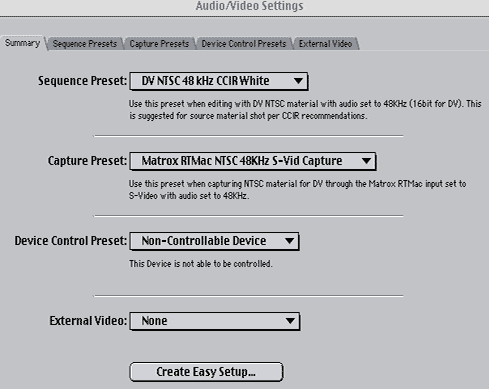
Sequence Preset, Capture Preset, and Device Control Preset refer to settings for the card and capture. The SUMMARY screen provides a drop-down list of the current presets. The edit/delete/add new presets, click on the tab for that preset section.
Matrox Example: Sequence preset is the available capture method of the card (including PAL and NTSC settings). In this example, the card’s native DV (CCIR White) and NTSC format were selected. Capture preset is the card input. In this example, S-VIDEO input was selected. Device control is for special devices like cameras. External video is for second preview monitors, of which none are connected to this computer.
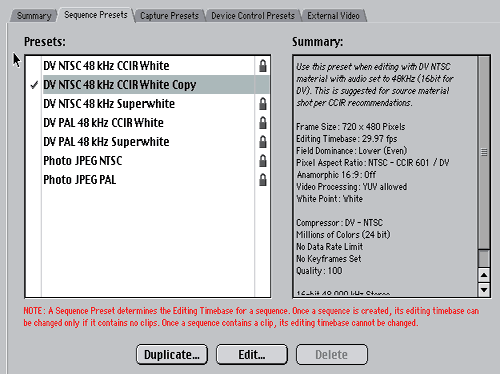
Sequence Presets. The sequence is the way video is stored on the timeline. Video must be exported from the sequence in order to be saved. A sequence can hold multiple clips. The sequence presets should usually match the capture presets. To add a new sequence, click DUPLICATE and the edit the duplicated preset.
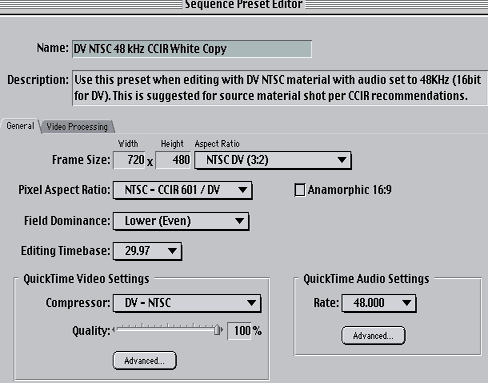
Sequence Preset settings. In the sequence editor, resolution, interlace, fps and other settings can be altered. The compression codec can also be changed (MJPEG, DV, Sorenson, etc), as well as the audio capture settings. Again, the sequence should match the capture settings. FCP will refuse obvious inconsistencies like PAL/NTSC mixes, etc.
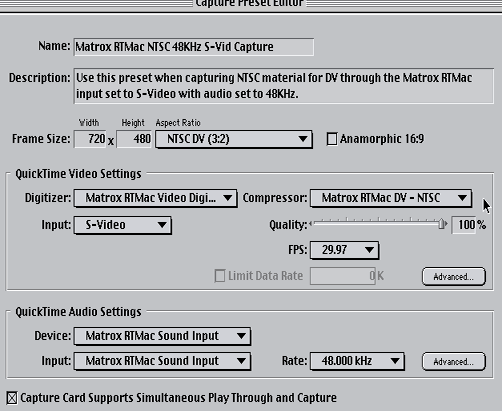
Capture Presets settings. The CAPTURE PRESETS tab operates like the Sequence Presets tab; click DUPLICATE and then EDIT to alter the settings. It will bring up an editor window (shown below). It is very similar to the sequence settings, where resolution, input type, fps, audio, and compression codecs can be adjusted as needed.
As explained above, the External Video tab is for output to a secondary monitor or other video device. In the example below, the secondary output is set to NONE. The video capture will already realtime preview in FCP on the computer monitor, this is ONLY for secondary output devices.

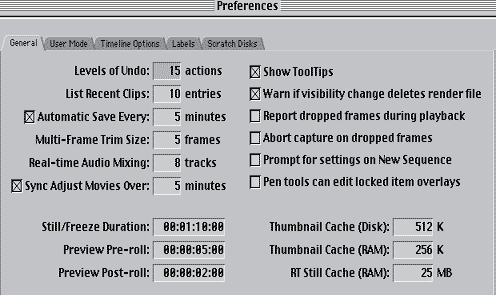
FCP Preferences. Goto EDIT -> PREFERENCES. There are two important options to change here. Most of the default settings will be fine as is. On the GENERAL tab, the “Report dropped frames during playback” can be disabled, as it may actually CAUSE frames to be dropped. Enable or disable this setting at your discretion. Increasing the UNDO LEVELS can also be useful, just be aware that it may slow down FCP performance and requires more scratch/RAM.
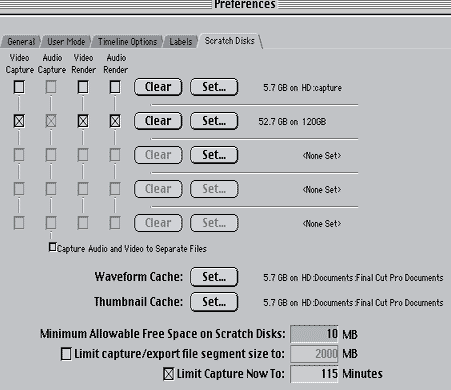
Scratch disks are a form of temporary memory on the hard drive. Set your scratch disk to a drive where the video files ARE NOT being loaded from or saved to. As usual, 7200rpm or faster drives are suggested. The capture time can also be limited here! Very useful!
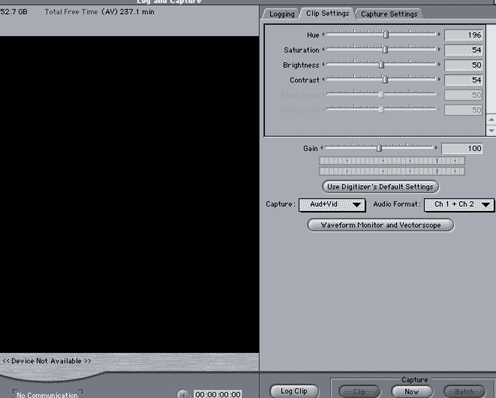
Capture the video. After the settings and preferences have been altered as needed, it’s time to capture. To capture, goto FILE -> LOG AND CAPTURE. (NOTE! Please refer to the general tips found in the ‘how to avoid dropped frames and audio sync issues’ guide. Leave the computer alone to capture, do not try to use it for anything else when capturing.)
The LOG AND CAPTURE dialog window will pop up. On the CAPTURE SETTINGS tab, the input can be changed at the last minute (s-video, composite). The CLIP SETTINGS tab will alter the hue/contrast/brightness/saturation of the incoming capture file. It is best to adjust video as early as possible. This is essentially a software proc amp, though probably not as effective as a hardware proc amp.
- Click the NOW button to begin capturing video.
- Hit the ESC button on the keyboard to stop capture.
Note: If FCP crashes during the capture, the captured-so-far file will be on the scratch disk. The file is not lost.
Once the capture is finished, a new window with the newly captured clip will appear. Goto FILE -> SAVE CLIP AS and pick a location for the clip to be saved and named. Once the clip is saved, the scratch file version will be cleared. Due to the sizes of the file, it is suggested to save the clip to the scratch drive. Otherwise, it will take quite some time to save the capture. Close the LOG AND CAPTURE window.
NLE timeline. After the video has been captured and saved, goto FILE -> NEW -> SEQUENCE and a new timeline will be created. The basic FCP editing interface is composed of FOUR distinct windows: Browser, Timeline, Source Clip (shows filename), and Sequence Canvas. Click on the BROWSER and select a SEQUENCE. The default “Sequence 1″ is probably already there. If all four windows are not showing, goto WINDOW -> and select the missing window. Once the sequence is selected, click on the SOURCE CLIP video (anywhere in frame) and drag to the Sequence Canvas window and INSERT into the sequence. The sequence can then be edited on the timeline. See image below:
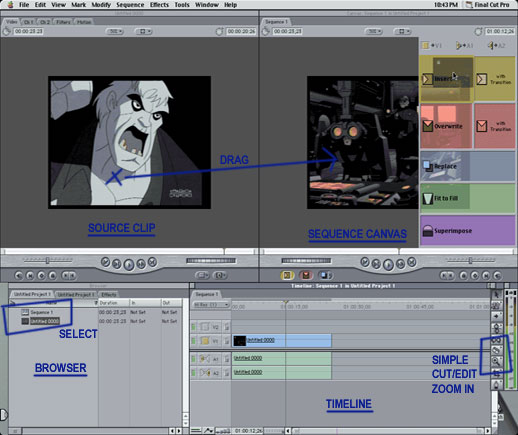
This guide does not cover advanced editing in FCP, just capturing, and some basic edit/export. On the timeline are several editing tools, namely the magnifying glass (which zooms in on the timeline) and the razor blade (which slices footage at the frame). One of the most common edits is to cut out unwanted footage. Slice the footage as needed, and then use the arrow to select the piece and hit DELETE on the keyboard to remove. Drag the remaining pieces together on the timeline. In the above example, commercials were cut out of a tv recording.
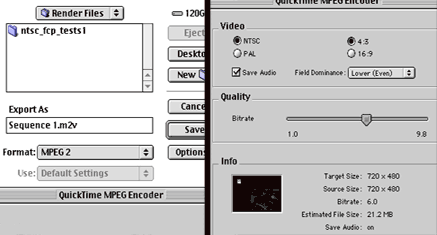
Export timeline to MPEG for DVD. To export the the timeline to an MPEG file, goto FILE -> EXPORT -> QUICKTIME and a new window will pop up. If the correct MPEG-2 encoder is installed (QuickTime Pro), MPEG encoding will be available. Click on OPTIONS to bring up the MPEG options window. Be sure to match the FIELD DOMINANCE (a.k.a. field order) to the source, as well as the aspect ratio (4:3 usually), and video format (NTSC/PAL). Select desired bit-rate. Note: Different versions of QuickTime Pro will appears somewhat different. Save the file, which may take several hours to encode.
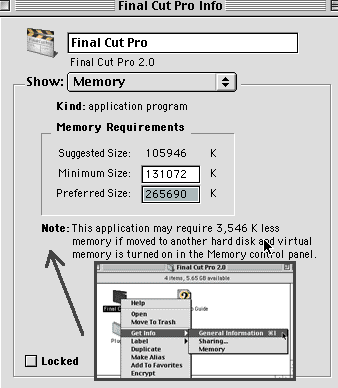
Performance notes. To increase performance of FCP, be sure to give it plenty of RAM/scratch usage. Find the Final Cut Pro icon in the Finder (NOT an alias), and click FILE -> GET INFO -> GENERAL INFORMATION. FCP must be closed for this to work. If using a two-button mouse, right-click on the FCP icon for the Get Info menu. Give it plenty of memory. If you exceed native system RAM, be warned that it will use virtual memory.
Copyright Notice: All guides, articles and editorials found on digitalFAQ.com are copyright by The Digital FAQ and/or the respective authors. Articles may not be copied, borrowed, full-quoted or reproduced in any manner, online or in print, which includes blogs and forums, without the written email consent of Site Staff (which may or may not be given, for free or fee). Know that digitalFAQ.com staff does routinely monitor online plagiarism, and we do send takedown notices to site admins and/or web hosts (DMCA et al legal actions) as is necessary. If you would like for others to read articles found on The Digital FAQ, simply link to our content. (Note: Printouts for personal use is specifically allowed.)
