
How to Capture MPEG Video with MainConcept Encoder
This guide uses MainConcept encoders MCE 1.4 and MCE 1.5, for Windows 2000/XP systems, using the capture utility built into the software. In addition to capturing, this program can encode AVI to MPEG with exceptionally high quality.
Capturing with MainConcept – Before We Begin
This guide is mostly for here for archival purposes, as the MainConcept Encoder is no longer sold. Although the ability to capture MPEG is believed to still be in the MainConcept SDK, as used by Ulead/Corel software, MainConcept’s own tools now lack this function. The MainConcept Encoder was replaced with MainConcept Reference, which encodes MPEG and many other formats at a professional quality level. The only way to use this guide would be to acquire an old copy of the MainConcept encoders MCE 1.4 or MCE 1.5. And make no mistake – being old does not make it any less quality, and indeed you’d be quite lucky to have this tool in your video software toolbox.
Also understand that you’ll need a very faster CPU. An Intel 3.0 Ghz or faster CPU is suggested, along with other standard suggestions on RAM and hard drives (as found in the Dropped Frames guide). The biggest issue with MCE is it will drop video frames at the slightest CPU overage. However, it does not drop audio frames, so irreparable sync errors are the result. This guide represents the minimum settings allowable to get good quality captures.
In general, MPEG capturing is not suggested unless you have high quality MPEG hardware. If you have an ATI All In Wonder or VIVO card, Hauppauge PVR card, or Matrox or Canopus MPEG cards, then use the software that came with the card. While this guide will provide decent results, it cannot compete with the high caliber hardware/software combination on that equipment. This guide is not meant for you.
For many budget-priced consumer capture cards, the best quality will come from an uncompressed or low-compression AVI capture. While there are several options in MPEG capture software out there, many of them record with poor video quality. For those who insist on capturing MPEG with lower quality capture cards, this guide presents an option that will capture MPEG with acceptable results, on those low-end cards.
Settings to Capture MPEG Video with MainConcept Encoder
Start the MainConcept Encoder, go to the Tools menu, and then select Capture. It will launch the capture console. On the main screen is the preview window and hardware setup. Select your video card and audio card. Do not let the audio stay at 100 percent (top position). Lower it a bit to avoid distorted, cracking audio. Too low will result in hiss-filled audio, so the 75 percent mark is normally perfect. The Set Capture File button is where you set up the location of the captured file.
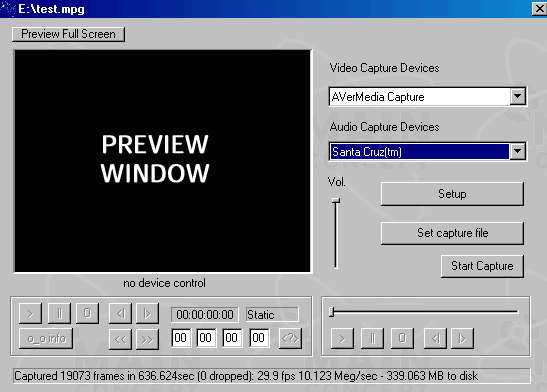
Click Setup to enter the advanced settings.
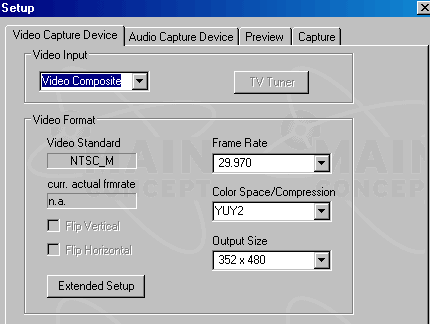
The Setup window has four tabs. On the Video Capture Device tab, select the video input (s-video, coax TV tuner, or composite).
If using the TV tuner, click the button to access the tuner controls. Select your channel and TV standard (North America uses NTSC_M). Click OK to return to the Video Capture Device window. Select the frame rate (29.97 NTSC in North America), color space (YUY2 preferred), and output size resolution.
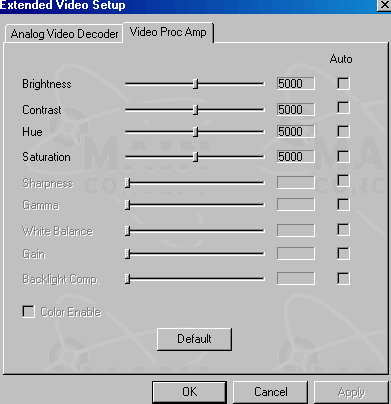
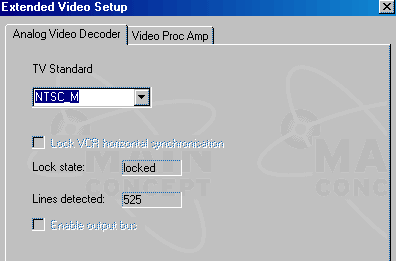
Click the Extended Setup button. If using s-video or composite, this is where you set the video standard (like NTSC_M). Move to the Video Proc Amp tab to alter the video brightness, contrast, hue and saturation. Click OK to return to the setup window.
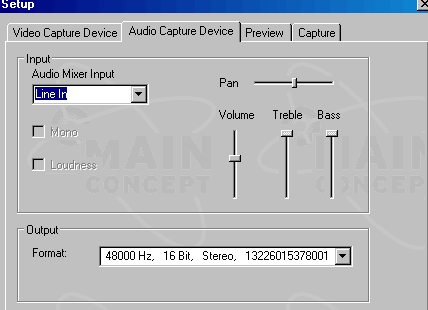
Go to the Audio Capture Device tab to setup the audio. Select the audio input, normally LINE IN when using the external soundcard input, or AUX for internal connections. Pan (normally called balance) should be in the middle, to evenly distribute stereo audio to both left and right speakers. To avoid distorted/cracking audio, set the volume (as well as bass and treble) to about 50 or 75 percent. The top-most position is 100 percent, with the bottom 0 percent. The audio Output Format should be set to 48000 kHz 16-bit stereo.
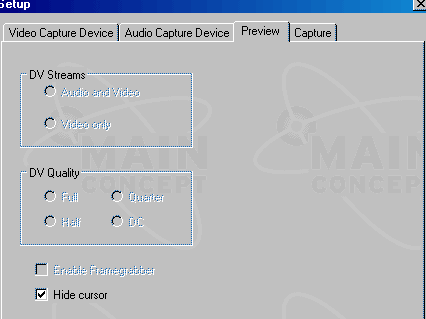
The settings on the Preview tab are fine at default settings, if even used. Unused settings will be grayed out. For DV, the Audio and Video option should be checked, and at Full Quality. Hide the cursor.
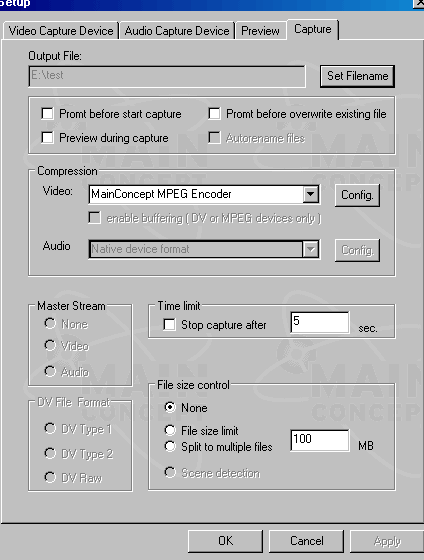
Finally, move to the Capture tab. This is the place to adjust DV card controls, the MPEG compression, and the output. Set the filename and location for the output file. It is probably a good idea to select “prompt before overwriting a file”. Preview during capture is optional. The MC capture utility can actually capture with most AVI codecs available on the system, but the sole reason to use MC is for the MPEG-2 encoding. There are better programs for AVI capture or DV transfer. Only use MC for MPEG. Under Compression, choose MainConcept MPEG Encoder. The other options on the page allow max file sizes (good for files that may exceed 4GB on a Windows system using the FAT32 file system), and time limits (great for letting it capture overnight). For the DV options, test to see what works best for you.
MPEG Encoder settings
Go back to the Compression section and click Config to configure the MainConcept MPEG Encoder. By default, MC is set to PAL encoding settings, so you may get an error due to NTSC settings that were made a few moments ago. Click OK both times, and proceed to enter the settings. The settings used in this guide are bare minimums to achieve decent quality with no frame drops. If your system cannot capture with these settings without dropping frames, you will not be able to use MC for capturing. Not with good results, anyway.
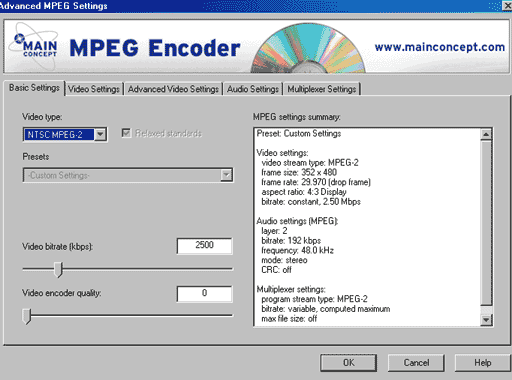
Start at the Basic Settings tab, and set to NTSC MPEG-2 video. This will bring up all the default settings. Select Relaxed Standards. The minimum acceptable bit-rate for encoding with this guide is 2500k. It would be preferable to have a 3500-4500k bit-rate, as long as your system can handle it without dropping frames. The same applies for the Video Encoder Quality option. Set it to 0 as a minimum, although better results may be achieved in the 20-40 range. Only raise it above “0″ if your system can capture at that setting with no dropped frames.
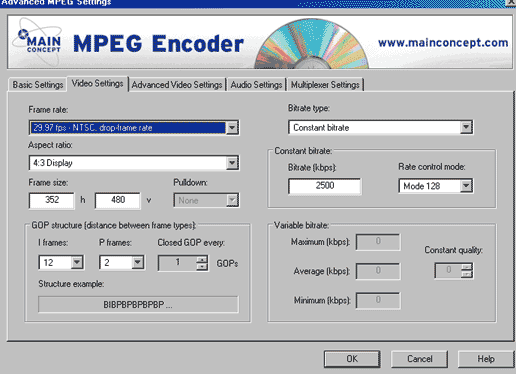
Go to the Video Settings tab. The Frame rate (in North America) should be set to 29.97 NTSC with drop-frame. The aspect ratio needs to be 4:3 Display. This guide will use the Half D1 DVD compliant MPEG encoding spec, 352×480 resolution. The GOP is yet another item that can be tweaked depending on your system performance. The default setting of 15-I and 3-P is optimal, but your system may not handle it. Use 12-I and 2-P instead. Because many DVD authoring applications require closed GOPs, select “1” for the Closed GOP option.
The bit-rate can be adjusted as needed. This guide uses a minimum 2500k constant bit-rate (CBR) in Mode 128 or Fast Mode. A more optimal setting for the 352×480 size chosen is variable bit-rate (VBR) with a 5000k maximum, 3500k average, and 0k minimum. Your system may or may not work well with the optimal setting.
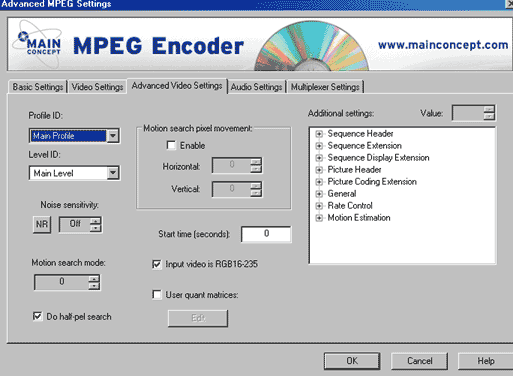
Next move to the Advanced Video Settings tab. In this window, advanced MPEG options can be set. DVD requires Main Profile at Main Level encoding (MP@ML). Click the NR to enable Noise Reduction. It is optional, and only supported on fast systems. Turn off for best system performance, and lower the number to “0”. Motion search mode can be left on default settings for fast systems, but can be set to a 0 minimum with a Half-Pel search for best system performance. If your video is an analog source like TV, cable or video tapes, you have RGB16-235 source. Select the Input Video is RGB16-235 option. The Additional Settings window allow users to custom tweak how the MPEG encoder operates. Never alter these unless you know what you are doing. Sites like www.videohelp.com and www.doom9.org discuss advanced techniques in their user forums.
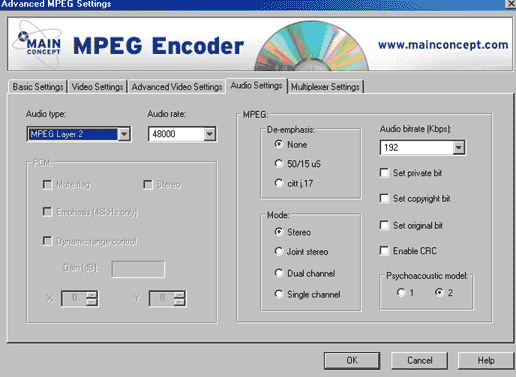
Now go to the Audio Settings tab. Select MPEG Layer 2 audio, and use the DVD standard 48000 Hz audio. The MPEG window should have no de-emphasis and be true stereo mode. The audio bit-rate should be 192k minimum, though 256k is optimal for fast systems. All other default settings are fine.
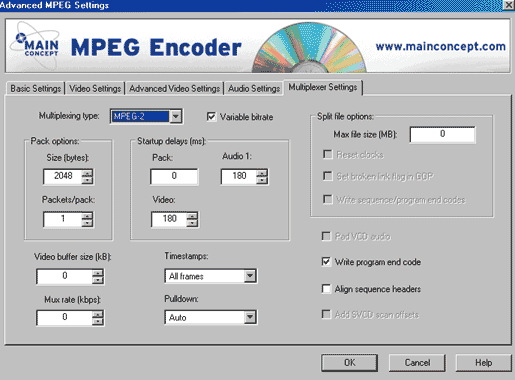
Finally, go the the Multiplexer Settings tab. The default settings are fine, with the exception of Pulldown. Pulldown should be set to “none”. Click OK to exit the MC Encoder settings and return to the capture console settings window.
Click Start Capture, and capture the video. Be sure the dropped frames stays at zero. Even 1 dropped frame can cause the audio and video to lose sync.
Copyright Notice: All guides, articles and editorials found on digitalFAQ.com are copyright by The Digital FAQ and/or the respective authors. Articles may not be copied, borrowed, full-quoted or reproduced in any manner, online or in print, which includes blogs and forums, without the written email consent of Site Staff (which may or may not be given, for free or fee). Know that digitalFAQ.com staff does routinely monitor online plagiarism, and we do send takedown notices to site admins and/or web hosts (DMCA et al legal actions) as is necessary. If you would like for others to read articles found on The Digital FAQ, simply link to our content. (Note: Printouts for personal use is specifically allowed.)
