How to Convert PAL DVDs to NTSC DVDs
This guide focuses on what is both one of the hardest AND most in-demand conversions: converting interlaced PAL to NTSC. It is written to convert PAL DVD to NTSC DVD, but the information will help to convert non-DVD video too.
Before we begin
Avoidance is the best policy. It it honestly a rare situation that a person needs to convert formats, in the modern era of video. Chances are that 99 out of every 100 people reading this guide do not actually need to convert — if not all 100 of them!
How to play PAL to NTSC DVDs then? For years now, DVD players (and many DVD recorders) have been built from one-size-fits-the-world kits, manufactured and assembled cheaply in China. This has actually been of tremendous benefit to the video world. These players/recorders share the same MPEG decoder chips capable of playing both PAL and NTSC video. With very few exceptions, most players sold in NTSC countries have been able to play region-free PAL for at least five or six years now (since about 2003). PAL players all play NTSC, using the PAL-60 quasi display very similar to analog Brazilian PAL. The only caveat with playing a “foreign” disc is that the disc needs to be made region-free.
PAL/NTSC formats are are not the same as regions! DVD regions are artificial markets created by the studios, manufacturers and licensees to control where videos are bought and sold in the world. It’s the video world equivalent to OPEC, where studios attempt to control not only pricing, but where DVDs can be played. Most all players are capable of playing both PAL and NTSC, however few machines (unless hacked) are capable of playing other regions.
Region-free? There are two ways to make a video “region-free” — either alter the DVD player/recorder, or alter the disc. Altering the disc is as easy as copying the disc, using software such as DVDFab or DVD Decrypter, both of which can be set to strip region data (and come this way in the default setup when installed). Every disc can be altered in this manner. The other option, altering the player, really depends on the player. Because so many players are created for worldwide use, regions are usually set in hidden/secret menus, or in the firmware of the unit. Very often, these can be set to “region 0″ or “no region” thereby allowing all discs to play. Sites such as VideoHelp.com are known to have database on players capable of being “hacked” in this manner.
What’s the difference between PAL and NTSC? In the “old days” of analog broadcasts and video tapes, PAL and NTSC video were so vastly different that only a special (and often very expensive) VCR or VCP could play both kinds of tapes. In fact, in those days, there were several types of PAL, several types of NTSC, a weird NTSC/PAL hybrid, and the unpopular SECAM formats. In the analog days, color systems were entirely incompatible, the framerates were different, and resolutions were different, and the power supplies were different per country.
The digital age condensed everything into simply PAL and NTSC, saw the implementation of worldwide power circuits (only the plug is different), color was all stored universally as YUV data, and both framerate and resolution could be digitally augmented to suit the desired display.
PAL to NTSC
This guide will instruct on how to convert from an interlaced PAL disc to an NTSC film disc.
For this guide, you’ll need the following software:
1. DVD Decrypter
2. Womble MPEG Video Wizard (or another MPEG editor)
3. VirtualDub capable of opening MPEG-2 files (and includes the built-in Resize filter)
4. VirtualDub additional filters: Static Noise Reduction and Deinterlace Area-Based
5. Goldwave, or another audio editor capable of augmenting time lengths
6. TMPGEnc Plus 2.5
7. TMPGEnc DVD Author or TMPGEnc DVD Author Works 4
8. ImgBurn
Quality Note: Generally, the best video work is performed one stage at a time, often with many software packages. If the source is analog, it must carefully be captured. After that, it is edited, then encoded, then authored, each in a separate program. A lot of people, especially consumers, want to cheat, using one piece of software to do everything. And while it is sometimes possible to do this within the NTSC or PAL format, and still achieve acceptable results, it is almost impossible to do so between formats. This is an advanced technique, and stubbornness and laziness is simply not allowed. Even the best conversion method will look imperfect, so sloppy/lazy methods tend to look downright dreadful or unviewable!
When it comes to PAL>NTSC conversion, it seems that most people are actually trying to “reconvert” video. By this I mean the video was originally shot or created in an NTSC format, then converted to PAL for overseas broadcast or release, and then the PAL version has been re-imported back to North America. For whatever reason (usually stupid rights arguments), the content is not available in its original native format. Because of this, know that the PAL video you have already has artifacts, typically ghosting or blurring. So this guide does its best to minimize adding further artifacts. Sloppy methods DOUBLE the amount of ghosting and blurring.
Step 1 – Extraction
For this to work, the most elementary audio and video streams must be extracted from the disc.
Preface: DVD-Video discs are created from an authored set of files, in a strict structure comprised of IFO , BUP and VOB files. Audio and video data, and other data such as navigation (chapters) and subtitles, are contained in the VOBs. These files tend to confuse software, as DVD-Video is an end format, and was never created with the intention of being edited. Therefore the VOB files cannot be used as-is, the data we need must be extracted carefully. If you skip this step, you’ll probably have problems.
Install DVD Decrypter, if you do not already have it on your system. Once it is set up, go to TOOLS > SETTINGS, go to the IFO MODE tab, and then change the VOB file splitting options to NONE. The other settings are not as important for this guide, but feel free to match what is shown in the image below.
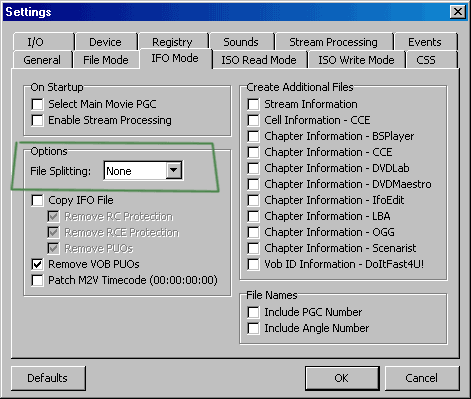
For this guide, I’m using the now-rare and out-of-print Australian (PAL R4) releases of the classic 1980s Inspector Gadget cartoon. It’s really easy to see video flaws in animation, so it makes for a great example. (Reminder: There is no good reason to convert this DVD set, I would normally watch it on a region-free DVD recorder in the studio, or watch the region-free DVD copy on the DVD player in the home living room.)
Rip the video in IFO mode. As happens in any other guide on digitalFAQ.com that deals with editing footage from a DVD, the audio and video data needs to be ripped by PGC (the complete video) using IFO mode in DVD Decrypter. Simply change the program to IFO mode, select a destination where files are to be ripped, and click the big button. As seen in the example, this disc has several PGCs, as the DVD is comprised of a half dozen episodes.
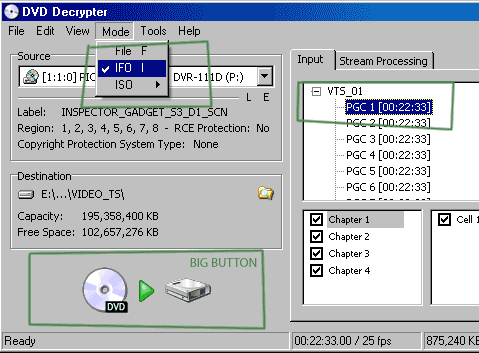
After finishing this step, you should have one or more VOB files on the hard drive, in the location chosen as your destination.
Step 2 – More Extraction
Now that the videos are off the disc, it’s time to extract the basic audio and video data from the VOB files. We’ll use an older, inexpensive yet reliable tool for this: TMPGEnc Plus 2.5.
1. Start TMPGEnc, the click on FILE > MPEG TOOLS and it will open the tools dialog.
2. Click on the De-multiplex (demux) tab. Do not choose the “Simple” one.
3. Click BROWSE and then navigate to the folder where your ripped DVD files are located.
4. Change the file type to “all files” so that your VOB files become visible.
5. Select the VOB file, and click open.
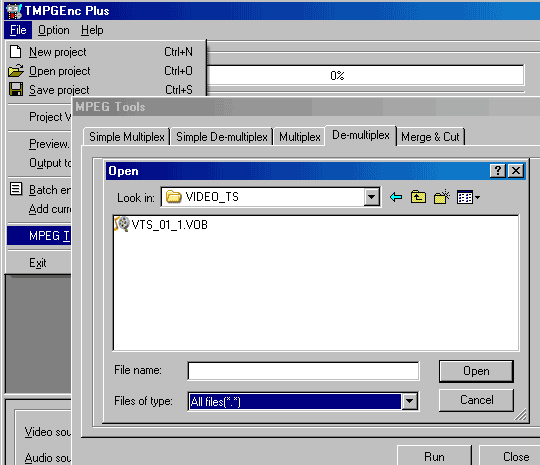
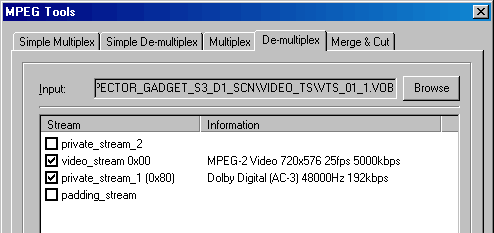
What you see next is the entire contents of the VOB, with the option to extract each element one by one. Double-click on the video stream, and a dialog box will appear asking where you’d like to save the file. Save it somewhere that you remember (it’s suggested that you use a project folder, don’t just randomly save files all over your computer). Repeat for the audio stream. Depending on your DVD, you may have several audio options. You’ll need to play your DVD to see which stream is required. (Note: 0×80 is first audio, 0×81 is second, etc.)
Step 3 – Pre-Editing
If there is any “extra” footage in the recording, this is a good time to remove it. This would include blank video before or after the video, excess promos or commercials anywhere in the video, etc. Yes, editing later can be done, but it makes the process more complicated, and this guide is intended to make the process as simple as possible.
Since the video is currently stored in MPEG format, you’ll need an MPEG encoder. Due to the sometimes-erratic nature of video, Womble MPEG Video Wizard is suggested, as we know it will work on the widest variety of sources. While other editors may work, some of them are known to balk at situations such as long movies or studio-produced DVD release materials.
As video editors go, Womble MPEG Video Wizard is pretty much idiot-proofed. A monkey with a stick could probably edit a video pretty well with this thing! When the software starts, you’re presented with a preview window, a timeline area, and a few other windows (that are not important for this guide). Forget about “opening” or “importing” your video into Womble MVW, it’s a waste of time. Drag and drop your video directly onto the timeline, and repeat for the audio. It saves a lot of time, and is less steps.
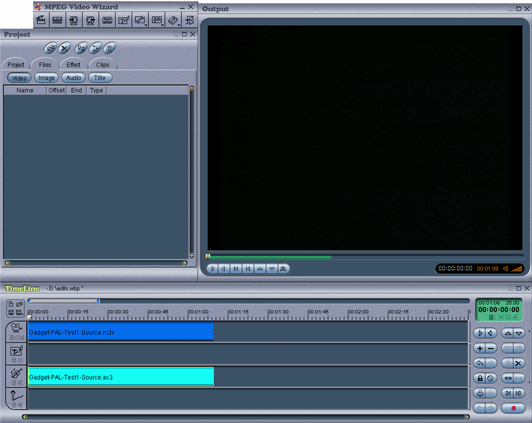
(Note: I’ve unlocked the window arrangement, and changed the size and position of some windows. This is why my sample image above probably looks a slight bit different from yours.)
Editing. The fundamentals and finer points of editing with Womble MPEG Video Wizard will be covered in another guide. However, to quickly review the basics, you would:
1. Use the slider to “scrub” (go back and forth over) the video
2. Use the scissors to cut the video. When a segment is cut on both side, simply hit the DELETE key on the keyboard, and then drag the remaining videos together. Be careful to not stretch the videos, only move them.
3. To “zoom in” closer to the video (up to 1 frame at a time) or “zoom out”, right-click on the timeline measurements and select one that is either more or less time. Zooming closer allows for more precise cuts, and makes it harder to accidentally stretch a video when moving it along the timeline.
When the editing is finished, save the new MPEG file by clicking on the not-too-obvious EXPORT button on the main menu.
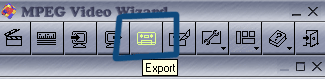
A new dialog box will appear with several tabs. On the GENERAL tab, you select the destination and name of the new file you’re about to create. On the MONITOR tab is a DETAILS button. In the details dialog window, it will displayer information on the edit that is about to take place. There video should be blue, not red, and is not supposed to be re-encoded. The audio can be re-encoded, that is fine, as long as it is still 48kHz audio with a decent bitrate (192kpbs or higher for MP2 or AC3).
This step will create a ready-to-convert clip. No more editing is allowed after this point, for the purpose of keeping the process simple. (Advanced editors can do whatever they want.)
Step 4 – Demux (Extraction) of new Audio and Video
Video and audio is going to be converted separately. Womble MPEG Video Wizard created a multiplex audio+video file, but we need to have separate audio and video for the next few steps. To achieve this, open up TMPGEnc PLus 2.5 again. Go to FILE > MPEG TOOLS again. This time, you’re allowed to use the Simple Demultiplexer, and save a separate audio and video file to your project folder.
Note: New files names are probably suggested at each step you take. The files I’ve created or this guide have included:
“VTS_01_1.VOB” as generated from the DVD Decrypter extraction
“Gadget Sample Edited Source.mpg” from the Womble work
“Gadget Sample Video.m2v” and “Gadget Sample Audio.ac3″ from the demux
Take advantage of long filenames, make intelligent names that mean something. Using something sloppy or stupid simply adds confusion. This is how all computer work should honestly be done.
Step 5 – Conversion of Video using VirtualDub
You should have already “installed” VirtualDub (unzip the setup files) to “C:\Program Files\VirtualDub”, and have the the required extra filters installed (unzip download files) to “C:\Program Files\VirtualDub\plugins” folder. The plugins must be present in this folder before VirtualDub is started.
Start VirtualDub and then open up your M2V file. It may take several minutes to load this file, depending on the length of your video. VirtualDub reads every frame, one at a time. Once the video is loaded, go to VIDEO > FILTERS and we’ll begin to add the three required filters.
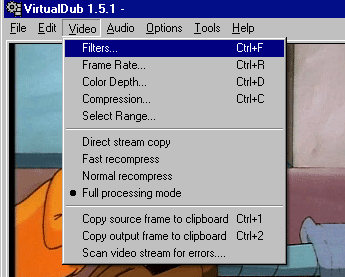
The filters window is somewhat self-explanatory. Click on ADD to add a filter. Note that filters are processed in the order by which they are added, and can be turned into complex filter chains. We’ll be chaining three filters to convert this video. The filter at the top of chain is processed first, the second filter down is second, etc.
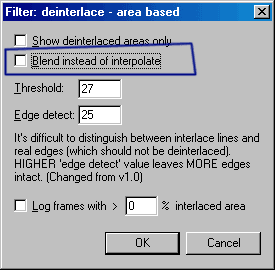
1. The first filter to be added is the DEINTERLACE AREA-BASED filter. Once selected, the option window for the filter will pop up, and it will have the default settings shown. We want to change this. Deselect (uncheck) the option that shows “Blend Instead of Interpolate”. Blending causes more blurs and ghosts, and that’s not a desired behavior.
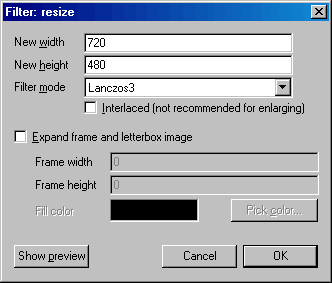
2. The next filter to be added is the RESIZE filter. The default size is 320×240, which is very low resolution and not part of the DVD-Video specification.
- If your video was 720×576 or 704×576, then select 720×480.
- If your video was 352×576 then select 352×480 as your new size.
- Change the filter mode to Lanczos3 for the best resize method.
- Do not check the interlaced box. Do not expand the frame.
Note: This guide assumes that your video is free of overscan noise. If this conversion is from an older analog broadcast, especially a VHS recording, then masking the overscan is suggested. This topic can be discussed in the forum, for Premium Members, in the Restoration section of the DVD Projects sub-forum.
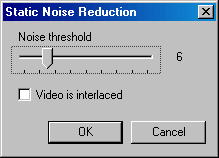
3. The final filter we want to apply is STATIC NOISE REDUCTION. This filter does not actually have anything to do with the PAL>NTSC conversion process, but it is being used for basic housekeeping on the video quality. Various factors likely degraded the quality some, and this will prevent further degradation when the video is re-encoded to MPEG a little later on.
- Leave it at default settings. Level 6 and not interlaced (unchecked box).
And finally, framerate conversion. The above filters have properly removed the interlace (keyword:properly) and changed the resolution to an NTSC-compliant size. The final step is to alter the framerate to an NTSC-compliant speed.
Most software would blend frames together to create new ones. For example, the Procoder MPEG encoder software would “convert” by taking 25 frames and changing them into 29.97 (or 23.976) new frames. Each second of footage would be changed into one new second with more (or less) frames. The duration of the video would not change.
VirtualDub, however, is going to temporally shift frames. For example, one second of 25fps PAL video will become one new second of video with about 24 frames, leaving one extra frame for the next second. Our video will be about 4 percent longer, as every 24 extra frames becomes one more extra second. This will cause audio to lose sync, and that will be addressed in the next step. This shifting of frames is how quality is maintained, and how further ghosting/blurring is avoided.
Trivia: If the ultimate source of this video was NTSC to begin with, before it was PAL, then all we’re doing it restoring it to its original length. Believe it or not, most PAL videos are sped up. When needed, the audio pitch is also adjusted by 4 percent to compensate for the “chipmunk” pitch that can sometimes start to creep in.
Go to VIDEO > FRAMERATE and change the framerate to 23.976 frames per second.
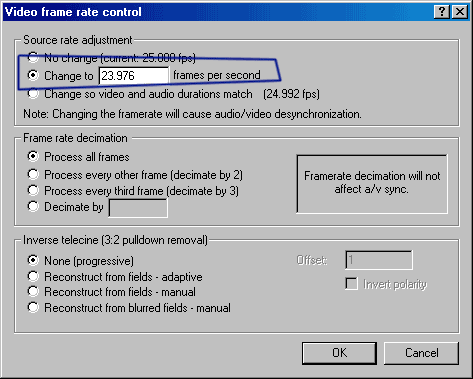
Save as AVI. By default, VirtualDub wants to save the new video file as an uncompressed AVI. These files occupy approximately 75GB per hour of footage. If you have the hard drive space, uncompressed is highly desired. If you’re running low on hard drive space, then compression settings can be changed to HuffYUV or another codec. Since this is not really part of the conversion process, it’s not being discussed in detail in this guide. You’ll need to ask for more help in the forum, should this step be needed. Although frameserving is also possible, it’s suggested to filter in one pass, and encode separately in another. Frameserving can sometimes take longer than simply performing two separate tasks.
Go to FILE > SAVE AS AVI and select a location and new filename for the converted AVI file.
Step 6 – Conversion of Audio using Goldwave
Once the VirtualDub video conversion is finished, we need to make the audio duration match the video duration. Although there are folks online who give out certain percentages (104%, 104.27%, etc) I find that it’s best to simply open up the newly-created video file in VirtualDub and see how long it is, down to the thousandth of a second. Write this value down and then close VirtualDub, you’re done with it.
Although several audio editors may be suitable for this task, I like Goldwave because it’s an affordable solution, it will open AC3 and MP2 files quickly and directly, and its TIME WARP filter can be precisely edited to a thousandth of a second identical to the VirtualDub reading.
Open your audio file in Goldwave. Much like VirtualDub, Goldwave can take a while to process audio file, so it may take several minutes to read your audio file, depending on legnth. Once it is opened, go to EFFECT > TIME WARP.
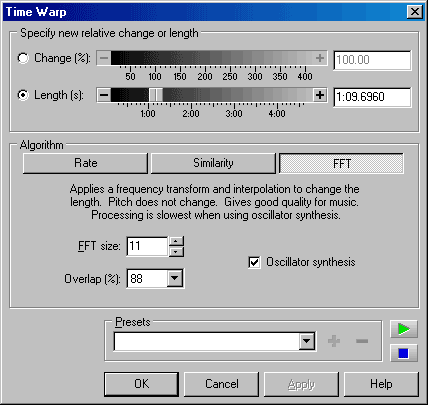
In many cases, the simple RATE mode, the default selection, will be just fine. While this does alter pitch, remember that you might be re-altering the pitch, depending on the ultimate original source. You may want to always try RATE mode first, and see how it sounds. If you detect a hint of “chipmunk” in the audio, then come back and perform the time change in FFT mode, with the oscillator synthesis option.
Change the LENGTH in Goldwave to the length that was seen in VirtualDub for the video portion of the movie, clip or episode.
It may take a long time to process the audio, depending on the source length, and the algorithm selected for conversion. Once conversion is completed, save the corrected audio to a new WAV file.
Step 7 – Encode back to MPEG for the now-NTSC Video
Having converted the video to NTSC format, it’s time to convert the video back to a DVD-compliant stream, meaning an MPEG-2 file. While any number of encoders may work, the years-old TMPGEnc Plus 2.5 software proves itself to be reliable and easy to use for this task.
For this guide, only specific settings are going to be mentioned. Look closely at the images shown here, and choose the same options. If you’ve never used TMPGEnc Plus before, refer to the TMPGEnc Plus MPEG Encoding Guide for basic installation, setup and typical encoding parameters.
The most important setting is going to be the FRAMERATE and ENCODE MODE. For this video, we’ll be encoding to 2-PASS VBR (5500kbps average, 8000kbps maximum), at “23.976 (internally 29.97fps)” and with an encode mode of “3:2 Pulldown When Playback”. Other tweaked options, as compared to the TMPGEnc Plus guide, are open GOPs, High Quality (Slow) motion search, ELEMENTARY video only, and no filters.
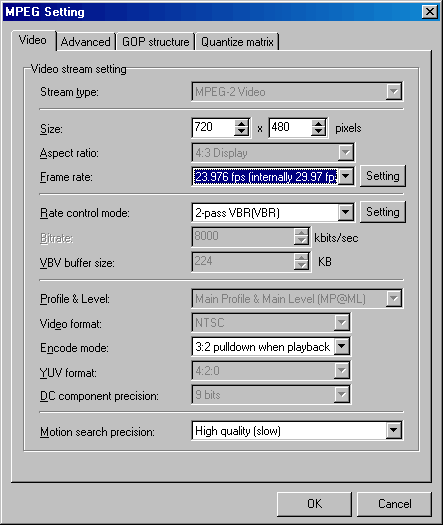
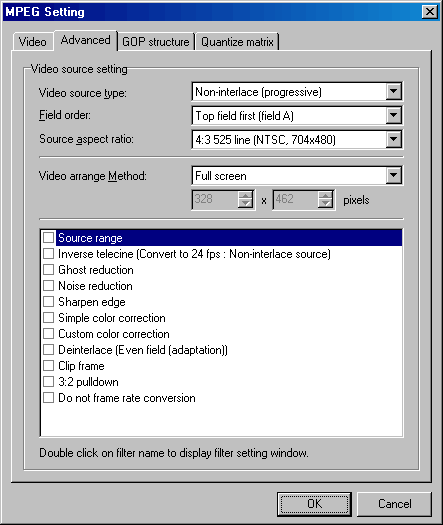
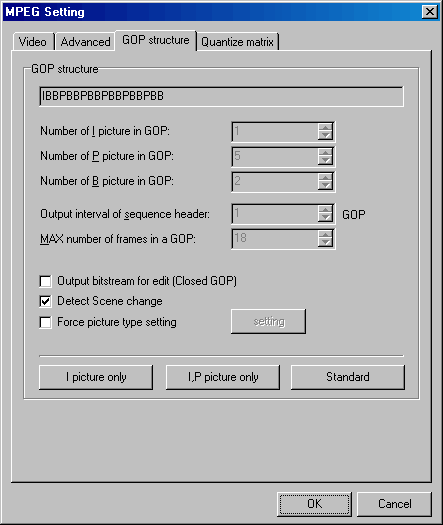
Encode out to a new video file, as an elementary M2V stream.
Step 8 – Author new NTSC DVD
Now that the video has been converted and re-encoded to a new DVD-compliant MPEG file, and the audio has been matched and saved as a WAV, it’s time to re-author the DVD. Authoring can be simple (no menus) or complicated (custom menus). While several authoring programs may work, the ever-popular TMPGEnc DVD Author (TDA) works well, and is a commonly-used inexpensive option.
More details on authoring with TDA can be found on the Authoring with TDA Guide. This guide uses version 1.5, which we tested with.
TMPGEnc DVD Author 3 and TMPGEnc Authoring Works 4 were excellent too, and both are extremely similar to TDA1.5 in GUI and function. The only note to make here is that TDA3 and TAW4 mistakenly believe that the 23.976 file is a top-field interlaced 29.97 NTSC file, so do not attempt to change this setting. The video will be butchered if this setting is changed.
Updated guides for TDA3 and TAW4 are on the to-do list. In the meantime, feel free to ask for assistance in the forum.
Step 9 – Burn Authored DVD
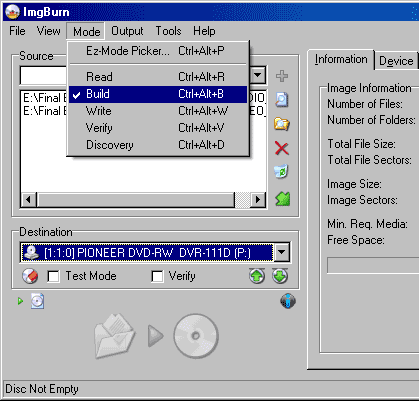
Since around 2007, the best way to burn a DVD-Video is to use the freeware ImgBurn. If you’re using something else, stop, don’t do it anymore. Other software ranges from awful (Nero) to acceptable yet not suggested (RecordNow). Install ImgBurn, and start it. Put it into BUILD MODE and drag your authored VIDEO_TS and AUDIO_TS folders into the window. Select your DVD burner, and use a good disc. Detailed use of ImgBurn will be outlined in a future guide. Until then, questions can be asked in the forum.
Want to see the samples?
To see the before (PAL) and after (NTSC) video files, you’ll need WinRAR to “unzip” the RAR archive files. Inside each archive is an ISO, a disc image that should be burned to a disc using ImgBurn. A DVD+RW or DVD-RW is suggested. Because these discs are only 45MB in size, some players (notably XBOX gaming systems) may reject the smaller-than-1GB disc. To obtain the full effect of the conversion quality, view these on a television using a DVD player/recorder, not on a computer. Each disc has the same video sample clip, about one minute long.
- original PAL sample clip disc (43MB download)
- converted-to-NTSC sample clip disc (45MB download)
More format conversion guides?
For now, this covers the most complicated and most requested format conversion.
(1) To convert between NTSC film (24fps) and PAL, much of this process is the same, simply skip the VirtualDub deinterlacing.
(2) To create streaming videos, there would be an extra cropping step in VirtualDub, although it should be noted that there is almost zero reason to convert framerates on a web stream as computers do not care about PAL or NTSC.
(3) Converting from PAL to NTSC is, more or less, a reversal of the above process. Aside from advanced mix-source editing projects, there is no good reason to convert NTSC to PAL, seeing how all PAL DVD players have NTSC-60 mode for NTSC playback.
Copyright Notice: All guides, articles and editorials found on digitalFAQ.com are copyright by The Digital FAQ and/or the respective authors. Articles may not be copied, borrowed, full-quoted or reproduced in any manner, online or in print, which includes blogs and forums, without the written email consent of Site Staff (which may or may not be given, for free or fee). Know that digitalFAQ.com staff does routinely monitor online plagiarism, and we do send takedown notices to site admins and/or web hosts (DMCA et al legal actions) as is necessary. If you would like for others to read articles found on The Digital FAQ, simply link to our content. (Note: Printouts for personal use is specifically allowed.)
