How to Encode MPEG Video with TMPGEnc Plus
The Tsunami MPEG Encoder (TMPGenc Plus) is identified by many video enthusiasts as being one of the best MPEG encoders available, due to its advanced options in filtering and encoding. The MPEG output quality is excellent, almost as good as high-end commercial encoding engines such as Canopus Procoder and MainConcept. On modern computers with fast CPUs and excess amount of RAM, the encoding speeds are also quite speedy. A free trial is available, and the software itself is only $37 to buy – an amazing bargain.
Although this guide was built with TMPGEnc Plus, the settings and information should still be very similar with the newer wizard-driven TMPGEnc Xpress and TMPGEnc DVD Source Creator products. TMPGEnc Plus is still currently sold by Pegasys, and is the suggested one to use. Please be sure to use the most current version of TMPGEnc Plus 2.5.x, updates are free with valid serial numbers.
Optimizing Speed
Speed in TMPGEnc will often increase significantly by changing just a few settings.
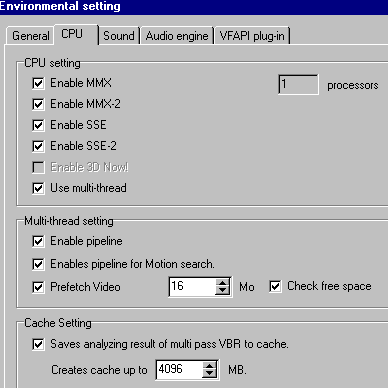
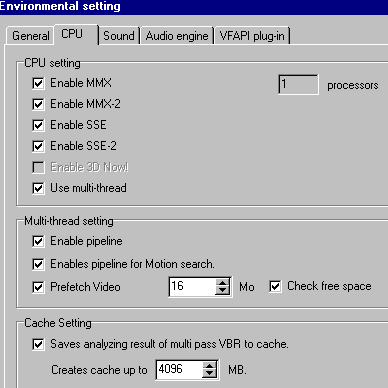
Enable CPU and RAM options. Enabling these options make it run faster. Go to OPTION -> ENVIRONMENTAL SETTINGS -> CPU tab. Enable everything:
Enable CPU and RAM options. Enabling these options make it run faster. Go to OPTION -> ENVIRONMENTAL SETTINGS -> CPU tab. Enable everything:
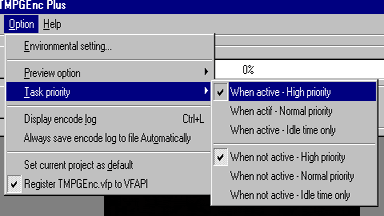
Raise Task Priority. This is essentially letting the computer know how much of the CPU and RAM the TMPGEnc software can use. Set them both on HIGH and then leave your computer alone to encode.
Motion Search Precision. Although many will argue about the meaning and the quality of output by using the various levels of Motion Search, this setting is not a direct determination of quality. Making it HIGH or HIGHEST will not increase quality, but rather control the instructions that tell the encoder how to produce the MPEG. An MPEG by its very nature is a motion-searched group of pictures. While the settings can AFFECT the quality of output, it will NOT determine it. But even these affects are limited in reach.
Searching motion for longer periods of time (HIGH and HIGHEST) generally make no difference in final output, especially when the bit-rate of the MPEG-2 is set at decent levels. Beyond those that attempt to squeeze many hours on a DVD (more than 3 hours) or attempt to convert large files to a single CD, these options have very little use.
For MPEG-2 DVD files, HIGH provides excellent results without needlessly adding time to the encode. (Ignore the illustration shown below. In 2009, the speeds of computers make the different between ESTIMATE and SLOW almost negligible!)
For MPEG-1 VCD files, HIGH provides the level of search required for excellent results. Again, without adding unneeded time.
TMPGEnc has several problems with options, mostly due to its age and translation issues with the programmers. This setting is one of those problematic aspects of the software, because it really is not needed, at least not as it exists. Most encoders make these determinations based upon your desired output from the source. While some argue that this “takes away” your control, it simply makes the best decision without allowing room for error.
This setting would make more sense if it were labeled differently. It could easily make them into four settings: MPEG-2 DVD, MPEG-1 VCD, Mastering (HIGHEST) and Streaming (LOWEST). Mastering would only be used on DVD footage that has lots of high-impact, non-stop action (normally racing movies and sporting events only) and for those that insist on over-stretching the limitations of their media (the 6-hour DVD and 90-minute VCD scenario).
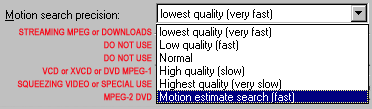
These settings are reflected in the guides below.
Problem opening source files
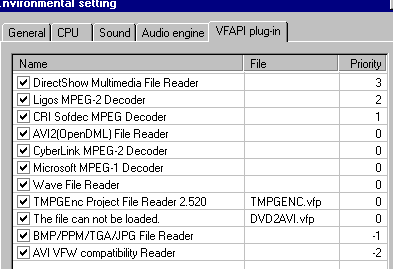
Many people find certain files will not open for them, but the true problem is that the program is not yet setup to properly handle that type of input. Raising the level of DirectShow and the MPEG-2 Codec often fixes this.
Go to OPTIONS -> ENVIRONMENTAL SETTINGS -> VFAPI PLUG-IN tab and alter as needed:
MPEG-2 Encoding Guide
Settings. Do not use the Wizard. Manually open your video/audio sources, name the output file, then click SETTINGS.
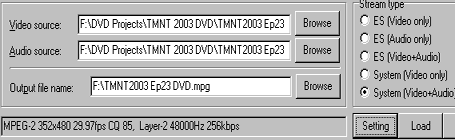
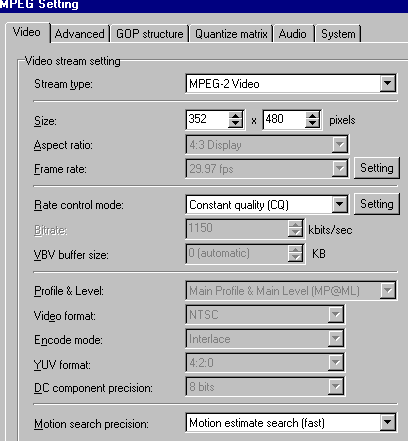
The settings window will appear. My resolution is set to 352×480 and I use NTSC source from the USA. Alter this as desired or needed. Please be sure to read the MPEG-vs-AVI CAPTURE guide for more information about MPEG and bit-rates when deciding on an MPEG resolution and accompanying bit-rate!
Most of the profile is standard DVD specifications. Alter as needed for PAL. DC is set to 8 bits because 9 and 10 offer no improvements in this encoder, instead only adding time to the final encode.
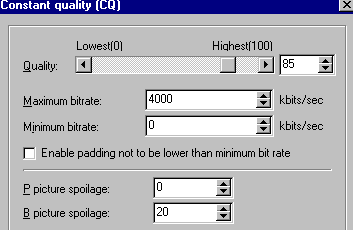
CQ Mode Settings. CQ mode is an excellent and fast one-pass VBR format that uses a special method to maintain quality, and it often rivals VBR output from itself and other encoding programs. Feel free to change it to CBR or VBR (but realize VBR adds more time). Some have suggested that CQ actually means Constant Quantize.
Move on to the ADVANCED tab. Be sure your source is setup properly. Mine is interlaced (top field) capture from my ATI AIW card. Use 4:3 aspect and I want to view full screen.
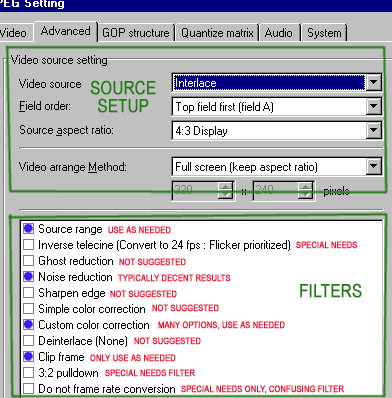
Filters. Add filters as desired. The ones you’ll use most have a BLUE DOT by them. Comments about each one in red to the side. Adding filters adds time to the encode.
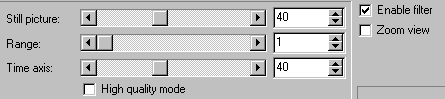
Noise reduction. This is a nice filter, but over-doing it will blur the image and add much time to the encode process. I never use more than the 20-1-20 or 40-1-40 combination.
Remember that MPEG already removes some noise due to the nature of that format. And the tv will not see all the noise that the computer monitor will see. However, a tv is already a blurry device, so it is looks blurry on your monitor, it will appear worse on a tv set!
High quality mode provides no advantages over the standard mode. What little it does can double or triple encode times, and the minor advantage over standard mode will not be seen on the tv set anyhow.
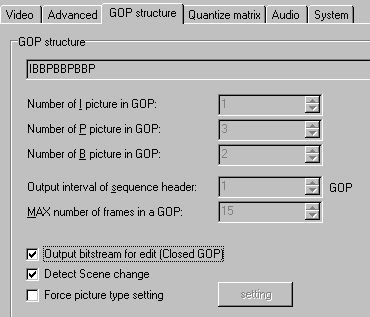
GOP Structure. This is the structure of the MPEG, and will make it DVD compatible if followed properly. What is shown is standard NTSC GOP length. It can go to 18, but 15 is best since tv sets operate off a 60hz, 30fps drop-frame setup. PAL can be up to 15fps too, so this setting is fine for PAL users.
I use CLOSED GOP because quite a few authoring packages (notably DVDit! PE) will reject open-GOP files. It is also easier to splice Closed GOP files. Detect Scene change to improve quality (will prevent P or B from appearing at a bad time).
Quantize settings. This determines several factors of the MPEG, including some quality from the encoding, some motion aspects and some anti-macroblock defense.
The DEFAULT MATRIX that comes with TMPGEnc Plus is the best one. The CG/Animation and MPEG Standard tend to create macroblocks and problems in shadows. Overall quality issues. Customizing this (or using special templates like KVCD) will often create-out-of-spec MPEG files and make them unreadable by standard DVD players.
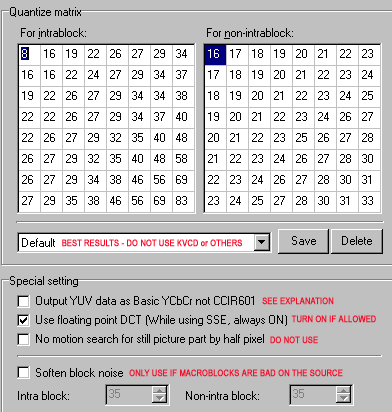
“Output YUV as…”. This setting makes zero sense. Arguments erupt from this non-sense setting all the time on video forums. Simply stated, due to the language barrier with the TMPGEnc programmers, nobody knows what this means, as it related to colorspace and RGB/YUV conversion. Using the ATI AIW from tv source, leaving it UNCHECKED looks best. Test a few minutes on a CD-RW or DVD-RW on your tv and computer. Selecting the wrong option will either 1) make brights turn white and dark turn dark, or 2) it will make black turn muddy gray and white turn into pastels.
Do not use No Motion Search as it will affect the fluidity of movement. Only use this is you video is still images, like a slideshow being converted.
Soften Block Noise should only be used when the source has macroblocks or when the output is likely going to have Macroblocks due to potentially insufficient bit-rates to maintain perfect image stability. This mostly applies to using low-resolution source and/or encoding to VCD or XVCD.
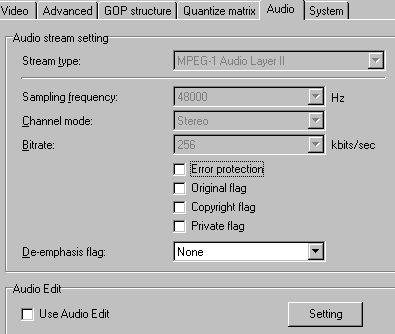
Audio. Go to the AUDIO tab and select either MPEG (MP2) audio or PCM (WAV) format. DVD is 48Hz and VCD is 44.1Hz. Stereo is best, and I use 256k on DVD (provides slightly richer sound than 192 or 224) and VCD is forced to use 224k.
I would never use use TMPGEnc to edit audio, as it is not very good.
System. The system tab should show MPEG-2 Program VBR as the encode header.
MPEG-1 Encoding Guide
The settings for MPEG-1 are not much different than the settings for MPEG-2. When making VCD, the main differences are in the resolution and bit-rate found on the VIDEO tab.
Video settings. VCD has strict standards on MPEG-1 files. They are 352×240 at 1150k bit-rate. Changing this creates and out-of-spec XVCD that may or may not play or your player.
Note: Most players do support the 1856k DVD MPEG-1 format on CD as well. Using up to 1856 bit-rate results in superior quality at that resolution in this format. This will prevent motion problems and macroblocking as is common of the 1150k VCD video.
Other settings. Beyond the video, you only have a few other things that can be changed. Pretty much just look at the MPEG-2 guide and follow its settings.
- The GOP structure of DVD works fine on VCD. Feel free to lengthen or lower numbers to match other VCD templates that exist. Keep DVD spec is convenient because you may then convert VCD to DVD at a later date.
- Audio must be 44.1hz 224k to be true CD audio. Using anything else creates a XVCD. Most player reject overly-low or overly-high audio bit-rates and HZ.
- Consider enabling the SOFTEN BLOCK NOISE filter under Quantize Matrix to prevent macroblocks from becoming visible if making true VCD or low bit-rate XVCD.
Copyright Notice: All guides, articles and editorials found on digitalFAQ.com are copyright by The Digital FAQ and/or the respective authors. Articles may not be copied, borrowed, full-quoted or reproduced in any manner, online or in print, which includes blogs and forums, without the written email consent of Site Staff (which may or may not be given, for free or fee). Know that digitalFAQ.com staff does routinely monitor online plagiarism, and we do send takedown notices to site admins and/or web hosts (DMCA et al legal actions) as is necessary. If you would like for others to read articles found on The Digital FAQ, simply link to our content. (Note: Printouts for personal use is specifically allowed.)
