How to Edit Video from DVD Recorder on a Computer (Mac)
This guide specializes on the unique files created by DVD recorders, and how to edit these on a Mac. You need the software YadeX and MPEG Streamclip to use this guide.
DVD recorders make for excellent capture devices, for recording television or converting analog formats like VHS tapes. The quality of some DVD recorders can even surpass the images quality of professional-grade computer capture cards! A DVD recorder is also much easier to use than most capture cards.
However, the editing abilities of these machines is very stiff and rudimentary, offering low-quality edits that are often imprecise. In addition to inferior editing, the menus created by DVD recorders tend to be tacky and completely lacking in visual appeal. Most of the offer only limited options in how videos are labeled and are selected. Many people would prefer cleanly edited video, authored with attractive custom menus.
This presents us with a dilemma: Ease of Use + Video Quality vs. Poor Edits + Poor Menus. The solution to this problem is to use the DVD recorder where it excels (recording), but not where it flops (editing and authoring). Once the recording is finished, simply extract the recording from the DVD and edit and author on the computer.
NOTE: This guide was created for DVD-Video and DVD+VR recordings. DVD-VR recordings (normally DVD-RAM media) may not work with this method. To remove DVD-VR content from a disc, simply copy the VRO file to your hard drive. While this might make DVD-VR seems “superior”, that format actually has many disadvantages.
IMPORTANT! This is not the proper method to use if your discs were created on anything other than a consumer DVD recorder! To extract video from professionally-made DVDs, refer to the guide Extracting Video From a Professional DVD.
Decompile the disc
After you launch YadeX, go to the Track you want to extract for editing, if you click on the arrow you can control even more options of what you want to extract, say for instance if you just wanted 30mins of a recording. This is useful for those recordings where you hit RECORD early and walked away, letting it fill up the disc. Of course, if you only wanted a specific segment, no need to waste time ripping the full disc, only to later edit it out.
Also if you want to extract the entire disc in one VOB file for editing you can hold down shift and then click on all the Tracks listed, this will extract into one large VOB file. YadeX will by default extract by track, it does not split the file into 1GB increments like other programs attempt to do.
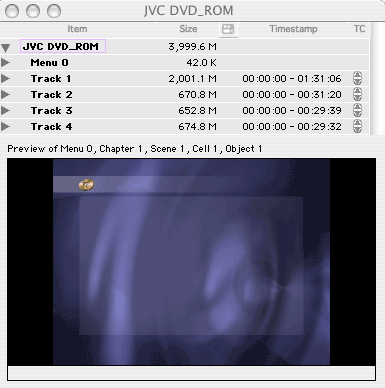
The VOBs contain the M2V and AC3 in most cases (sometimes MP2 depending on the recorder), the files you will later edit.
YadeX will then prompt you where you want to save your files. Remember that a recordable DVD can currently hold up to 4.38GB of data (future DL discs will hold almost twice this amount). Be sure you have enough hard drive space free to hold the data you want to extract.
Help! My disc doesn’t rip!
1. Did you remember to FINALIZE it in your DVD-RW/DVD-R recorder? If not, go finalize it.
2. Does this DVD-RW use DVD-Video or VR mode? This will only work for DVD-Video mode!
3. Is this a DVD-RAM disc that uses the VRO format?
4. Is this a DVD+VR disc? It should be fine. No need to finalize.
5. Make sure the disc is free of smudges and dust, get a can of compressed air and blow any thing off the disc that may keep it from reading properly
Edit the files in MPEG Streamclip
Some recorder discs will read in Streamclip as having timecode breaks (chapters), the program will prompt you to remove those before editing so it can read the entire file. This guide is good for trimming MPEG files in general, not limited to just commercials.
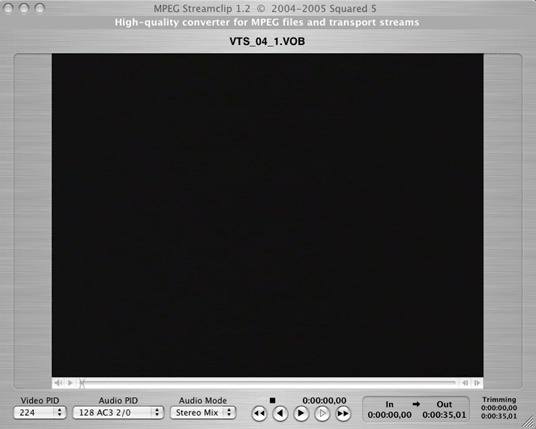
STEP 1. Open the File. Either go to FILE-> OPEN FILES or drag the vob file you created in YadeX to the Streamclip window
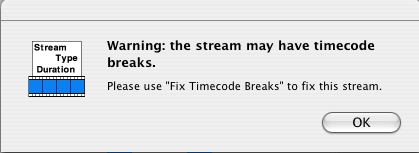
STEP 2. Timecode error. If Streamclip prompts you to Fix Timecode Breaks you should or else you risk not being able to edit the entire file.
STEP 3. Setup view. To begin editing go to WINDOW-> ZOOM, this will allow for a greater controlled area to edit.
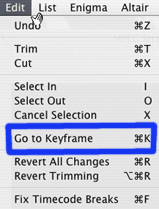
STEP 4. Edit setup. Now to enable key frame editing (more precise) go to EDIT-> GO TO KEYFRAME, you should see a slight jump in the image below.
STEP 5. Makes edits. Now either use the slider bar or hit play to get to the first part of your edit (aka first commercial), you can also hit fast forward twice to get it in 2x mode to get to your edit point quicker.
Once there you can hit either I or go to EDIT->IN , this will mark where you want to begin your edit point. I have found with commercials it is best to go directly to where it fades to black and go manually with the arrows 1-2 clicks to get a more precise cut. The same method applies for the end of your edit except you hit O or go to EDIT-> OUT.
Now once you have your IN and OUT marked you need to go to EDIT->CUT, this will remove that portion from your video file. Check to make sure the edit is as you wanted and continue on, if it is not go to EDIT->UNDO and try again.
STEP 6. Save. When all the commercials an extra footage have been removed, it is now time to save the file. There are TWO ways you can save, depending on what your file is destined for: (1) should you want to edit it in the future or re-use the mpg elsewhere then go to FILE-> SAVE AS, this will save the MPG on your hard drive. Or (2) Should you want to put it straight into Apple DVD Studio Pro then go to FILE->DEMUX TO M2V and AC3. For most purposes I save as an mpg then demux at a later date to retain the ability to re-edit or work with the saved file some more.
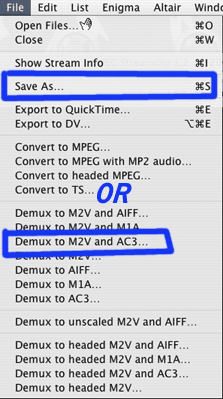
Be sure to SELECT THE ENTIRE TIMEFRAME, by applying MARK IN on the first frame of the now edited video, and applying MARK OUT on the last frame of the video. The SAVE function saves the selected areas.
Congratulations. The video is now edited free of commercials, and without the need of editing applications, encoding, or conversions to the video file and hence quality remains untouched.
Copyright Notice: All guides, articles and editorials found on digitalFAQ.com are copyright by The Digital FAQ and/or the respective authors. Articles may not be copied, borrowed, full-quoted or reproduced in any manner, online or in print, which includes blogs and forums, without the written email consent of Site Staff (which may or may not be given, for free or fee). Know that digitalFAQ.com staff does routinely monitor online plagiarism, and we do send takedown notices to site admins and/or web hosts (DMCA et al legal actions) as is necessary. If you would like for others to read articles found on The Digital FAQ, simply link to our content. (Note: Printouts for personal use is specifically allowed.)
