
Introduction to Digital Video Capturing, Recording TV
the Frequently Asked Questions…
- How do I get the best quality video recordings?
- Is there anything special I need to do to capture old video tapes? What about cable, satellite or HDTV?
- What’s the best capture card? What’s the best capture software to use with it?
- Should I capture in MPEG or AVI? What are the best codecs?
- What bitrate should I use?
and The Digital FAQ answers…
An effective video capture requires the following forethoughts and decisions:
- What capture card?
- What capture software?
- What is the source? And what capture resolution?
- MPEG or AVI? To edit or not to edit?
- If MPEG, what bitrate?
Each of these factors must be understood and considered. Your capture hardware/software and capture settings/format must reflect BOTH the source video and end-goal of the video project. Unlike some guides, this is not a 1-2-3 connect the dots kind of guide. It is not a flow chart, but rather a list of concepts, each equally important, and each one relating to all the other concepts. Read the ENTIRE PAGE before acting on the information.
Capture Cards (Examples)
It may seem like a simple question, but it’s really not. What capture card? Although readers of this guide may already own a capture card, this topic is integral to the overall topic. And capture software depends entirely on the card that is selected. If you own a card that does not accomplish your goals, considering changing to a new card.
Something to keep in mind is: Can your card properly capture the format/resolution you are considering? Capture cards are preset to capture a certain resolution, and then internally processes/resizes the video, as asked for by the software. The hardware is also hardwired to output a certain video format (AVI or MPEG) and then any changes to this are done completely in software. Your goal should be to identify the native card resolution, the output format, and then use that knowledge to your advantage.
For the purpose of this guide, there are essentially five types of capture cards:
| Card type: | Example: | About: | Pros: | Cons: |
|---|---|---|---|---|
| ATI AIW capture cards | ATI All In Wonder | Multi-purpose card. Hybrid hardware-software MPEG encoding, can capture either AVI or MPEG in high quality. Native 704x480 chipset | Can be found for $50 used or about $100-300 new, depending on model of the graphics engine. Comes with free ATI MMC capture software. Can capture pretty much any DVD-Video resolution at top quality. | Not easy to setup, 1.5Ghz or faster CPU is suggested for best experience |
| MPEG only cards | Hauppauge PVR-250, Canopus MPEG Pro | MPEG hardware encoders, cannot do any AVI encodes | Excellent MPEG quality, can capture at pretty much any resolution. Often has specialized chipsets and capture software | Cannot do AVI |
| AVI only cards | BT8x8 chipset cards, cheap cards, from companies like AVerMedia. Also ATI's non-AIW cards. | Often based on Brooktree BT8x8 chips or Conexant version. MPEG capturing can only be accomplished with pure software methods. | Cheap, often in the $50 price range, always under $100. | Old technology, AVI only. Poor quality on medium and low resolutions. Odd native res in the capture chips may cause aspect ratios to be wrong. Audio sync errors are common. Uses generic software. |
| NLE capture cards | Canopus DVstorm, Matrox RT.X100 | Studio grade professional capture cards. Output format and hardware varies from card to card. | Realtime effects in editing software like Edius or Premiere. Extremely high quality at everything it does. Specialized codecs, chipsets and software | Expensive, often $1000 or more. |
| DV capture devices | Canopus ADVC-100, DataVideo DAC-100, video camera pass-through | DV only, 720x480 only, footage is converted inside the device, then transferred via firewire to the computer. Not really a capture "card" but more like a capture "device" | Idiot-proof and not susceptible to audio sync problems. Provides decent quality with minimal work. | Cannot do MPEG. DV colorspace is often harmful to analog color quality, especially if converting VHS to DVD. Few options, minimal control. |
Capture Software (Examples)
A capture card is only as good as the capture software. Remember to select a capture software does not harm the incoming signal, but rather encodes or transfers it as needed. Capture software often has the ability to both filters and re-encode the video to the desired codec or MPEG format. Much like capture cards, the quality of software varies greatly, from excellent to complete rubbish. Your goal is to use software that complements your card, in the pursuit of high quality video captures.
| Capture software | Pros | Cons |
|---|---|---|
| ATI Multimedia Center (ATI MMC) | Excellent quality video encodes, has a nice video clean-up filter called "VideoSoap", free software designed explicitly to work with ATI cards. ATI MMC 7.7, 8.7 and 9.02 are the most stable versions. | Only works with ATI cards, and even then, only well with "AIW" version cards. Can be difficult to install, uninstall or update. |
| VirtualDub | Often referred to as the quintessential video capture tool. Is able to capture (and encode) video using any number of free filter plug-ins and codecs. Excellent tool, excellent quality. Free. | Not the easiest tool to use, many options. Cannot capture MPEG natively, MPEG via codecs yields poor quality. Does not work with every card. |
| iuVCR | Decent tool, works well with certain BT8x8 cards known for having sync trouble. | Inversely, often known to cause sync errors on cards that otherwise act fine with VirtualVCR or VirtualDub. Limited resolution options. Can be crash-prone. |
| WinTV2000 | Excellent quality video softare, works only with Hauppauge capture cards. Sort of like ATI MMC for Hauppauge. | Only works well with the hardware MPEG encoder boards, not the cheap AVI cards. |
| VirtualVCR | Free. Decent tool, works well with several cards. Tends to keep audio sync really well. | Not as versatile and advanced as VirtualDub, does not work with every card. |
| Adobe Premiere | Directly capture to the NLE timeline | Limited options as compared to dedicated capture software, prone to crash |
| Final Cut Pro | Directly capture to the NLE timeline | Limited options as compared to dedicated capture software |
| Mediostream neoDVD | Idiot-proof | Expensive, mediocre quality, total lack of control over bit-rate and resolution, resulting in bloated files. A cheap all-in-one direct-to-DVD capture tool. |
| Intervideo WinDVD Recorder, WinDVR | None | Forces a blended de-interlace on all captures, blocky quality, any resolution below 720x480 is almost all macroblocks. Few options, in terms of settings (bitrate, res, audio, etc). |
| Cyberlink PowerVCR | Though it comes default with a forced blend deinterlace, it can be hacked to allow interlaced MPEG captures and add resolutions. Has a handful of basic video/audio options | Not super-high-quality MPEG encodes, about on par with WinDVR, requires hacks to work decent, only really works well at 720x480 res. Has chronic issues with dropped video frames (not reported) which leads to audio sync errors. |
| MainConcept 1.4 | Essentially the MPEG Encoder software in a capture mode, therefore has many options | Expensive, optimized for PAL, not NTSC. Quality of encodes is not always excellent. Will only drop video and not audio frames, causing sound sync errors. EXTREMELY DEMANDING on the CPU, even newer 2.0-3.0Ghz systems can have problems. |
| MainConcept PVR | None. Different from the MC 1.4 encoder. | Total trash. Crashes all the time, barely works. Beta-quality software that should have never left R&D. MainConcept tech support is totally worthless. |
| Snapstream, Showshifter, BeyondTV, SageTV, GB-PVR, etc | PVR software, not really capture software. Works fine for turning a computer into a VCR with timer record functions. | Not the highest quality encoding, buggy, difficult to setup, and often works with only a few cards. For the purpose of this guide, these are not suitable software. |
| Anything not listed here | Search google.com or videohelp.com for reviews on the software in question. | Anything not on this list is typically not listed for a purpose, often because the software is an all-in-one solution, low quality, or dedicated to a certain piece of hardware. |
What is the Source? And What Capture Resolution?
The Understanding Your Source capture guide has detailed information on source files. However, the following quick-list will cover the suggested capture resolutions for the most common sources, sorted by resolution:
- 352×480 = VHS, S-VHS, 8mm, Hi8, Betamax, most of satellite, cable, broadcast antenna
- 480×480 = anything being converted directly to SVCD
- 640×480 = anything being captured as AVI intended for advanced editing in an NLE
- 704×480 = laserdiscs, Betacam SP, PPV satellite channels
- 720×480 = laserdiscs, Betacam SP, PPV satellite channels
Suggested AVI capture resolution. If you plan to heavily edit to video, experience has shown capturing at 640×480 or 720×480 resolution will often yield the best final product. It may be a huge file, but if quality is important, you’ll find a way to store it. You can resize to a smaller resolution when encoding the final MPEG.
Suggested MPEG capture resolution. Since MPEG is a final output format, it is best to capture at the size and bit-rate you plan to use in the final project. Capturing 352×480, 704×480 and 720×480 all look fine for DVD. Capturing 352×240 can look fine too (though no suggested), depending on the program and it’s method of on-the-fly de-interlace. All 352×240 captures should be MPEG-1. Though MPEG-2 should look the same in theory, it often does not, with a lot of macroblocks as compared to the MPEG-1 version at the same resolution and bit-rate. Plus most capture programs and even authoring programs do not accept MPEG-2 352×240 source. Only do 352×240 if you plan to directly burn to VCD or low-quality DVD. Capturing 480×480 for direct-to-SVCD projects is fine too.
Digital resolution notes:
- Interlace barrier. Most traditional source is interlaced video. The interlace barrier for digital video is approximately x280 resolution. This means that interlace can only be achieved at a spec resolution above that number. In the MPEG world, this can be x288 and x576 in PAL or x480 in NTSC.
- PAL 288 interlace. While you can capture/encode x288 interlaced, it is not suggested and indeed not officially supported for the VCD or DVD spec. Plus it is well below the true resolution of the source.
- VCD resolution does not equal VHS resolution. That is a myth perpetuated by misinterpretation of analog “lines of resolution” and how it fits into the digital realm. While 240 is a number used in both the VCD resolution and VHS lines of resolution, they represent opposite axes. VHS is also interlaced while VCD is progressive.
MPEG or AVI?
All too often, videographers and hobbyists make this appear to be a harder choice than it really is. Choosing AVI over MPEG, or MPEG over AVI, is a simple choice to make, and should take maybe 10 seconds to decide.
Ask yourself this one question: Do you plan to do advanced editing* with the video?
- If yes, then use an uncompressed (YUY2) or low compression (HuffYUV or MJPEG) codec using the AVI file format. Use this AVI to edit in your favorite editing program (like Adobe Premiere) and then encode to MPEG-2 (for DVD) or other desired final format.
- If no, and you merely want to convert the video to VCD or DVD format, then encode directly to MPEG-1 or MPEG-2. You gain no benefits** by capturing AVI then encoding to MPEG afterwards. In fact, all it does is take more time.
* Removing commercials and cutting away unwanted footage is NOT considered advanced editing. That is basic cutting and splicing of footage. You can do this with either AVI or MPEG without reconverting the video or harming quality.
** Capturing in MPEG format assumes you have a decent MPEG capture card and capture program, such as an ATI All In Wonder card using ATI MMC. Many cards and many software give poor MPEG capture results. Non-ATI users can try other programs, but the options are few and disappointing. This is the main reason I suggest ATI cards. Cards like Matrox, Canopus and Hauppauge can also give great results, using their supplied software.
Note: Capturing in high compression codecs, like that of XviD/Divx MPEG-4, H.264 MPEG-4 or Windows Media, is not suggested. It will give lower quality video output using that method. For best results, capture with an uncompressed or low-compression codec, and then re-encode the material to the higher compression ratio.
More on the AVI format
History and basics. AVI is one of the oldest video formats still in common use, having been created by Microsoft more than a decade ago. An AVI is an Audio-Video Interleave based on RIFF headers (resource interchange file format). For years, it was the only viable digital video format available.
Codecs. An AVI is actually not a video format. The “AVI” file is merely a wrapper, what I like to call a “container” file. It holds video and audio information that would typically be unable to exist as its own file format. This video and audio information is written to and read from the AVI by codecs (compressor-decompressor files). Popular codecs include MPEG-4, DivX, Xvid, MJPEG, HuffYUV, and others. Even MPEG and Windows Media Video (WMV) can exist within an AVI file, as the AVI is just video data with a RIFF header surrounding it.
Drawbacks. The AVI format has several distinct drawbacks, with the major one being huge file sizes when using no- or low-compression codecs. (Older variations of AVI present in Windows 3.x and Windows 95/98/NT4 had limitations that prevented file size of larger than 2GB or 4GB, however that has since been removed with the newer operating systems and updates for 98/NT4.)
Temporary only. Most AVI codecs are intended only as temporary working format, not meant to be final products. An AVI typically serves no purpose outside of an editing environment on a computer using Windows. It has little compression applied, and can easily be manipulated a few times before degradation occurs to the video information. This is opposite of television/DVD formats like MPEG, and streaming formats like QuickTime, RealMedia and WMV, all of which are end-product formats. Apple uses Sorenson-based QT files as their working format.
Myths. An AVI is not any better than an MPEG. It is just different. In fact, using a low bit-rate DivX codec AVI encode will always look worse than a high bit-rate MPEG. Quality depends on how you use the files. As has been stated earlier in this section, if editing is not needed, then capturing directly to MPEG is acceptable and quality will be just fine, assuming the capture card and capture program are decent. This is why most people assume MPEG is worse: their hardware and software is not great. Be aware that many of the so-called “lossless” codecs are still quite lossy.
More on the MPEG format
History. Approximately a decade old, yet newer than AVI, the MPEG format was an attempt to provide high quality video using smaller file sizes, as invented by the Moving Pictures Expert Group. The MPEG format has seen several variations over the years, having been one of the first streaming formats using SGI WebForce MediaBase (which failed), becoming the MPEG-1 VCD specification, moving to the digital satellite DBS/DVB/DVB-II MPEG-2 formats, becoming the de facto DVD MPEG-2 format, using the popular MPEG-Layer III (MP3) audio format, and most recently as the MPEG-4 DivX video format for video swapping online.
Compression method. JPEG, MJPEG and MPEG are similar, but please do not confuse them. A JPEG image file groups similar information in the image, and squeezes it into the same space, compressing the file size (for example, in layman’s terms, instead of writing “BLUE” 81 times in a row, the compression scheme writes “BLUEx81″). A Motion JPEG, known as MJPEG, does the same, at a frame-by-frame level, essentially a back-to-back series of JPEG images. Each frame is analyzed for similarities, compressed, then the process is started over at the next frame (intra-frame compression). MPEG does this, as well as incorporates temporal compression using groups of pictures (the GOP, made of I, P and B pictures). Information is not only compressed in the frame (intra-frame), but between frames as well (inter-frame, I-P-B).
Editing. MPEG is a final product video format. After a video has been converted to MPEG, it usually should not be edited, especially ones that follow the full I-P-B compression scheme. There are actually several professional MPEG editing formats, though they use low or no inter-frame compression. For example, an MPEG-2 with I-frames only with CBR encoding, which is almost the same as an MJPEG.
D-Values. Various resolutions are often referred to as D-values. Full D1 video is 720×480. Cropped D1 is 704×480. Half D1 video is 352×480. Quarter D1 (actually SIF) video is 352×240. Two-Thirds D1 video is 480×480. DVB and DVD-VR use unusual MPEG resolutions, sometimes called Three-Fourths D1 at 544×480.
MPEG formats. MPEG-1 is the oldest version of MPEG. MPEG-2 is the updated version of MPEG-1, introducing interlacing, and giving control over more advanced features of the format. DVD-Video uses MPEG-1 and MPEG-2. CD based formats, such as VCD and SVCD/CVD, use either MPEG-1 or MPEG-2 depending on the specs. MPEG-4 is the name given to newer AVIi codecs such as XVID, and is really not the same. See the charts on the UNDERSTANDING YOUR SOURCE guide for detailed information on the varying disc formats (DVD, VCD, SVCD, etc).
File extensions. The following file extension are associated with MPEG files:
- DAT = MPEG1 with VCD navigation data
- M1V = MPEG1 video
- M2V = MPEG2 video
- MP2 = MPEG Layer II audio. If it contains video, it is misnamed (ATI MMC did this in the old days)
- MP3 = MPEG Layer III audio, not muxed with MPEG video
- MP4 = MPEG-4 video file (should be in an AVI), misnamed
- MPA = MPEG Layer II audio
- MPV = MPEG1 or MPEG2 video
- MPG = .3 extension version of MPEG, from DOS/Win16 era, still used Win32/NT
- MPEG = MPEG video, audio or muxed video-audio file
- VOB = MPEG1/2 with DVD navigation data
AVI captures are better quality? Assuming good capture hardware/software is being used, whether the video is compressed now or later makes no difference. This situation reminds me of the Bugs Bunny cartoon where Daffy asks Elmer, “Would you like to shoot me now, or wait until you get home?” Seriously, there is no difference. Daffy was somehow fooled into believing one was better than the other, yet the outcome was the same. He had his bill blown off.
What MPEG Bitrate?
More is not always better, at least not when the bit-rate surpasses the resolution. Each resolution has an approximate bit-rate maximum, whereas sufficient bits (bandwidth) can be allocated to each pixel. While the MPEG will support bit-rates well into the double-digits, it will likely not use it, and the outcome is simply a bloated file.
- 352×240/288 = 2.0 MB/s or 2000k max
- 352×480/576 = 4.0 MB/s or 4000k max
- 720×480/576 = 8.0 MB/s or 8000k max (same for the 704×480/576 variation)
MPEG also has an option of VBR (Variable Bit-rate) or CBR (Constant Bit-rate). The VBR encode only takes the amount of data needed to make the picture look good, and has both maximum and minimum variables to work with. The CBR gives each frame the same amount of bit-rate and forces the picture to use it all, whether it was needed or not, resulting in larger file sizes.
On a rare occasion an extra meg (or an extra 1000k) can help out. That is normally limited to situations where the video has extremely fast action or contains multitudes of minute details. The following bell-curves illustrate the quality that can be found with various bit-rates:
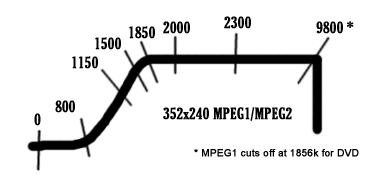
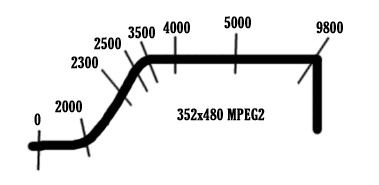
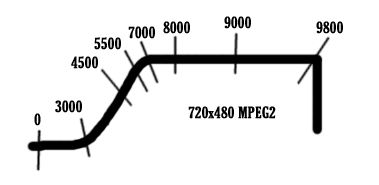
How to analyze the graphs:
- Note the quick rise in quality with small jumps in bit-rate.
- At a certain point, you’ll reach a plateau of quality.
- The suggested max bit-rates are the earliest point at which this plateau is met in most situations.
- The next number in the middle of the plateau represents a second safety marker, needed only when extreme aspects of the video require larger bit-rates. This can happen with high action or with high detail. WWE Wrestlemania is a perfect example of program that needs higher-than-normal bit-rates, due to fast action and very detailed crowds.
- The two numbers on the curve, found just prior to the suggested bit-rate (2000,4000,8000), are bit-rates that can often provide excellent quality, though some of that is dependent on the encoder software and the hardware being used.
- The number on the middle of the curve provide barely-watchable quality. Note that VCD falls in this range. These are often full of macroblocks.
- The number on the bottom of the bell curve is the last bit-rate that can be safely viewed (though still a miserable viewing experience). Numbers between it and zero will often be so full of artifacts that the image is lost.
- These bit-rates are not VBR/CBR specific. Using VBR may gain slightly better results. Using CBR may yield slightly lower quality results.
