How to Burn DVD-Video Files with Nero Burning ROM
Nero first incorporated DVD burning in 2001, however, it was not perfected until version 2003. There really isn’t much to using Nero to burn perfect DVD-Video discs. Please use version 5.5.10.20 or higher in the 5.x series, or version 6.6.0.8 or higher in the 6.x series, to obtain best results. This guide only supports burning files and folder. If you have an image file, use ImgBurn or DVD Decrypter for best results.
Note: ImgBurn is better software to burn DVD-Video with. Not only is it 100% compliant with the DVD-Video specification, but it’s freeware too. Nero 7, 8 and 9 have been ignored, because ImgBurn is better.
Burning a DVD in Nero
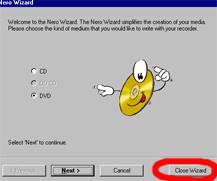
Open Nero, close the wizard. The wizard has bugs and is not a very intuitive interface. Once the wizard closes, the new compilation dialog should open. If not, go to FILE -> NEW
The new compilation windows looks like this:
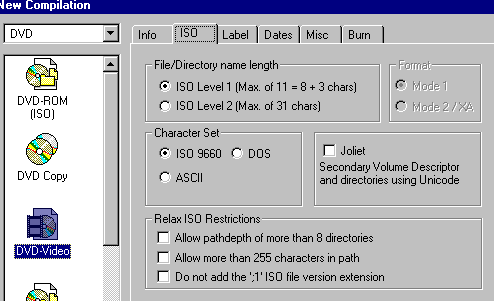
Above image: Select DVD-Video from the DVD template. ISO Level 1, Mode 1, ISO 9660, Joliet DISABLED and no relaxation on the restrictions. Altering these settings will render discs unplayable in most DVD-Video players.
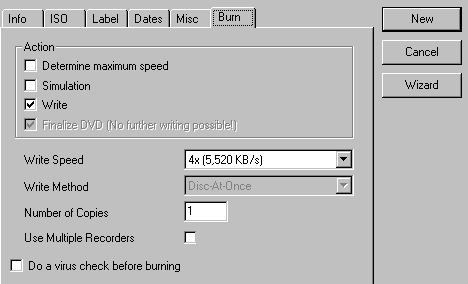
New. Check to see if you media is loaded and has the proper write speed. Click NEW.
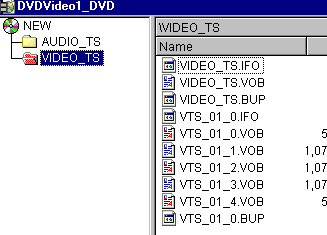
Import files. Select all the DVD files from the VIDEO_TS folder (from you build as made in an authoring application).
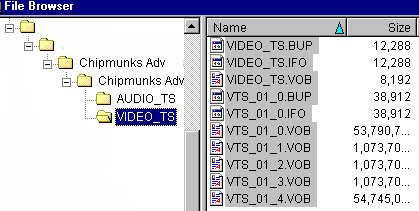
Click and drag them into the other window that has the disc layout.
Files go in the VIDEO_TS folder. The AUDIO_TS folder is left blank.
Note: If you want to add files or extra data to the disc (accessible by computer DVD-ROM), make a ROM folder at the same level as the VIDEO and AUDIO folders and place the DVD-ROM material in that ROM folder.
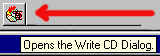
Burn. After dragging the file and laying out the disc, find the WRITE-CD button up top.
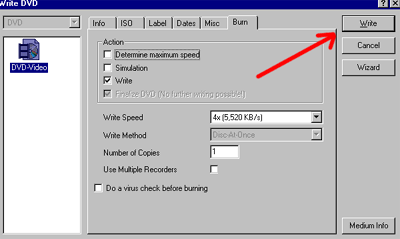
Write DVD. Goto the BURN tab, and be sure the WRITE SPEED is correct. “Simulation” is a waste, and “determine maximum speed” is not needed for DVD burning coming from the hard drive.
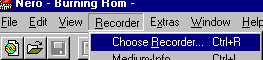
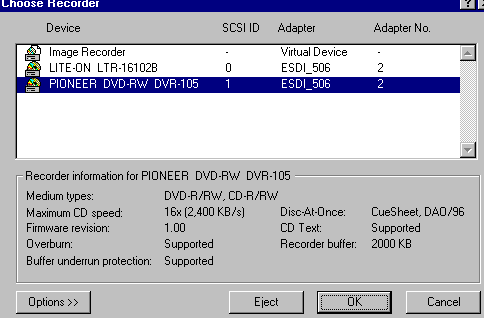
Errors! If Nero insists that you are not able to burn a DVD, be sure to check that Nero is using the proper drive. This is mostly for people with multiple burners.
Done! Enjoy the new DVD.
Copyright Notice: All guides, articles and editorials found on digitalFAQ.com are copyright by The Digital FAQ and/or the respective authors. Articles may not be copied, borrowed, full-quoted or reproduced in any manner, online or in print, which includes blogs and forums, without the written email consent of Site Staff (which may or may not be given, for free or fee). Know that digitalFAQ.com staff does routinely monitor online plagiarism, and we do send takedown notices to site admins and/or web hosts (DMCA et al legal actions) as is necessary. If you would like for others to read articles found on The Digital FAQ, simply link to our content. (Note: Printouts for personal use is specifically allowed.)
