How to Capture MPEG Video with Cyberlink PowerVCR II
This guide is mostly for here for archival purposes, as the Cyberlink PowerVCR II software is no longer sold.
Understand that MPEG capturing is not suggested unless you have high quality MPEG hardware, a device that usually comes with its own specialty capturing software or drivers. For many budget-priced consumer capture cards, the best quality will come from an uncompressed or low-compression AVI capture. While there are several options in MPEG capture software out there, many of them record with poor video quality. For those who insist on capturing MPEG with lower quality capture cards, this guide presents an option that will capture MPEG with acceptable results, on those low-end cards.
This method requires the payware Power VCR II and the freeware PVAstrumento. Not using both programs may result in poor results. PowerVCR alone is known to have severe audio sync problems. PVAstrumento will realign the audio and eliminate these problems. PowerVCR does not report dropped video frames if any occur, and it will record audio regardless of video drops. The 44.1hz audio is also given an incorrect 48hz ID tag. PVASstrumento fixes these problems on the final file. For best results, follow all steps of the guide, without deviation.
Note: If you have an ATI AIW/VIVO, Hauppauge PVR250/350, Matrox or Canopus MPEG cards, please use the software that came with the card. While this guide will provide decent results, it cannot compete with the high caliber hardware/software combination on that equipment. This guide is not meant for you.
PowerVCR II Custom Installation
Go ahead and install PowerVCR II like any other program. Follow the instructions and reboot as required.
Registry Editor. After installing the software, it is time to customize the setup for PowerVCR II. You must edit the registry so PowerVCR will give better results than what it does by default.
Goto START -> RUN -> and type “regedit” -> then click OK
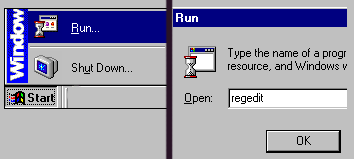
Warning !! Be very careful !! Do not stray from this guide !! The registry is the code area of Windows that controls how the system and its software operates. The Registry Editor is part of Windows that let’s users make custom changes. Making the wrong changes could damage your system. As long as you follow this guide without deviation, you should be fine.
Making the registry changes. Once the Registry Editor launches, it will pop up a windows that many computer users will find confusing. The + boxes expand the tree of code.
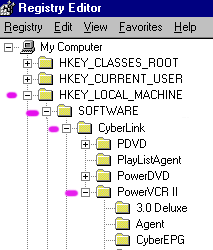
- Expand the HKEY_LOCAL_MACHINE tree.
- Expand the SOFTWARE tree.
- Expand the CYBERLINK tree.
- Expand the POWERVCR II tree.
Your registry will have a LOT more trees in it. This image has been cropped to show just what you need. The registry is alphabetically sorted, so you should have no troubles finding the trees.
Click on the POWERVCR II tree so it becomes highlighted. When this is done, the window on the right will reveal the coding for POWER VCR II. Some of this will be changed.
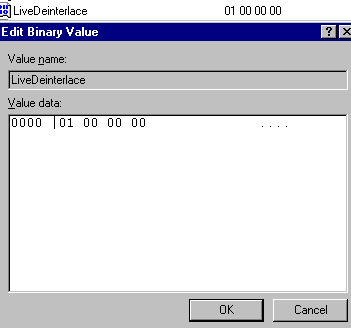
Restore interlace – Part I:
- Find the LiveDeinterlace key and double-click on it to bring up the editing box.
- Change the value to 00 00 00 00
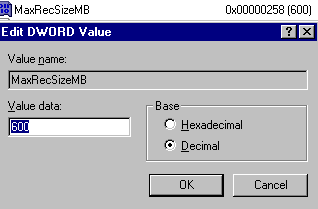
Change maximum allowed filesize:
- Find the MaxRecSizeMB key and double-click on it to bring up the editing box.
- Change the input to DECIMAL and change value to 3990 if running Windows 95, 95 or ME. Change to 8000 if running Windows NT, 2000, XP.
Restore interlace – Part II:
- Find the RecDeinterlace key and double-click on it to bring up the editing box.
- Change the value to 00 00 00 00
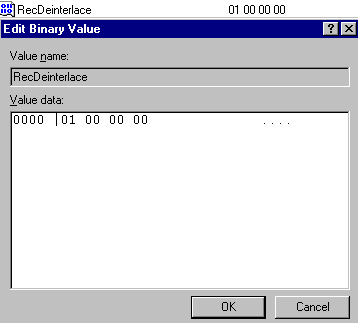
Add 352×480 Half-D1 recording resolution:
- Find the AllVideoSize key and double-click on it to bring up the editing box.
- Add 352 x 480# to the end of the file. Be sure to use spaces exactly as shown.
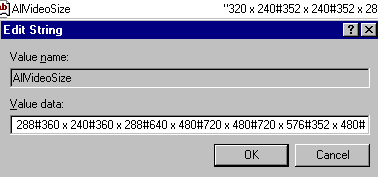
Now expand the HKEY_CURRENT_USER tree and repeat the process !!! These changes must be made in both locations for the hacks to properly work. After making all these changes, you are finished with the installation process. Now reboot the computer (required for Windows 65/98/ME … may not be necessary for NT/2000/XP). After it restarts, open up PowerVCR II.
PowerVCR II Capture Settings
When PowerVCR II first opens, the viewing screen is a bit large. Some systems may not like having a preview of that size. Click the lower right corner, and resize to about two-thirds or half the original size (it will resize to recording size later on when you begin to record).
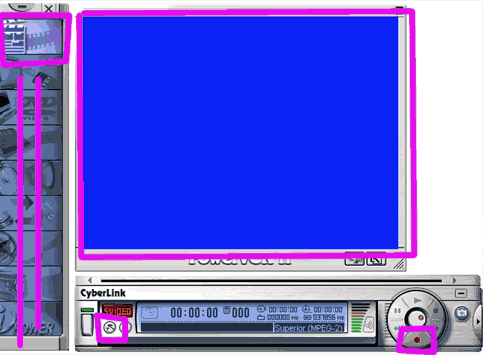
Above: The important items are in the pink boxes. The top left is the Cyberlink menu, with PowerVCR capture as the top item. The preview window (shown in blue) is where the video will be. The pick-axe icon on the bottom left is the setting control panels. The red dot on the far right is the RECORD button. These are your basic controls.
Click the pick-axe to enter the CONTROL PANELS …
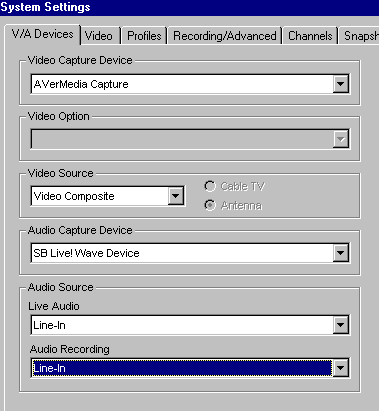
Above: Select your video capture card and your input source. Select the sound card and then select the audio source, normally LINE IN. Set both audio setting to the same connection so you can hear what you’re recording.
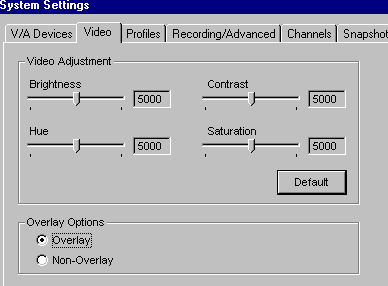
Above: This is where you can alter your video quality settings. PLEASE NOTE! A video will look “muddy” (meaning less contrast) on a PC monitor as compared to a tv set because the PC uses a RGB 0-255 colorspace while the tv uses a YUV 16-235 colorspace. These are best left untouched, except in situation where the video needs to be corrected.
Leave in OVERLAY mode for most cards on most systems. This is what affects how you see your video in the preview window. The wrong option will often make the program crash.
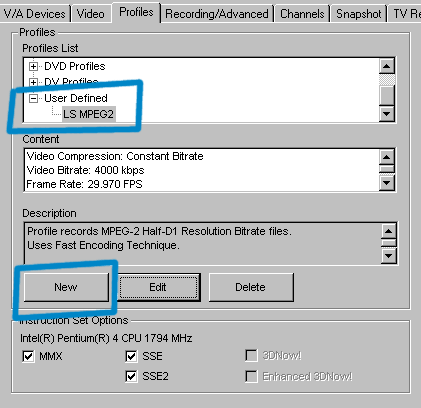
Above: The presets that come with this program, much like every capture program, are not very good. Click NEW and we’ll now take advantage of the hacks that were implemented in the registry. Your new profile will appear in the USER DEFINED area when added (it can be EDITED or DELETED with those buttons later). Do not alter the INSTRUCTION SET for any reason. This info is pulled from your CPU.
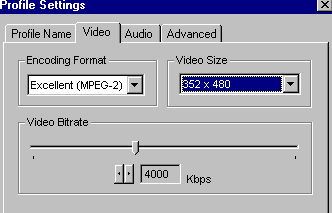
Above: Name the new profile (PROFILE NAME tab, not shown) and then move on to the VIDEO tab. Set the encoding format to MPEG-2 and the video size to the newly-added 352×480 resolution. For this example, a bitrate of 4000k is being used. For normal use, follow the bitrate chart on the AVI vs MPEG section of the Video Capturing Intro Guide.
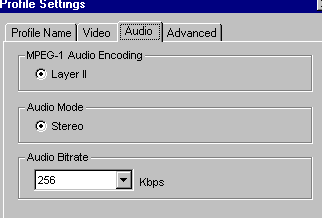
Above: This program uses MPEG Layer II audio for capturing. A bitrate of 256k-384k is suggested. For almost all situations, the richness and adequate bitrate of 256k is perfect. The audio mode will depend on your soundcard (true STEREO audio card used here).
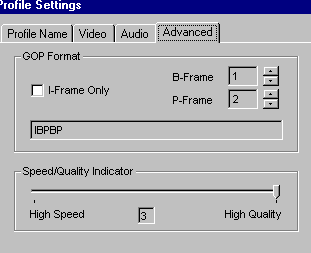
Above: The ADVANCED tab has advanced MPEG control. Leave it at HIGH QUALITY (this program is already imperfect as it is, the HIGH SPEED option is a bit blocky). The IPB settings are optimal at 2B/4P or 2B/3P but can be 1B/2P for less demand on the CPU (as shown here). Never use I-FRAME only as that is not a DVD-spec MPEG file.
Click OK and you’re now done setting up the new custom capturing profile. It will go back to the SYSTEM SETTINGS control panels…
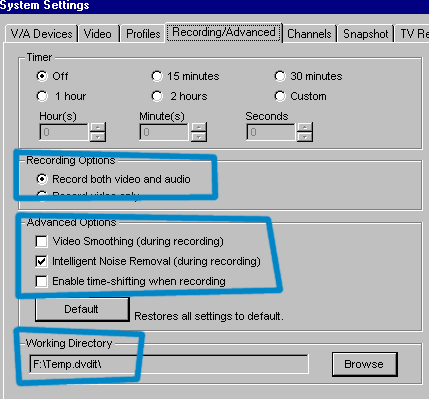
Above: Be sure it is set to record both AUDIO AND VIDEO. Use the advanced options as you see fit. Intelligent Noise Removal seems to works okay. Video Smoothing can be usefull too. The WORKING DIRECTORY is where capture files will be automatically saved (preferably on a capture-only hard drive for best results).
The program should now be completely set up. Click OK to exit and return to the main program. Start the video (which should show video and have audio) and then click the RED RECORD BUTTON to start recording.

Note: If you are getting half-sized files (176×480) when using the 352×480 setting (or 368×480 files when using the 720×480 setting), simply go add a double-sized setting in the registry. A 704×480 setting will yield 352×480 files, as will a 1440×480 setting yield 720×480 files (though Full D1 is not really needed). Test thoroughly before committing hours to a project.
PVAStrumento Corrections
Again, PowerVCR II 3.0 does not keep audio/video in sync very well. The files are often corrupt. The freeware PVAStrumento will fix this. Download and install the program (it does not really matter which version is used).
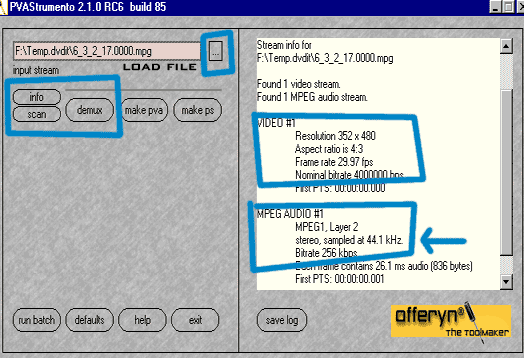
Above: Load your PowerVCRII-made MPEG file (… to open file). Click INFO to bring up the stream information. It will show a 44.1hz audio file and your MPEG video file. Notice how the PTS is offset from the very first instant! This program was made for DVB use, but offer MPEG correction as a side effect. This is the reason to use this tool. Click SCAN to find the errors in the file.
Click DEMUX…
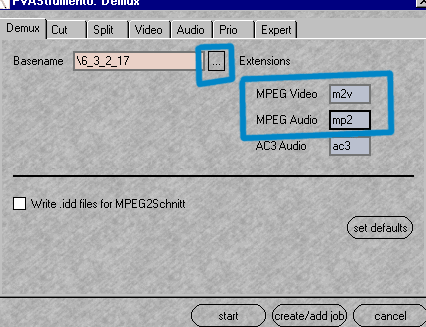
Above: Change the file location (as needed) by using the (…) marks by Basename. Change the Extension of the new files to have VIDEO as .M2V and audio as .MP2. There will be no AC3 file, that is not used on this guide (PowerVCRII captures MPEG Layer II audio). Leave all other settings at defaults.
Click START and then let it make the corrected files. The end.
Note: If the final files look/sound butchered, try again with another version of PVAStrumento. Each version has it’s own set of bugs and problems. Software v2030 is often suggested as the best one to use.
Closing Thoughts
Unlike the ATI All-In-Wonder MPEG guides, this guide is not guaranteed to work on all systems, although it may work quite often. Feel free to ask video capturing questions in our forum, but know that there is little more that can be suggested. Using a cheap video card is not the way to go when both quality matters and live MPEG capture is desired.
Copyright Notice: All guides, articles and editorials found on digitalFAQ.com are copyright by The Digital FAQ and/or the respective authors. Articles may not be copied, borrowed, full-quoted or reproduced in any manner, online or in print, which includes blogs and forums, without the written email consent of Site Staff (which may or may not be given, for free or fee). Know that digitalFAQ.com staff does routinely monitor online plagiarism, and we do send takedown notices to site admins and/or web hosts (DMCA et al legal actions) as is necessary. If you would like for others to read articles found on The Digital FAQ, simply link to our content. (Note: Printouts for personal use is specifically allowed.)