How to Copy a DVD with DVD Decrypter
If your DVD is less than 4.38GB in size (commonly referred to as a “DVD5″), then copying is a simple two-step process using the freeware tool DVD Decrypter. This guide will make an exact replica of the original disc. Nothing will be shrunk, changed, altered, etc. It is a perfect 1:1 copy of the original.
If your DVD is more than 4.38GB in size (commonly referred to as a “DVD9″), then you may use this guide to copy your disc onto a DVD+R DL.
Disclaimer: The intention of this guide is to easily make DVD-compliant copies of discs, in an ethical and responsible way. It was absolutely not created for copying DVD rentals or commercial discs not owned by the guide user. Many commercials tools are terrible at making DVD-Video disc copies (such as Nero, Roxio, etc), and thus tools like DVD Decrypter are necessary for quality copies.
In some cases, the freeware tool ImgBurn may also be an acceptable option for reading and writing disc images. It provides many of the same functions of DVD Decrypter, plus a few more features.
Rip the DVD with DVD Decrypter
This guide uses the final release of DVD Decrypter, version 3.5.4.0. Older versions may be missing some of the options shown, or may be located in a slightly different place.
This will be an ISO MODE rip.
Settings. Install DVD Decrypter and make sure the settings are correct. It needs to be ripped in ISO mode, with mastering errors corrected, CSS removed, region restrictions removed, PUO (Prohibited User Operations) restrictions removed and read errors retried. See images:
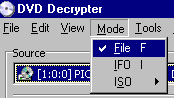
TOOLS -> SETTINGS to enter the settings menu
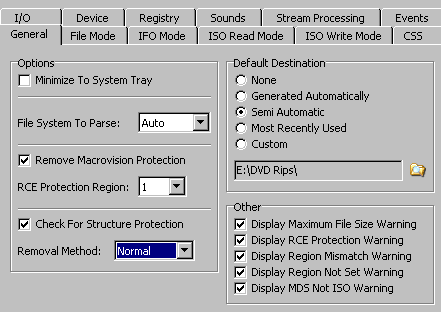

FYI: Creating the MDS File and setting File Splitting to AUTO will allow non-NTFS system to use ISO mode. NTFS is the file system used optionally on Windows NT, 2000 and XP. Windows 95, 98 and ME do not have this ability. NTFS limits files to 4GB in size, often too small for a DVD ISO file. The MDS is a information file that will properly remerge the ISO splits when burned.
The MDS is required if doing a DVD9 to DVD9 copy, using DVD+R DL media, as it stores the layer break data needed for burning the new copy.
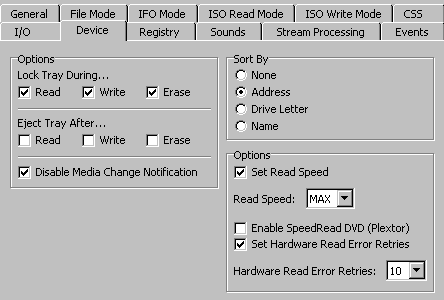
It has been reported that if you have trouble reading the disc, sometimes enabling SpeedRead will help out, whether the drive is a Plextor or not.

Other settings. Under DEVICE and I/O, set the error retries to 10 each. Everything else can be left to defaults shown above. If you have read errors when trying to copy the disc to your hard drive, consider lowering the read speed to 4x, 2x or even 1x. Maybe try another DVD-ROM or DVD burner. Ignoring read errors is usually not suggested, but can be done if retries fail.
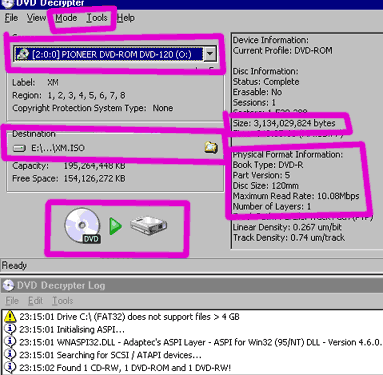
Decrypt. Select a DESTINATION for your ISO file (remember where this is), and the click on the DECRYPT button (which is the DVD with an arrow pointing to the hard drive). Depending on the speed of your drive, and hoping the disc is clean and free of errors, a DVD5 rip can take anywhere from 5 to 20 minutes on average.
The size of the source disc should be under or at 4,700,000,000 bytes, and the physical disc should be read as being a DVD5 with 1 layer. If not, then your disc is a DVD9 and this guide cannot be used.
Done ripping. Sit back and wait for ripping to finish.
Burn the ISO with DVD Decrypter
Remember to use a quality blank DVD! See the DVD Quality Review Guide for suggestions.
Goto MODE -> ISO -> WRITE. This changes to WRITE MODE, and will use DVD Decrypter as the DVD burner program. If your burner does not appear, be sure blank media has been inserted. If nothing shows up, you may need to upgrade to a new version. Most burners are supported as of 3.1.8.0.
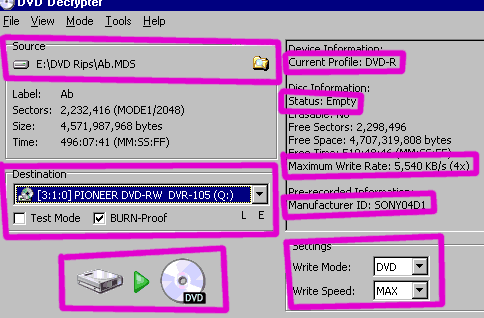
Insert blank DVD media. The blank media info will appear on the right, showing media ID and maximum burn speed allowed by the burner/media combination. Below it is the BURN SETTINGS area. I choose to burn at MAX speed and write mode is obviously DVD.
Open MDS and BURN. Goto the SOURCE area and select the MDS file (do NOT select the ISO file) that holds your DVD backup data. Choose the DESTINATION burner, then click on the HARD DRIVE -> DVD button to start the burning process. As always, it is suggested that other programs not be running when burning DVDs.
AFTER BURNING IS DONE! When the disc is burned, and you have verified it works in your DVD player, go back and delete the MDS and ISO files from your hard drive.
Copyright Notice: All guides, articles and editorials found on digitalFAQ.com are copyright by The Digital FAQ and/or the respective authors. Articles may not be copied, borrowed, full-quoted or reproduced in any manner, online or in print, which includes blogs and forums, without the written email consent of Site Staff (which may or may not be given, for free or fee). Know that digitalFAQ.com staff does routinely monitor online plagiarism, and we do send takedown notices to site admins and/or web hosts (DMCA et al legal actions) as is necessary. If you would like for others to read articles found on The Digital FAQ, simply link to our content. (Note: Printouts for personal use is specifically allowed.)
