Introduction to Restoring Audio Quality
Audio restoration is not as complex or time-consuming as video. And unlike video, it can typically be restored completely in software. This guide will discuss several of the most common audio problems, as well as solutions and software options. Because audio is not very CPU intensive, most audio editing software comes with real-time previews. Restoring audio takes experimentation without requiring vast amounts of time.
Error Glossary
Much like the video restoration error glossary, this one does not use technical terms. Tech terms simply confuse people, so these are descriptive terms. Most audio corrections are actually frequency carving. Restoring audio primarily involves cutting away the bad portions of the audio spectrum and then compensating the remaining parts to sound good.
(1) Mild audio hiss: Almost all analog formats have some sort of hiss. SoundForge, under the Process menu, in the Paragraphic EQ, comes with a default Hiss Removal filter. Audacity can use the High Pass filter found under the Effect menu. In GoldWave, the Hiss Removal filter is found under the Effect -> Filter -> Noise Reduction filter, and using the Hiss Removal preset. Dart XP can work, but it tends to carve out too much, so is not optimal. Hiss reduction is accomplished by lowering the decibels (dB) of the 10 to 25 kHz range by about 5dB. Dart XP can be used here too, but it tends to carve out too much.
(2) Harsh audio hiss: Older tapes and copies of copies normally have the source hiss compounded with it’s own hiss. Mono audio does this as well. This is essentially the same as the Mild audio hiss filter, but it is accomplished by carving out a large chunk of the decibel range. The heavier noise reduction filters chop out as much as 10dB from the 3 to 25 kHz range. Dart XP excels at removing excessive hiss, using the default DeHiss settings.
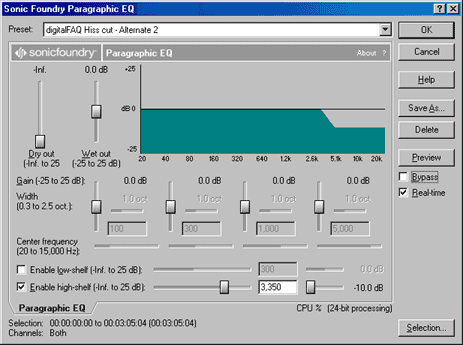
^ Sound Forge Paragraphic EQ using custom hiss removal filter.
(3) Buzzing and Humming: Much like the ghosting images error for video (discussed in video restoration guides), humming is often power related. If the signal is coax, be sure it is grounded properly. Check to make sure the video equipment and computer is getting clean power. Check the PC speakers and be sure it is really the file, not the speakers. If this is on RCA audio cables, try another set, preferably high grade gold plated shielded ones.
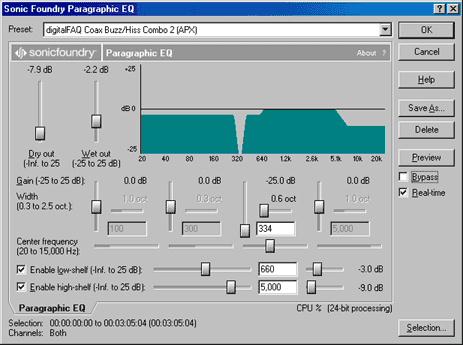
^ Sound Forge Paragraphic EQ using custom buzz removal filter.
(4) Cracking distortions: This is typically caused by having the recording volume or playing volume too high. The sound has been clipped, as it reach above peak allowable values. The GoldWave Smoother filter and Pop/Click filter are good at fixing this error. The standard Dart XP DeHiss will work. In SoundForge, use the Paragraphic EQ and drop all dB after 2.5k, as well as 12dB at 20 kHz.
(5) Muffled/Low audio: The easy way to restore muffled audio and mono audio is to restore the high pitches. In SoundForge, slightly raise the dB in the Paragraphic EQ, near the 5.1k mark. Even as few as 5dB high can make a huge difference in the quality of the audio. In GoldWave, use the Equalizer and raise the 6000Hz and 15kHz ranges several points.
(6) High pitch: The opposite of high, pitchy audio is muffled audio. The same filters used for harsh audio hiss will typically correct this problem.
(7) Bass grumble: Excess bass can be removed with any number of filters or equalizers. SoundForge comes with a Remove Low Grumble preset for the Paragraphic EQ. It essentially drops the 80k and below range of all dB. GoldWave also comes with similar filters, and Audacity can have the EQ manually adjusted.
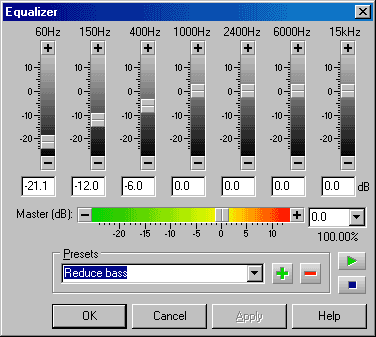
^ GoldWave filter to remove bass grumble. SoundForge has some too.
Conclusion
Restoring audio is mostly about playing with filters. This is because no one audio filter will be able to correct all possible audio problems. The seven most common errors have been listed, along with possible fixes. An audio file may need several filters run over it before being restored. Always be sure the speakers on the computer will reflect the same kind of audio that will be heard on the television.
Copyright Notice: All guides, articles and editorials found on digitalFAQ.com are copyright by The Digital FAQ and/or the respective authors. Articles may not be copied, borrowed, full-quoted or reproduced in any manner, online or in print, which includes blogs and forums, without the written email consent of Site Staff (which may or may not be given, for free or fee). Know that digitalFAQ.com staff does routinely monitor online plagiarism, and we do send takedown notices to site admins and/or web hosts (DMCA et al legal actions) as is necessary. If you would like for others to read articles found on The Digital FAQ, simply link to our content. (Note: Printouts for personal use is specifically allowed.)
