Site last updated on March 26th 2008   

Site optimized for Internet Explorer and 1024x768 resolution

IndexForum | How To PrintAbout Us | Contact Us | Donate
DVD BASICS
- Introduction to DVD-Video
- Quick suggestions and concepts
- Video tips weblog  
- Blank DVD/CD/VHS media guide 

CAPTURING
- Introduction to video capturing
- Understanding your source
- Playback hardware suggestions
- Capture MPEG with ATI AIW cards 
- Capture AVI with ATI AIW cards 
- Audio sync and dropped frames

EDITING
- Removing commercials in MPEG
- Edit disc from DVD recorder 
- Edit with Adobe Premiere

RESTORING QUALITY

- Introduction to restoring video
- Hardware video filters
- TMPG software video filters
- Introduction to restoring audio 
- SoundForge software audio filters

ENCODING & CONVERTING
- Introduction to video conversion
- Encode MPEG with TMPGEnc
- Convert VCD to DVD
- Convert PAL/NTSC standards

AUTHORING/BURNING
- Introduction and authoring FAQ
- Make menus in Photoshop
- Blank DVD media quality guide 
- Author with Sonic DVDit! 
- Author with Ulead DVD Workshop
- Author with TMPGEnc DVD Author
- Burn DVD files: Nero

DVD COPYING
-
Introduction to copying discs
- Copy a DVD5 with DVD Decrypter 
- Copy a DVD9 with DVD Shrink
- Copy to VCD/SVCD/DVD by Sefy

BUYER'S GUIDE
- Introduction to buying video stuff
- DVD recorder reviews and tips
- Where to buy DVD cases/storage
- Where to buy DVD media

MISC VIDEO INFO
- Make DVD cases in Photoshop
- DVD player troubleshooting
- DVD burner troubleshooting
Future expansion section!!

- Introduction to web design
- Basic design theory
- Advanced design theory
- HTML with Microsoft FrontPage
- Advanced HTML technique
- GIF/JPEG with Adobe Photoshop
Future expansion section!!

- Digital photo vs. film photo
- Megapixels vs. resolution vs. dpi
- Camera buying advice
- Adobe Photoshop basics
- Advanced Photoshop technique


CAPTURE GUIDES -> Capturing MPEG with any capture card

Understand that MPEG capturing is not suggested unless you have high quality MPEG hardware (which usually comes with it's own capturing software). However, for those that insist on capturing MPEG with lower quality capture cards, this guide presents two options, the result of countless attempts at finding affordable software that can software capture MPEG with acceptable results. While there are several options in MPEG capture software, many of which leave much to be desired, these are the lesser of two evils. 

(1) POWERVCR METHOD. Requires the commercial software Power VCR II and the freeware PVAstrumento. Not using both programs may result in poor results. PowerVCR alone is known to have severe audio sync problems. PVAstrumento will realign the audio and eliminate these problems. PowerVCR does not report dropped video frames if any occur, and it will record audio regardless of video drops. The 44.1hz audio is also given an incorrect 48hz ID tag. PVASstrumento fixes these problems on the final file. For best results, follow all steps of the guide, without deviation.

(2) MAINCONCEPT METHOD. Uses MainConcept Encoder 1.4.x method using the capture utility. Coming soon.

Note: If you have an ATI AIW/VIVO, Hauppauge PVR250/350, Matrox or Canopus MPEG cards, please use the software that came with the card. While this guide will provide decent results, it cannot compete with the high caliber hardware/software combination on that equipment. This guide is not meant for you.


Capturing MPEG with PowerVCRII 

Step 1: PowerVCR II custom installation

Go ahead and install PowerVCR II like any other program. Follow the instructions and reboot as required.

Registry Editor. After installing the software, it is time to customize the setup for PowerVCR II. You must edit the registry so PowerVCR will give better results than what it does by default. 

Goto START -> RUN -> and type "regedit" -> then click OK


Warning !! Be very careful !! Do not stray from this guide !! The registry is the code area of Windows that controls how the system and its software operates. The Registry Editor is part of Windows that let's users make custom changes. Making the wrong changes could damage your system. As long as you follow this guide without deviation, you should be fine.

Making the registry changes. Once the Registry Editor launches, it will pop up a windows that many computer users will find confusing. The + boxes expand the tree of code.


- Expand the HKEY_LOCAL_MACHINE tree.
- Expand the SOFTWARE tree   
- Expand the CYBERLINK tree.
- Expand the POWERVCR II tree.

Your registry will have a LOT more trees in it. This image has been cropped to show just what you need. The registry is alphabetically sorted, so you should have no troubles finding the trees.

Click on the POWERVCR II tree so it becomes highlighted. When this is done, the window on the right will reveal the coding for POWER VCR II. Some of this will be changed.

Restore interlace - PART I
- Find the LiveDeinterlace key and double-click on it to bring up the editing box.
- Change the value to 00 00 00 00


Change maximum allowed filesize
- Find the MaxRecSizeMB key and double-click on it to bring up the editing box.
- Change the input to DECIMAL and change value to 3990 if running Windows 95, 95 or ME. Change to 8000 if running Windows NT, 2000, XP.


Restore interlace - PART II
- Find the RecDeinterlace key and double-click on it to bring up the editing box.
- Change the value to 00 00 00 00


Add 352x480 Half-D1 recording resolution
- Find the AllVideoSize key and double-click on it to bring up the editing box.
- Add 352 x 480# to the end of the file. Be sure to use spaces exactly as shown.


Now expand the HKEY_CURRENT_USER tree and repeat the process !!! These changes must be made in both locations for the hacks to properly work. After making all these changes, you are finished with the installation process. Now reboot the computer (required for Windows 65/98/ME ... may not be necessary for NT/2000/XP). After it restarts, open up PowerVCR II.


Step2: PowerVCR II capture settings

When PowerVCR II first opens, the viewing screen is a bit large. Some systems may not like having a preview of that size. Click the lower right corner, and resize to about two-thirds or half the original size (it will resize to recording size later on when you begin to record).


Above: The important items are in the pink boxes. The top left is the Cyberlink menu, with PowerVCR capture as the top item. The preview window (shown in blue) is where the video will be. The pick-axe icon on the bottom left is the setting control panels. The red dot on the far right is the RECORD button. These are your basic controls.

Click the pick-axe to enter the CONTROL PANELS ...


Above: Select your video capture card and your input source. Select the sound card and then select the audio source, normally LINE IN. Set both audio setting to the same connection so you can hear what you're recording.


Above: This is where you can alter your video quality settings. PLEASE NOTE! A video will look "muddy" (meaning less contrast) on a PC monitor as compared to a tv set because the PC uses a RGB 0-255 colorspace while the tv uses a YUV 16-235 colorspace. These are best left untouched, except in situation where the video needs to be corrected.

Leave in OVERLAY mode for most cards on most systems. This is what affects how you see your video in the preview window. The wrong option will often make the program crash.


Above: The presets that come with this program, much like every capture program, are not very good. Click NEW and we'll now take advantage of the hacks that were implemented in the registry. Your new profile will appear in the USER DEFINED area when added (it can be EDITED or DELETED with those buttons later). Do not alter the INSTRUCTION SET for any reason. This info is pulled from your CPU.


Above: Name the new profile (PROFILE NAME tab, not shown) and then move on to the VIDEO tab. Set the encoding format to MPEG-2 and the video size to the newly-added 352x480 resolution. For this example, a bitrate of 4000k is being used. Follow the BITRATE chart on the AVI vs MPEG guide for normal use.


Above: This program uses MPEG Layer II audio for capturing. A bitrate of 256k-384k is suggested. For almost all situations, the richness and adequate bitrate of 256k is perfect. The audio mode will depend on your soundcard (true STEREO audio card used here).


Above: The ADVANCED tab has advanced MPEG control. Leave it at HIGH QUALITY (this program is already imperfect as it is, the HIGH SPEED option is a bit blocky). The IPB settings are optimal at 2B/4P or 2B/3P but can be 1B/2P for less demand on the CPU (as shown here). Never use I-FRAME only as that is not a DVD-spec MPEG file.

Click OK and you're now done setting up the new custom capturing profile.
It will go back to the SYSTEM SETTINGS control panels...


Above: Be sure it is set to record both AUDIO AND VIDEO. Use the advanced options as you see fit. Intelligent Noise Removal seems to works okay. Video Smoothing can be usefull too. The WORKING DIRECTORY is where capture files will be automatically saved (preferably on a capture-only hard drive for best results).

The program should now be completely set up. Click OK to exit and return to the main program. Start the video (which should show video and have audio) and then click the RED RECORD BUTTON to start recording.  


PLEASE NOTE! If you are getting half-sized files (176x480) when using the 352x480 setting (or 368x480 files when using the 720x480 setting), simply go add a double-sized setting in the registry. A 704x480 setting will yield 352x480 files, as will a 1440x480 setting yield 720x480 files (though Full D1 is not really needed). Test thoroughly before committing hours to a project. 


Step 3: PVAStrumento Corrections

Again, PowerVCR II 3.0 does not keep audio/video in sync very well. The files are often corrupt. The freeware PVAStrumento will fix this. Click here to visit the download site (if this site if offline, please let us know using the CONTACT US button at the top of this page). Download and install the program (it does not really matter which version is used, thought this is still being tested).


Above: Load your PowerVCRII-made MPEG file (... to open file). Click INFO to bring up the stream information. It will show a 44.1hz audio file and your MPEG video file. Notice how the PTS is offset from the very first instant! This program was made for DVB use, but offer MPEG correction as a side effect. This is the reason to use this tool. Click SCAN to find the errors in the file.

Click DEMUX...


Above: Change the file location (as needed) by using the (...) marks by BASENAME. Change the EXTENSIONS of the new files to have VIDEO as .M2V and audio as .MP2. There will be no AC3 file, that is not used on this guide (PowerVCRII captures MPEG Layer II audio). Leave all other settings at defaults.

Click START and then let it make the corrected files. The end.

NOTE: If the final files look/sound butchered, try again with another version of PVAStrumento. Each version has it's own set of bugs and problems. Software v2030 is often suggested as the best one to use. 


Capturing MPEG with MainConcept 1.4 Encoder

This guide uses MainConcept Encoder 1.4.1 or higher, using the capture utility built into the program. In addition to capturing, this software can encode AVI to MPEG. 

Most people needing this guide have already gone the budget route on the hardware and would consider this to be expensive software. If this kind of funding is available, a better hardware/software combination can be bought (ATI cards, Hauppauge cards). Next, MC is inconsistent on results from one system to the next. The capture function is very demanding on CPU and tends to work with USB/Firewire/DV devices best. Internal PCI/AGP cards are often hampered by poor performance and dropped frames. Only the newest computers from 2003-2004 seem to work well with it, ones with processors in the 2.5Ghz or higher range. This software provides very good quality, if it will cooperate with your computer system. It likes to crash a lot too, so be prepared for that.

The biggest issue with MC is it will drop video frames at the slightest CPU overage. However, it does not drop audio frames, so irreparable sync errors are the result. This guide represents the minimum settings allowable to get good quality captures. It was tested on an Intel Pentium 4 1.8Ghz system with 1GB of RDRAM and 7200rpm hard drives.

Capture interface settings

Start the MainConcept Encoder, go to the Tools menu, and then select Capture. It will launch the capture console. On the main screen is the preview window and hardware setup. Select your video card and audio card. Do not let the audio stay at 100 percent (top position). Lower it a bit to avoid distorted, cracking audio. Too low will result in hiss-filled audio, so the 75 percent mark is normally perfect. The Set Capture File button is where you set up the location of the captured file. 
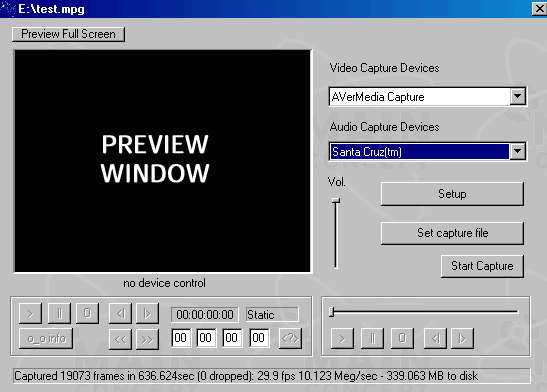


Click Setup to enter the advanced settings.
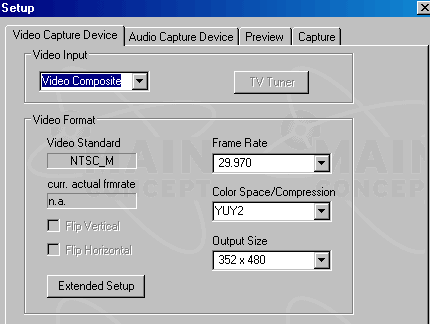


The Setup window has four tabs. On the Video Capture Device tab, select the video input (s-video, coax TV tuner, or composite). 


If using the TV tuner, click the button to access the tuner controls. Select your channel and TV standard (North America uses NTSC_M). Click OK to return to the Video Capture Device window. Select the frame rate (29.97 NTSC in North America), color space (YUY2 preferred), and output size resolution. 
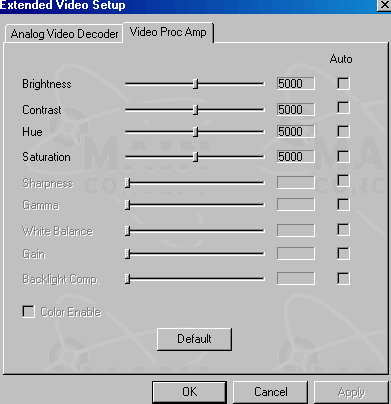


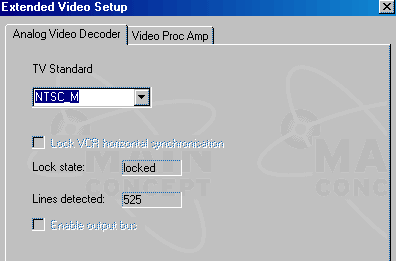
Click the Extended Setup button. If using s-video or composite, this is where you set the video standard (like NTSC_M). Move to the Video Proc Amp tab to alter the video brightness, contrast, hue and saturation. Click OK to return to the setup window. 
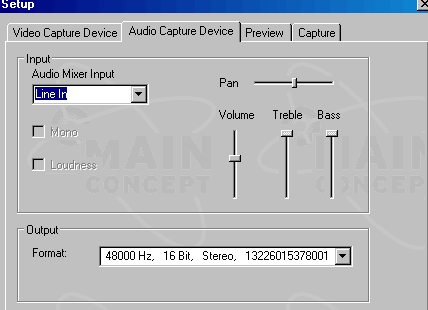


Go to the Audio Capture Device tab to setup the audio. Select the audio input, normally LINE IN when using the external soundcard input, or AUX for internal connections. Pan (normally called balance) should be in the middle, to evenly distribute stereo audio to both left and right speakers. To avoid distorted/cracking audio, set the volume (as well as bass and treble) to about 50 or 75 percent. The top-most position is 100 percent, with the bottom 0 percent. The audio Output Format should be set to 48000 Hz 16-bit stereo.


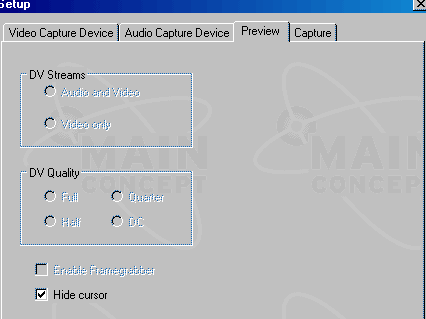
The settings on the Preview tab are fine at default settings, if even used. Unused settings will be grayed out. For DV, the Audio and Video option should be checked, and at Full Quality. Hide the cursor.
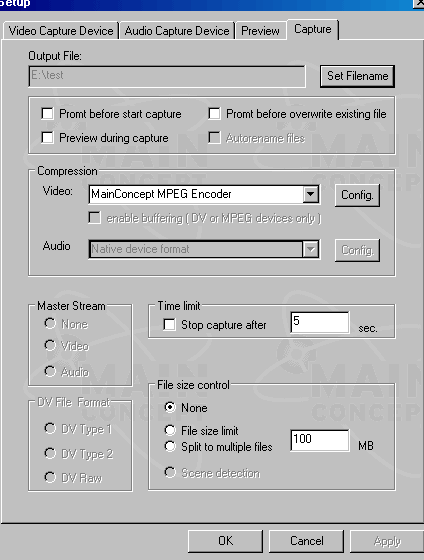


Finally, move to the Capture tab. This is the place to adjust DV card controls, the MPEG compression, and the output. Set the filename and location for the output file. It is probably a good idea to select “prompt before overwriting a file”. Preview during capture is optional. The MC capture utility can actually capture with most AVI codecs available on the system, but the sole reason to use MC is for the MPEG-2 encoding. There are better programs for AVI capture or DV transfer. Only use MC for MPEG. Under Compression, choose MainConcept MPEG Encoder. The other options on the page allow max file sizes (good for files that may exceed 4GB on a Windows system using the FAT32 file system), and time limits (great for letting it capture overnight). For the DV options, test to see what works best for you. 

MPEG Encoder settings

Go back to the Compression section and click Config to configure the MainConcept MPEG Encoder. By default, MC is set to PAL encoding settings, so you may get an error due to NTSC settings that were made a few moments ago. Click OK both times, and proceed to enter the settings. The settings used in this guide are bare minimums to achieve decent quality with no frame drops. If your system cannot capture with these settings without dropping frames, you will not be able to use MC for capturing. Not with good results, anyway. 
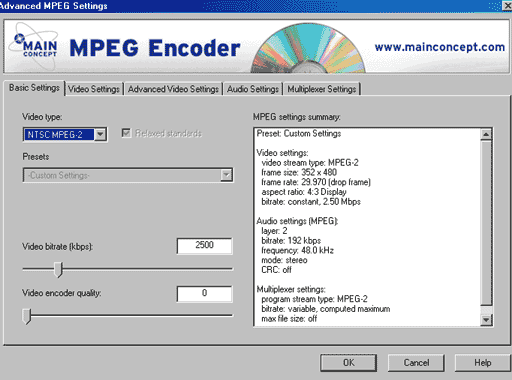


Start at the Basic Settings tab, and set to NTSC MPEG-2 video. This will bring up all the default settings. Select Relaxed Standards. The minimum acceptable bit-rate for encoding with this guide is 2500k. It would be preferable to have a 3500-4500k bit-rate, as long as your system can handle it without dropping frames. The same applies for the Video Encoder Quality option. Set it to 0 as a minimum, although better results may be achieved in the 20-40 range. Only raise it above 0 if your system can capture at that setting with no dropped frames. 
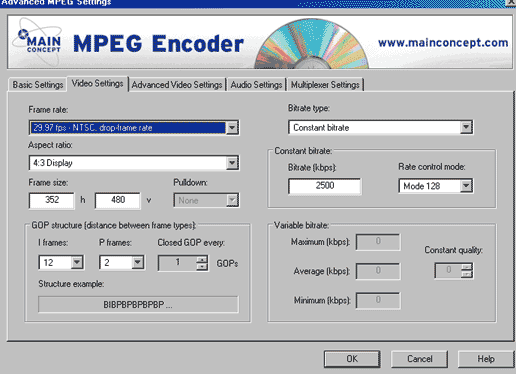


Go to the Video Settings tab. The Frame rate (in North America) should be set to 29.97 NTSC with drop-frame. The aspect ratio needs to be 4:3 Display. This guide will use the Half D1 DVD compliant MPEG encoding spec, 352x480 resolution. The GOP is yet another item that can be tweaked depending on your system performance. The default setting of 15-I and 3-P is optimal, but your system may not handle it. Use 12-I and 2-P instead. Because many DVD authoring applications require closed GOPs, select “1” for the Closed GOP option. 

The bit-rate can be adjusted as needed. This guide uses a minimum 2500k constant bit-rate (CBR) in Mode 128 or Fast Mode. A more optimal setting for the 352x480 size chosen is variable bit-rate (VBR) with a 5000k maximum, 3500k average, and 0k minimum. Your system may or may not work well with the optimal setting.
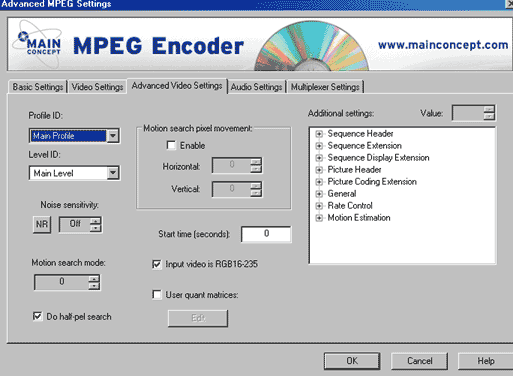


Next move to the Advanced Video Settings tab. In this window, advanced MPEG options can be set. DVD requires Main Profile at Main Level encoding (MP@ML). Click the NR to enable Noise Reduction. It is optional, and only supported on fast systems. Turn off for best system performance, and lower the number to “0”. Motion search mode can be left on default settings for fast systems, but can be set to a 0 minimum with a Half-Pel search for best system performance. If your video is an analog source like TV, cable or video tapes, you have RGB16-235 source. Select the Input Video is RGB16-235 option. The Additional Settings window allow users to custom tweak how the MPEG encoder operates. Never alter these unless you know what you are doing. Sites like www.videohelp.com and www.doom9.org discuss advanced techniques in their user forums.
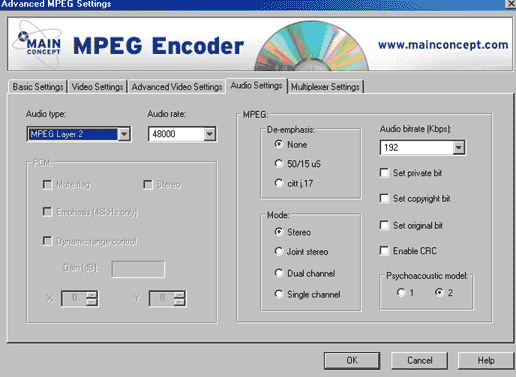


Now go to the Audio Settings tab. Select MPEG Layer 2 audio, and use the DVD standard 48000 Hz audio. The MPEG window should have no de-emphasis and be true stereo mode. The audio bit-rate should be 192k minimum, though 256k is optimal for fast systems. All other default settings are fine.
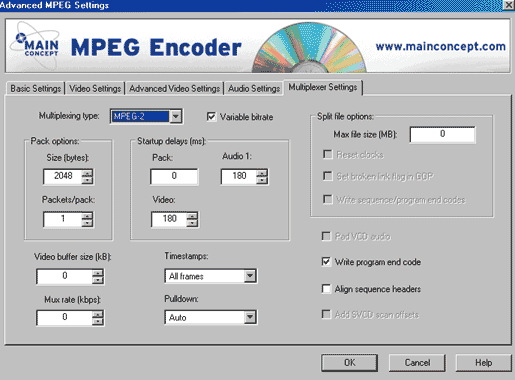


Finally, go the the Multiplexer Settings tab. The default settings are fine, with the exception of Pulldown. Pulldown should be set to “none”. Click OK to exit the MC Encoder settings and return to the capture console settings window.

Click Start Capture, and capture the video. Be sure the dropped frames stays at zero. Even 1 dropped frame can cause the audio and video to lose sync.  


Closing thoughts

Unlike the ATI guides, this guide is not guaranteed to work on all systems, although it may work quite often. Feel free to ask questions or report problems, but know that there is little more that can be suggested. Using a cheap video card is not the way to go when both quality matters and live MPEG capture is desired. 


Page Last Updated: May 14th 200
5

Print this guide: 


Guides provided non-profit and donations are appreciated. Site information and 
design copyright by digitalFAQ Media Solutions. All programs copyright by the respective owners.