Introduction to Video Encoding/Converting, Part 1
Video encoding is one of those important steps in a video that will determine whether the image output looks good or bad. The technical term for this process is ‘encoding’ but is often referred to as ‘conversion’ or ‘converting’. This guide will use both terms interchangeably.
What is video encoding? What is video conversion? Why do it?
Not all video is the same. Digital video can exist as any number of formats, using any number of settings. When a digital video file does not meet the specifications, or the file type is bad for the intended use, it must be converted to the proper format, using video encoder hardware or software.
What are Formats and Specifications?
The word “format” is used for many things in video, but it tends to confuse people for this very reason. So let’s clarify some definitions real quick:
Video Format: This include filetypes, like MPEG-1 (MPG), MPEG-2 (MPG), Quicktime (QT), RealMedia (RM,RMVB), Windows Media (WMV), H.264 (MP4), Divx and Xvid (AVI), FlashVideo (FLV), etc
Playback Format: This refers to the final product used when viewing the video. Examples include DVD-Video (DVD), VideoCD (VCD), streaming video (Youtube, Flash)
Video Specifications: For example, DVD-Video specification uses MPEG-1 or MPEG-2 with certain resolutions and settings only — any old MPEG-1 or MPEG-2 will not suffice. See the Understanding Your Source capture guide for some more information on the various digital specs for disc-based MPEG (VCD, DVD, etc).
When encoding video, you must consider (1) the original source and capture methods, (2) any later encodes that were performed, and (3) the intended output. Only by analyzing those aspects, and then considering all the options, can a high quality encode be performed. Converting video properly is not simply a matter of pressing the “Go” button in an encoder program.
Optimal Encoding Solutions
What are the best methods to encode video?
1. Avoidance. The first best method is to simply avoid it when possible. As was mentioned in the Introduction to Video Capturing guide, under some conditions there is nothing to gain by capturing to an AVI and encoding to MPEG later on. If you have an excellent capture card or DVD recorder that does a quality MPEG capture, then you can often skip the re-encoding step.
2. Start with quality source, to avoid re-encode degradation. The second best method is to start out with high quality uncompressed or low-compression formats — not a low-grade download from the Internet, be it Youtube or some other method. Uncompressed captures are usually done for one of 3 reasons:
(1) Because the capture hardware is inferior,
(2) because the device is a DV camera or limited to editing formats like MJPEG only, or
(3) because the video needed extensive editing.
After capturing/recording, and any needed editing, encode with settings appropriate for your project, be it a DVD, Blu-ray disc or Youtube/streaming media.
What are the conversion methods I should avoid?
Making bad video is really easy to do:
(1) Do not pay attention to the settings and open up the source file.
(2) Use a wizard in some encoder software and just guess at what you need. Or let the program take control and do it for you, often equally incorrect as a human’s blind guesses.
All-in-one tools are the worst. Again, converting video is not simply a matter of pressing the “Go” button in an encoder! Bad conversions will result in disappointing video quality!
Analyzing Sources
Not understanding the source files when encoding will often result in bad quality and playback problems. In order to encode an MPEG (or anything for that matter) into a decent quality video, you must understand the settings of the source file. Improperly converting frame rates, aspect, interlace or resolutions will result in a disaster.
There are two reasons a person will need to analyze the source:
1. If you did not capture the source then analyze the source.
2. If you captured it but did not pay attention to the capture settings, then analyze the source.
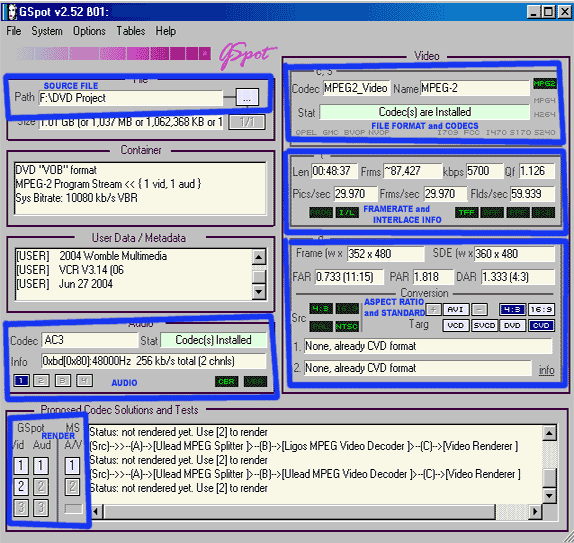
I find that the best tool for this purpose is GSpot Codec Information Appliance. See image below. Open the video file using the “…” button towards the top center of the screen. It will open the video and analyze it. You can render to see more detailed information about how your system currently reads the file, and if the proper codecs are installed on your system.
Software Video Encoders
Software is often chosen by home users and hobbyists, but also by studios and professionals at all levels. It takes time to encode with software — often many times longer than the video itself — but results can be quite excellent, depending on the program used. All encoders are NOT equal.
The following chart shows a few of the more popular encoders available, with information on suggested uses, quality and cost. Before committing funds to any piece of software, consider using trial versions if available.
| Encoder: | Cost: | Suggested use, more info: | Output quality: |
|---|---|---|---|
| TMPGEnc Plus Encoder | $37 | MPEG encodes, such as VCD or DVD. Suggested for pretty much any kind of source file, and will open most source files with codecs installed. Especially useful for the many built-in video filters to restore video. Enormous amount of encoding options. GUI and wizard-based interface. | Very good output quality. Has tendency to have slight noise in files, even with decent bitrates, but not overly noticeable. Pretty faithful to the source. Fully customizable. |
| MainConcept Reference | $450+ (or $Free Included in NLE) | Encodes from high quality sources, or as an output encode from editors like Adobe Premiere and Sony Vegas. Easy GUI interface. Converts to many formats, including MPEG-2, H.264/AVC and others. | In recent years, MainConcept has come to be one an industry standard software encoder, known for its excellent quality, surpassing competing products. |
| VSO ConvertXToDVD | $50 | Converts many popular Internet format videos, such as AVI, XVID, Divx, and MKV to DVD. Good hobby/consumer software. | Quality is very good, and the encoder is very fast. Support 1-pass or 2-pass encoding. |
| Grass Valley Procoder | $395 | Professional MPEG and streaming video. Only suggested for self-captured high quality AVI files or DV camera footage. Exists as standalone or as plugin for NLE timeline output. GUI and wizard-based interface. | Excellent high quality, known as quality professional encoding application. Fully customizable settings. MPEG output often looks indistinguishable from the uncompressed source. |
| VirtualDub | $Free | AVI codec encodes, such as HuffYUV format. Output options depends entirely on the installed system codecs. GUI interface. | Depends entirely on the settings and codecs being used, but can achieve quite acceptable results in decent quality. Fully customizable. |
| Cinemacraft Encoder (CCE) | $2,000 | Only able to encode MPEG from AVI source. Exists as standalone or as plugin for NLE timeline output. GUI interface. Very expensive for what you get. | Very good output quality. Tends to add mosquito noise to the video a bit, so not overly faithful to the source. Fully customizable. |
Beyond software titles, there are some general comments that can be made about types of encoding software that exists out there. A few examples:
Freeware: BBMPEG, QuEnc, HC Enc
Price: $Free
About: Free encoders. Usually very limited in scope, only able to open certain kinds of files. Not suggested. Usually GUI interfaces, though some are command-line.
Output Quality: Often mediocre quality at best. Some of the better ones have near-eternal encode times. Usually not worth the hassle, spend $50 on a good encoder if available.
All-In-One tools: Nero, Roxio, Toast
$Free to $100
About: Never suggested. Usually wizard-based interfaces.
Output Quality: As discussed above, all-in-one tools blindly encode video, often giving dismal results.
Proprietary tools: Quicktime, Real, Window Media Encoder
Price: $Free to $100
About: Only suggested for proprietary encodes. Tools released in-house by the format creators. Usually wizard-based interfaces.
Output Quality: Usually quite decent, tools are dedicated to their formats.
Hardware Video Encoders
As mentioned above, software encoding takes time, often many times longer than the video’s running time. That’s fine for casual projects or even professional projects where it’s been budgeted into the calendar. But for many professionals and broadcasters, that’s not fast enough! Enter hardware encoders. We’ll add more on this topic in the future.
Copyright Notice: All guides, articles and editorials found on digitalFAQ.com are copyright by The Digital FAQ and/or the respective authors. Articles may not be copied, borrowed, full-quoted or reproduced in any manner, online or in print, which includes blogs and forums, without the written email consent of Site Staff (which may or may not be given, for free or fee). Know that digitalFAQ.com staff does routinely monitor online plagiarism, and we do send takedown notices to site admins and/or web hosts (DMCA et al legal actions) as is necessary. If you would like for others to read articles found on The Digital FAQ, simply link to our content. (Note: Printouts for personal use is specifically allowed.)