Introduction to Restoring Video Quality: How to Improve Video with Filters
Before reading this guide, it needs to be understood that restoring video is not magic. The only goal of restoration is to create a product that looks better than the source. Results will vary, depending on the many factors discussed below. While one project can reap significant changes, others may only slightly improve.
To be blunt, if you are reading this and hoping for some miracle to turn garbage quality homemade VHS source (or bad quality downloads) into a perfect studio-grade DVD, you are kidding yourself. It won’t happen. Again, the best that can be expected from restoration is a final product that looks and sounds better than the source.
There is no such thing as a “one size fits all” method to restoring video audio or video. There is not any software with a “restore” checkbox or filter. This takes skill and investment into the right kind of equipment. It will take lots of time, it will take lots of money. There will be much trial and much error. Restoration is what separates the dedicated video hobbyists from the rest of the crowd. Are you ready?
Understand that the video restoration process does not start with filters in software. While this guide may help with already-digital files, it is aimed at those converting damaged analog source, like ancient VHS tapes. Restoration requires three steps: (1) purifying the video signal, (2) a quality capture with a good capture device, and (3) filtering the video one last time in software.
Hardware Requirements
It is almost guaranteed impossible to restore video with average consumer equipment. Best Buy VCRs and Walmart wires won’t cut it. The basic video hardware required for excellent quality restoration starts at about $400 US and goes up from there. That amount is for just a few basic items (sale-priced too!), and does not even include a decent capture card. This fact alone turns off most people from trying to restore video. Deal-hunters can scrape as low as $300 if they really try. The ideal setup for a home user wanting to guarantee himself or herself good results will top near $1200 US for the video hardware, which again does not include the capture card. Even deal-hunters will have a hard time getting below a $600-700 US price tag. For most people, especially ones wanting to tackle all kinds of projects, expect to spend $1500 or more.
A professional or semi-professional (prosumer) VCR is the single most important piece of equipment for restoration. Restoration starts at the source. The best decks are typically S-VHS decks, not because they play S-VHS, but because they come with many embedded filters and enhancers. Victory Company of Japan (JVC) makes some of the most popular models, such as the HR-S9911U and SR-V10U. Many of these also include digital noise reduction time base correctors (DNR/TBC). This has the most affect on “cleaning” an image.
Another useful item, if funding is available, is a separate time base corrector (TBC), preferably a full-field, full frame-sync model. The purpose of a TBC is to strip the video signal of its damaged timing and insert a new, clean timing. This will remove many motion errors, such as jittering video and brightening/darkening of the image. Since Macrovision (MV) is nothing more than an artificial video error, the side effect of a TBC is MV removal. Because many capture cards and DVD recorders are super-sensitive to MV, owning one of these devices is becoming more common. The DataVideo TBC-1000 and AVToolbox AVT-8710 are two good models of TBC.
Finally, a good capture card is required. I use an ATI All In Wonder card, which uses the high quality Theatre chipset. I also use DVD recorders based on the high quality LSI DiMeNsion chipset. Hauppauge, Matrox and Canopus also make some great products. Choose carefully and do a lot of research.
The path of the video signal is important for restoration:
1. Cheap Method with limited results:
Source tape -> cheap VCR heads -> playback circuitry -> cheap wires -> cheap card -> free or cheap software
2. Optimal Method with good results
Source tape -> 19-micron S-VHS VCR heads -> good playback circuitry with audio/video playback filters and DNR/TBC -> gold insulated Monster cables -> frame sync TBC -> gold insulated Monster cables -> high quality capture device -> quality filtering/capturing software
Software Requirements
Many video programs come with some sort of filtering abilities, either as capture filters, or as post-process filters. Capture filters are more limited in effectiveness, and strain the CPU. The ATI MultiMedia Center (using the VideoSoap option in version 8 or 9) and VirtualDub can both use filters on capture, and are perfect for situations when only mild corrections are needed. Post-process filters are applied during a later encode session, after the capture is done.
For video restoration, it is suggested to capture in uncompressed AVI, and then apply filters during the MPEG encoding phase. Many editors like VirtualDub, Adobe Premiere and Vegas Video incorporate some sort of video filters. This guide will focus on filters found in TMPGEnc, but the techniques may apply to other software too.
Error Glossary and Solutions
Most of these are not technical terms. Tech terms tend to confuse people, myself included. Many of these are descriptive and are how things are referred to in the guide. If you know the tech term, CONTACT US at the top of the page.
(1) Pinking/Greening: This is an error that is normally caused from tapes that were made on cheap VCRs, normally ones with misaligned heads or only two heads. The top 10 percent of the image seen on screen flickers pink and/or green. The only way to restore this error is to crop the image so it is no longer seen. In TMPGEnc, this is done by cropping in on the image with the crop filter. Go to the Advanced tab, and double-click on the Crop filter. There are three sections to this filter: Clip Frame, Arrange Settings, and Mask Color Setting. Resized Image Used To Display should be checked. Chop off about 20 units from the top, or however many are needed to remove the pink noise. Go under Arrange Settings and use either of the Full Screen options that maintains the aspect ratio. Always maintain the aspect ratio.

(2) Clear-Water Effect: This is an error named because of the way it resembles ripples in clear shallow water. Parts of the video on screen are wiggling, with such a ripple effect. There is really no way to correct this in the software. This is an error caused from timing errors on the analog video tape. The DNR/TBC on S-VHS VCRs is known to remove this. Sometimes a VCR can cause this, so try the tape in several VCRs.
(3) Top-Screen Tearing: This is another timing error of an analog tape, causing the top 10 to 25 percent of the image to be distorted. The best way to fix this is by using the DNR/TBC on an S-VHS VCR. Also try it in several VCRs, as the deck can cause this error too. Stabilizers (like ones built into JVC units) may help. A standalone TBC may help. If none of these options fix it, then you will have to crop it out, using the same method described for pinking/greening.

(4) Red/Blue Chroma Bleeding: This error can be caused by the VCR not getting enough power. If it is in a surge strip with other devices, remove the other device or plug the VCR directly into a wall outlet. If the error persists, clean the heads of the VCR (dismantle the unit, and gently swab the heads with an alcohol-soaked cotton swab – do not use a “cleaner” device). If the problem is not too severe, the DNR/TBC on an S-VHS VCR has been known to reduce or remove it. DVD recorders using the LSI DiMeNsion encoder chipset also remove this during the MPEG pre-processing phase of encoding. The only fix available for software is to reduce the color saturation. This may in fact be needed if the hardware alone cannot correct the problem. In TMPGEnc, under the Advanced tab, double click on the Custom Color Correction filter. Add the YUV Saturation filter and reduce the saturation slightly.
(5) Chroma Flux/Contrast Flux: This is where the video gets brighter and darker, alternating every minute or so. This is typically anti-copy (an artificial video error like Macrovision) present on the tape, or the tape signal is damaged. The timing of the signal is corrupts and the automatic gain control (AGC) or the VCR is confused. A standalone TBC will normally remove this problem. Software cannot really fix this, not easily, not with home solutions.
(6) Vertical (Up-Down) Jitter: The timing of the videotape is corrupted. A standalone TBC will normally stabilize the video. The stabilizer filters in some VHS and S-VHS VCRs can also correct this. Software cannot really fix this, not easily, not with home solutions. There are some Adobe Premiere and Final Cut Pro plug-ins that attempt to correct these kinds of errors, but take countless hours of processing, and may not correct the problems.
(7) Horizontal (Side-Side) Jitter: This error is normally seen on copies of copies of copies … about 10 generations later. Software cannot really fix this, not easily, not with home solutions. There are some Adobe Premiere and Final Cut Pro plug-ins that attempt to correct these kinds of errors, but take countless hours of processing, and may not correct the problems.
(8) Rotational Motion/Jitter: See Horizontal Jitter.
(9) Interlace Artifacts: These are often seen on homemade Video CDs (VCD) and other de-interlaced formats. Before DVD was available, many video enthusiasts used this low-resolution format, often butchering their video in the process. As explained in the capture guides, de-interlacing has a very negative affect on video, as it is essentially a process of throwing away half of the video data. The de-interlace leaves stair-steps on curved lines. Because these stair steps tend to look alive on screen, often moving erratically, they are worth removing. The best that can be done is to hide this damage, using a combination of several TMPGEnc filters. The side affect is softer video, but television sets are already soft focus playback devices, so it should not be too noticeable. Open TMPGEnc, go the Advanced tab under settings, and double-click on the Sharpen Edge filter. Move the vertical sharpen to the most negative setting. Move the horizontal sharpen to halfway between zero and the most negative number. Click OK, and then go to the Deinterlace filters. Select a Double de-interlace filter. A double (blended/merge) de-interlace filters will smoothen progressive video. On the Quantize Matrix tab, enable 25-75 block noise softening. Finally, some noise reduction may help using the Noise Reduction filter, maybe a setting of 40-2-40.
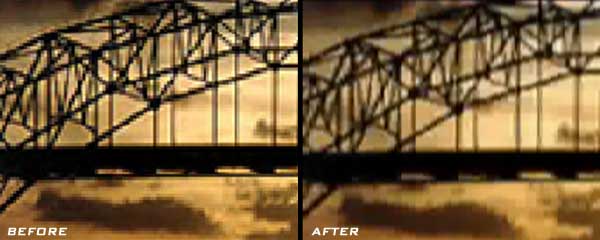
(10) Macroblock Artifacts (Digital Grain): Macroblocks are the artifacts made from having inadequate bit-rate for compressing MPEG at a certain resolution. Noise reduction filters found in TMPGEnc and VirtualDub are excellent are removing noise
(11) Analog Grain: Much like macroblocks, noise reduction filters can remove grain from analog sources. Analog noise/grain is inherently native to the format. Analog is lossy.
(12) Color Loss and Color Shift: Color problems, while they look like the hardest things to fix, are actually one of the easier problems to correct. There is typically not one single filter that can correct the issues, but a chain of several filters may do the trick. The TMPGEnc Custom Color Correction filter is an excellent tool for this. You can add as many filters as you need to correct an issues. Even the most serious color problems. A good proc amp can also fix this.
(13) Tape Tracking Errors: This can only be corrected by using a better VCR. If the tape is damaged beyond repair, capture as best as possible, and then crop out the bad area. Follow the instructions given for the pinking/greening error.
(14) Static Lines: These are little glitches seen on screen. It is caused from the tape particles coming off the tape, leaving these little static lines behind. There is no data available, in fact there is no tape available. This is most often seen on tapes that have been re-used several times. It can also happen on cheaps tape used in S-VHS-ET recording mode. Nothing can be done about this except to use better tapes and not make the mistake again. Some professional DV devices (Matrox and Canopus) have been known to replace this drop-out with information from the previous or following frame.
(15) TV Snow Grain: See Analog Grain
(16) Image Ghosting: There is really no way to remove ghosting with hardware or software. While both S-VHS VCRs and software have “ghost reduction” filters, they do almost nothing. This error is typically caused from power-related problems or grounding issues with coaxial cables. The best fix is normally to replace cables with better-shielded cables. Use RG6 and not cheap RG59 coax. Use gold plated, and insulated, s-video and composite video cables. Be sure the power signal is clean, consider getting a power filter for the electrical outlet. Some hardware detailers have been known to help minimize this error.
(17) Color Bleeding: This is caused from degraded VHS tapes, and is normally fixed with a color correction. Desaturating the video slightly and lightening the gamma of the image, both available in the TMPGEnc color filters, will lesser than harshness of the error.
(18) Non-Errors: A non-error is typically caused from user error. It’s not truly a video error – it’s an error between the chair and the keyboard. Digital mistakes, like reverse interlace and dropped frames, cannot be fixed in software. The way to correct these issues is to properly encode or capture the first time around.
Conclusion
Video restoration is an advanced aspect of video conversion, one that comes with a hefty price tag and requires lots of patience. There is not a “restore” button in software that will magically restore video. Although “garbage in, garbage out” is a very true statement, it can be tweaked a bit to “garbage in, better-than-garbage out.” The entire goal of restoring video is to simply make it better, not to make it perfect – mainly because perfection is impossible. There are many kinds of video errors, and 18 of the most common ones have been listed in this guide, complete with solutions.
Copyright Notice: All guides, articles and editorials found on digitalFAQ.com are copyright by The Digital FAQ and/or the respective authors. Articles may not be copied, borrowed, full-quoted or reproduced in any manner, online or in print, which includes blogs and forums, without the written email consent of Site Staff (which may or may not be given, for free or fee). Know that digitalFAQ.com staff does routinely monitor online plagiarism, and we do send takedown notices to site admins and/or web hosts (DMCA et al legal actions) as is necessary. If you would like for others to read articles found on The Digital FAQ, simply link to our content. (Note: Printouts for personal use is specifically allowed.)