
How to Capture AVI Video with ATI All-In-Wonder Card (AIW)
This guide will make you an excellent quality AVI file that is suitable for editing in packages such as Adobe Premiere and Vegas Video. Why capture AVI when the ATI can do so well at MPEG? Well, MPEG is an compression format made for content distribution, and it’s not really suitable for advanced video editing. For editing purposes, an uncompressed or lossless AVI format is often a much better choice. And due to the enormous sizes of uncompressed AVIs, many choose to use a mild or lossless compression, such as HuffYUV, Lagarirth or MJPEG. This guide will cover all of these methods.
Capturing AVI with an ATI AIW – Getting Started
1. Hardware/software required to use this guide. Any ATI All In Wonder Radeon card, or similar card based on Rage Theatre or Theatre 200 chipset architecture, using ATI MMC. This guide was originally built and tested with ATI AIW Radeon 7200 cards (one PCI and one AGP). I use the ATI MMC 8.7 and the ATI MMC 8.9 software that comes with the card (the TV icon) and the 2003-2004 ATI Catalyst and WDM and Control Panels drivers that are also available for download in our forum. Do not use MMC 7.6 or below (MMC 7.7 is the minimum allowed for good quality).
2. Know the basics. Be sure to read the various capturing guides and articles, such as Understanding Your Source, or else you may become lost when I started discussing topics like interlace and audio.
3. Sound. Be sure you have a decent dedicated sound card (not onboard sound) and that everything is properly hooked up. Be sure the VCR is setup properly. Unhook all unused connections on the computer and VCR, as it can cause noise and electrical errors. (And again, ATI MMC 7.6 and below did not allow 48kHz audio capture, so be sure to have ATI MMC 7.7 or higher.). SoundBlaster cards are suggested.
4. Install the codecs. HuffYUV, Lagarith and MJPEG codecs most likely do not come with the card or with your system. You can download HuffYUV in our forum. Do NOT install a codec pack on your computer.
5. Macrovision. Macrovision is an anti-copy system made to prevent you from copying tapes. It’s a video error that is artificially inserted into analog tapes and corrupts the video signal. However, this method of anti-copy is flawed, as incorporated into ATI hardware, and often causes issues trying to convert unprotected home video tapes. It has to be removed. Download the ATI hacks from our forum, and read the instructions in the post. Or better yet, just buy a timebase corrector (TBC).
Capturing AVI with an ATI AIW – Creating a Preset
The presets that come with ATI MMC are complete garbage, and I would guess that an IT “computer person” made these rather than a videographer. These factory-made default settings do not account for interlace, the aspect ratios are often wrong, the frames-per-second setting is often wrong, and the resolution is often wrong. So this guide will teach you how to make your own presets.
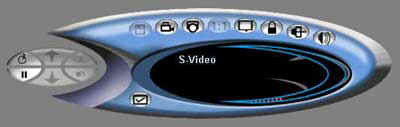
ATI MMC dock. The above image is the ATI MMC control menu, docked on screen when capturing video, alongside the preview window. The checkmark box takes you to the settings button. The movie camera is the record button.
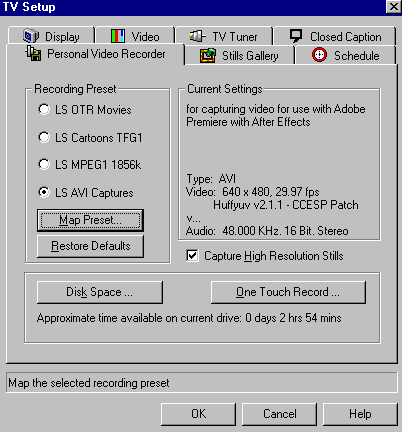
TV Setup. Clicking on “Map Preset” will allow you to change any of the four presets to something else. There can only be four shown at one time, but dozens of them can exist on your system.
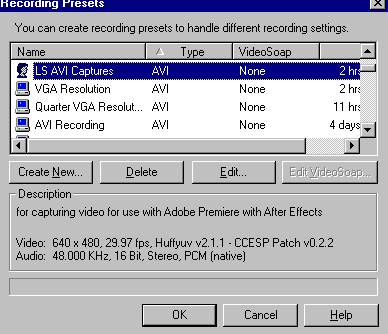
Recording Presets. After clicking “Map Preset” on the previous page, you should get this screen. You can select another preset, edit your current preset, or make a new one. Click Create New… and we’ll make a good one.
Please note that the best way to create a new AVI capture template is to select an existing AVI template and alter it. As long as you change the name of the preset, it will not overwrite the old template. The older ATI MMC 8.x also disallows creation (Create New… button) of both AVI and MPEG at the same time, however editing an existing AVI template is the workaround.
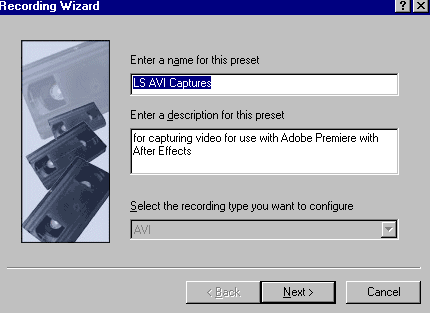
Recording Wizard. Name the preset and enter a description. This is how it will appear on the settings menu. Click Next.
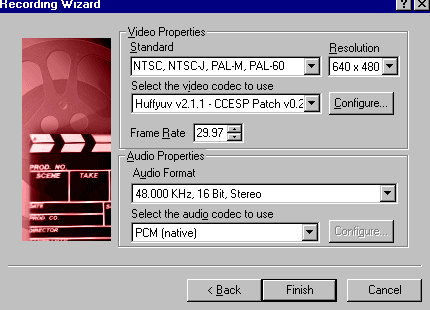
Select the codec, frame rate, standard and resolution. North Americans choose NTSC 29.97 fps and Europeans choose PAL 25 fps.
I like to use 640×480 as that is true 4:3 aspect ratio. It is convenient to maintain aspect while editing. Not all editing packages and its plug-ins will respect the 4:3 on 720×480 resolution. Plus I plan to encode to 352×480 later on, not to mention that the source footage is often no greater than 352×480. Feel free to use 720×480 when creating 720×480 DVDs, as the 640×480 is just my preference.
Also feel free to use another codec. I tend to use Huffyuv. If your system drops frames with Huffyuv, then try MJPEG or uncompressed UYVY or YUY2.
Select 48kHz stereo audio. (MMC 7.6 and earlier only allows 44.1kHz audio. Versions 7.7 and above allow 48hz capture.) Try to change it to 48kHz. Otherwise you’ll have to let an audio program change it to 48kHz. Another reason to upgrade to a modern 8.x or 9.x ATI MMC version.
Record AVI Video with the ATI All In Wonder
Return to the ATI dock, and click on the record icon to bring up the recording/capturing sub-menu.
On the new menu that pops up, again click on the camera icon to begin recording your video.
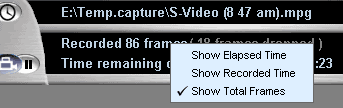
Record menu. Be sure to change the frames recorded/dropped count from a percentage and time to actual frames captures and actual frames dropped. Otherwise it would probably just show 1% dropped all the time (you always drop during the first second of a capture). Right-click to make this change. And then watch it every 30 minutes or so if you can.
More Options in ATI MMC
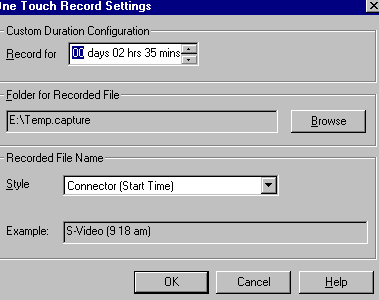
One Touch Record. This is a nice feature to capture a 6-hour tape and walk away. It can set auto-naming of capture files too. This is found on the Digital VCR or Personal VCR screen after clicking One Touch Record, in the ATI settings (via checkmark in the ATI dock).
Dropped Frames with an ATI All In Wonder
Video capturing demands a lot from your system. Although the ATI All In Wonder Radeon card chipsets (Rage Theatre and Theatre 200) use a form of hybrid hardware-software encoding on MPEG, the AVI capture is pure software. Fast systems, notably Intel Pentium 4 or better systems, seem to perform best with AVI capture, especially if using a codec for compression. Be sure to read the dropped frames guide, if needed.
Copyright Notice: All guides, articles and editorials found on digitalFAQ.com are copyright by The Digital FAQ and/or the respective authors. Articles may not be copied, borrowed, full-quoted or reproduced in any manner, online or in print, which includes blogs and forums, without the written email consent of Site Staff (which may or may not be given, for free or fee). Know that digitalFAQ.com staff does routinely monitor online plagiarism, and we do send takedown notices to site admins and/or web hosts (DMCA et al legal actions) as is necessary. If you would like for others to read articles found on The Digital FAQ, simply link to our content. (Note: Printouts for personal use is specifically allowed.)
