How to Fix MPEG Field Order with Restream
Although this guide has specifically been written for correcting a known issue in certain versions of ATI MMC, it will apply to any situation dealing with reverse interlace. As you may have read in the UNDERSTANDING YOUR SOURCE guide, interlacing is a process of displaying video in a weaved pattern (although it will appear perfectly normal played back on an interlaced device like a television set). The fields, often called “A” and “B”, “top” and “bottom”, or “odd” and “even”, can be in either order. That is, one will go first, and the other follows.
The headers of the MPEG file stores the information about which field goes first. If these header flags are incorrect, the wrong field will play first, causing a horrible stuttering effect in the video, especially noticeable on side-to-side motion and panning shots.
The fix is simple: reverse the interlace information in the file, and it should be correct. This can be done with a simple MPEG properties adjustment in the freeware software ReStream, or with a full re-encode in an encoder program like TMPGEnc Plus.
Restream
This is a very simple program. Everything is contained in the main window of the software, there are no menus or other fancy settings. What you see is what you get.
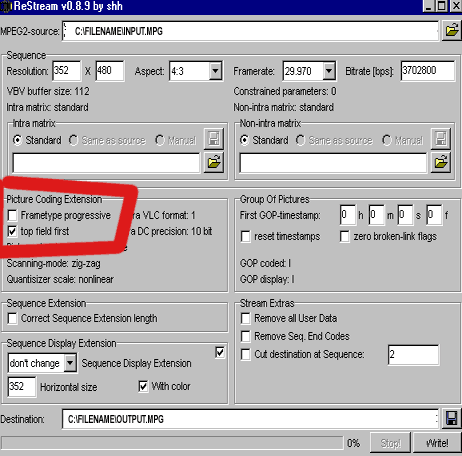
Click on the folder at the top right side of the program to open your source file. Once it loads, it will auto-select the current interlace method. If the MPEG files is BOTTOM FIELD, it will have no boxes checked. If the TOP FIELD box is checked, the MPEG file has top field flags in place. If the PROGRESSIVE box is checked, the file is not interlace.
Note: If the MPEG is supposed to be interlaced, and has the combing affect … AND is saved as a progressive MPEG format, the video was encoded improperly and may need to be re-encoded.
To alter the MPEG interlace information, merely alter the settings in RESTREAM to pick the opposite of what was loaded. In this example above, TOP FIELD was select when the file was opened. The file plays back with a stutter on tv, and therefore has incorrect interlace settings. In the example, UNCHECKING the top field box will make the file BOTTOM FIELD, which is the correct MPEG setting.
Name the new file in the DESTINATION window, and then click the SAVE icon (floppy disk) to save the new file. It should only take a few minutes at most. This is NOT a re-encode, but merely a correction of the MPEG header data.
Advanced Usage Note: The GOP options (reset timestamps, zero broken flags), the Sequence Extension option, and the Stream Extras (remove user data, end codes) may be useful for repairing damaged MPEG files. This is outside of the scope of this guide, but a good feature to note for the “just in case” scenario when dealing with bad MPEG source. Altering the resolution, framerates, aspect and bitrate is NOT suggested under any circumstances.
TMPGEnc Plus Encoder
Although correcting an MPEG without encoding is the best solution, it may not work 100% of the time. Some files are just stubborn. This is often the case after an MPEG file has been re-encode too many times, and the field information becomes jumbled beyond repair.
Guide note: This section of this interlace correction guide will only show the pertinent settings found in TMPGEnc for correcting interlace. See the Convert Using TMPGEnc Plus page for a full TMPGEnc Plus encoding guide.
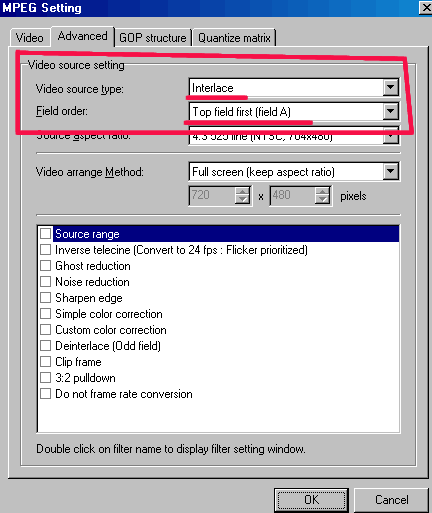
On the ADVANCED settings page, at the top, is the SOURCE information regarding interlace. This tells TMPGEnc how to interpret the source that it will be encoding an MPEG from. Always be sure to correctly instruct the encoder how to read the source file.
Do not rely on TMPGEnc to properly read the interlace information when it opens the file. Very often it is wrong and assumes the source is BOTTOM FIELD INTERLACED, which is often incorrect because most capture cards grab from the top field first. Only DV and a minority of devices grab bottom field interlace.
After the SOURCE information is set up, be sure to set up the DESTINATION information:
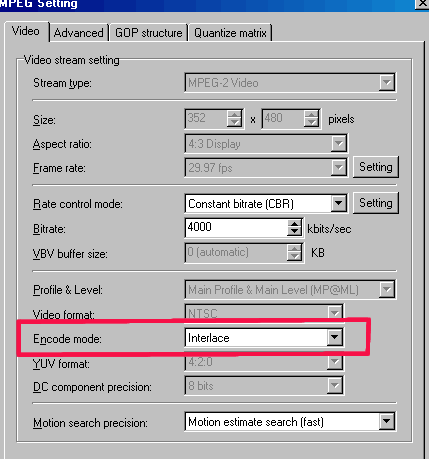
The ENCODE MODE must specify INTERLACE as the encoding format. It will encode the new file in the same interlace mode specified in the SOURCE SETTINGS. If the source was top field, the new field will be top field. If it was bottom field, the new file will also be bottom field.
When using this guide to correct MPEG interlace problems, open the file up with the correct interlace settings, and then the correct interlace encode mode. Match the video bitrate and resolution of the source for the fastest encode times (often approaching realtime or faster).
Copyright Notice: All guides, articles and editorials found on digitalFAQ.com are copyright by The Digital FAQ and/or the respective authors. Articles may not be copied, borrowed, full-quoted or reproduced in any manner, online or in print, which includes blogs and forums, without the written email consent of Site Staff (which may or may not be given, for free or fee). Know that digitalFAQ.com staff does routinely monitor online plagiarism, and we do send takedown notices to site admins and/or web hosts (DMCA et al legal actions) as is necessary. If you would like for others to read articles found on The Digital FAQ, simply link to our content. (Note: Printouts for personal use is specifically allowed.)